

Client forms
The Forms tab on a client hub lists every form filled for the client, including fact finds and general forms such as a risk questionnaire. Start a new one with Generate a form at the top of the hub.
Where to find it
Open the client, then click the Forms tab.
URL:
https://app.templi.ai/clients/<client>/forms
Fill a form for this client
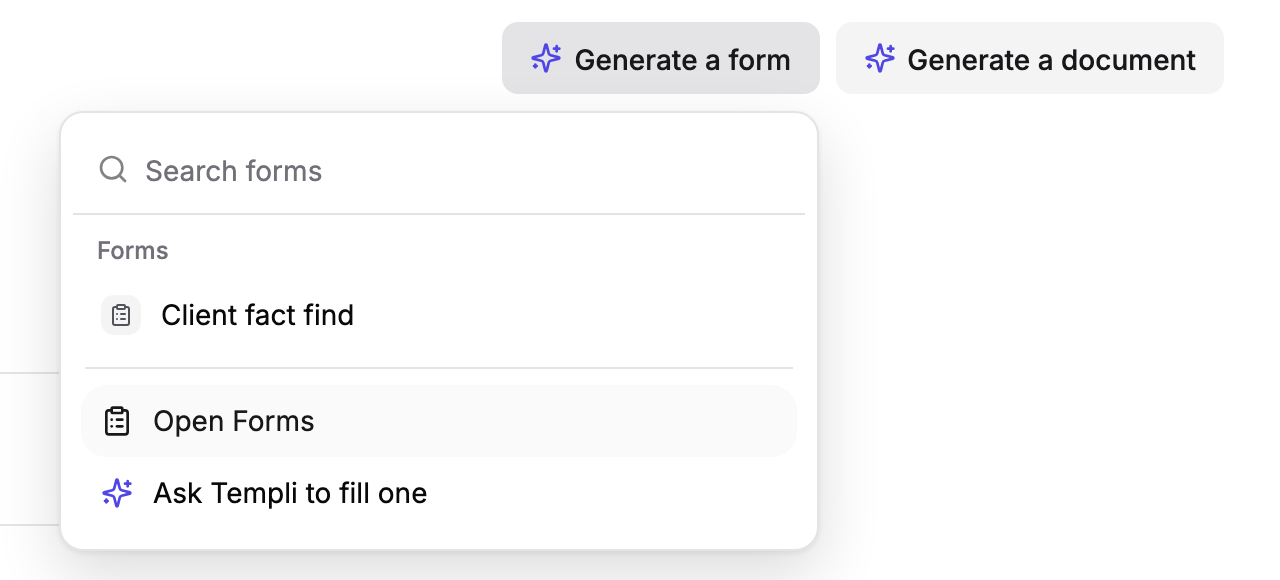
Click Generate a form at the top of the hub.
Pick a form, or type in Search forms to find one. To have Templi choose and fill one from your description, choose Ask Templi to fill one.
In the dialog, check the client under Clients, add any Files and sources for Templi to read, and use Anything the agent should know for instructions.
Click Fill.
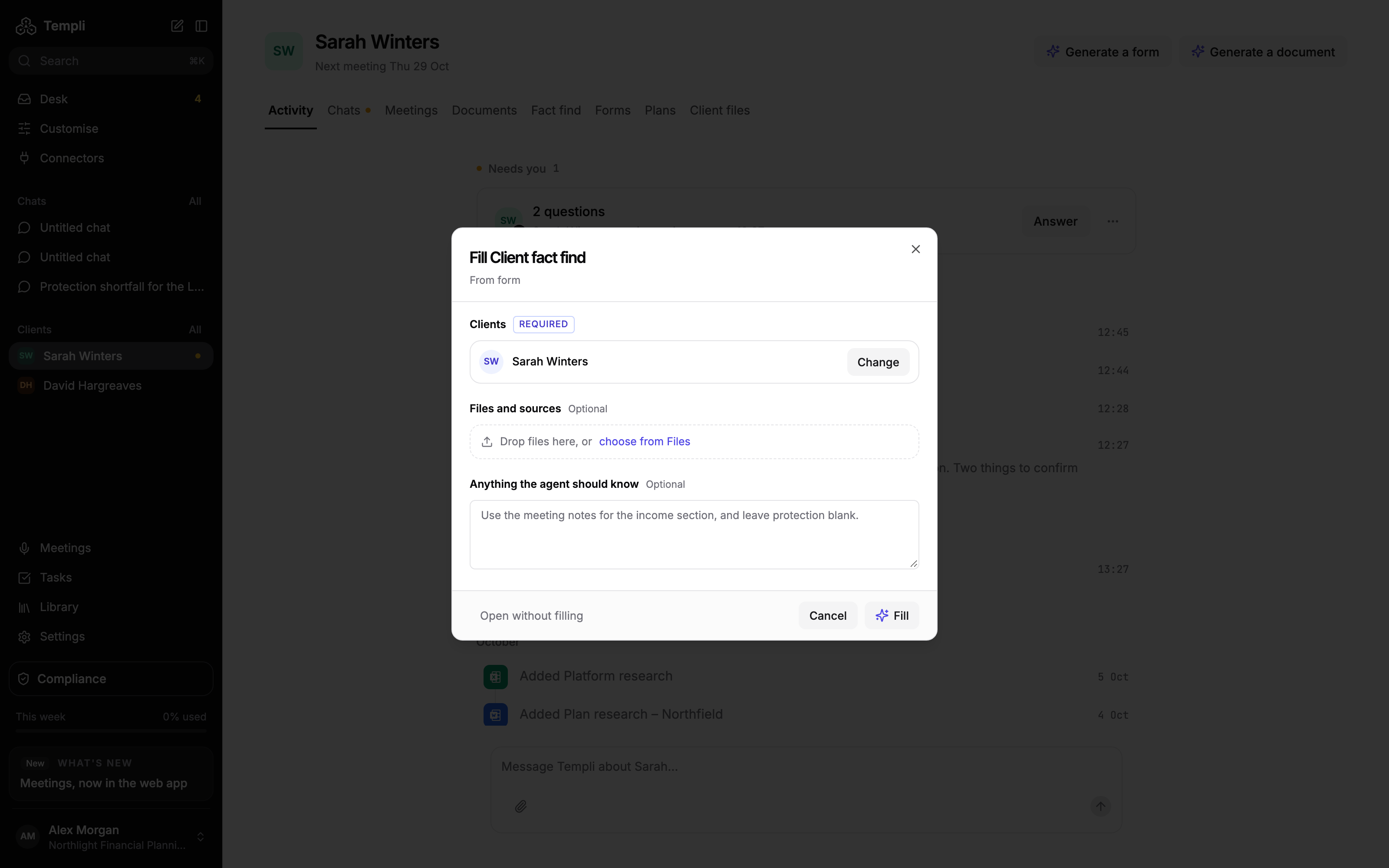
The form opens at https://app.templi.ai/forms/<form>/fill while Templi fills it. To open it empty and fill it yourself, click Open without filling instead. Fill a form covers reviewing and completing it.
The forms you can pick are the ones your firm has built in Customise > Forms, at https://app.templi.ai/forms.
Find a form
Each row shows the form's name, its type, its status and when it was last updated. The type is Fact find or General. Click a row to open the form.
To run or review the client's main fact find, use the Fact find tab, which shows the latest completed version and its history.
Ask Templi
Click Ask about and the client's name at the bottom right of the tab. For example:
Fill our attitude to risk questionnaire for Sarah Winters from last Tuesday's meeting notes.
Fill the protection needs form for Sarah using her fact find and her current life cover policy.