

Calendar settings
Connect your Google or Outlook calendar so your client meetings appear on the Meetings page, and choose whether Templi Notetaker joins your video calls automatically.
Where to find it
In the sidebar, click Settings, then the Meetings tab, at https://app.templi.ai/settings/meetings. The page has a Calendar section and a Notetaker section. The Connect calendar button on the Meetings page brings you here too.
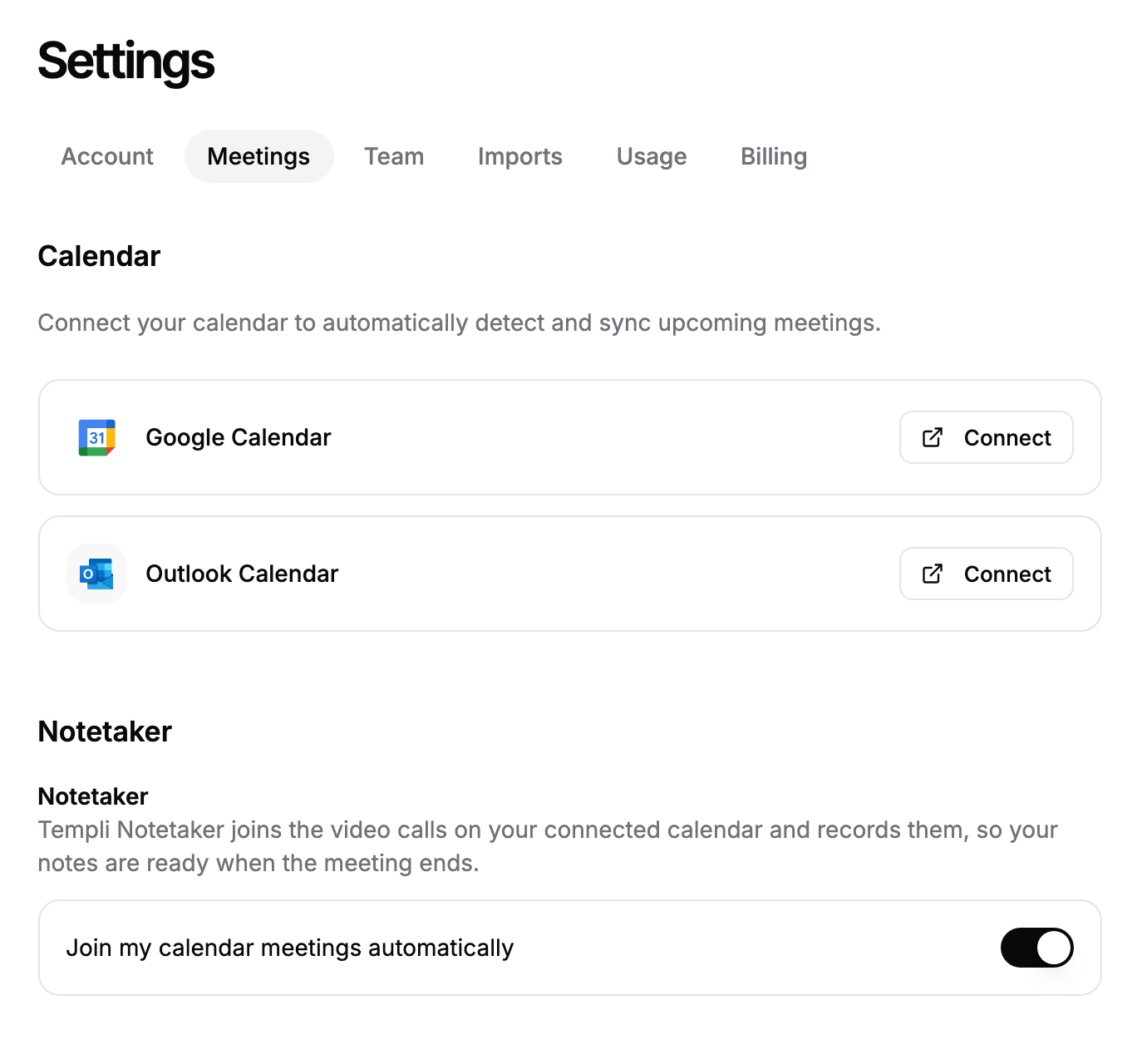
Connect your calendar
You need to be able to sign in to the Google or Microsoft account that holds your work calendar. Templi cannot connect a calendar for you from chat, because the sign-in is yours.
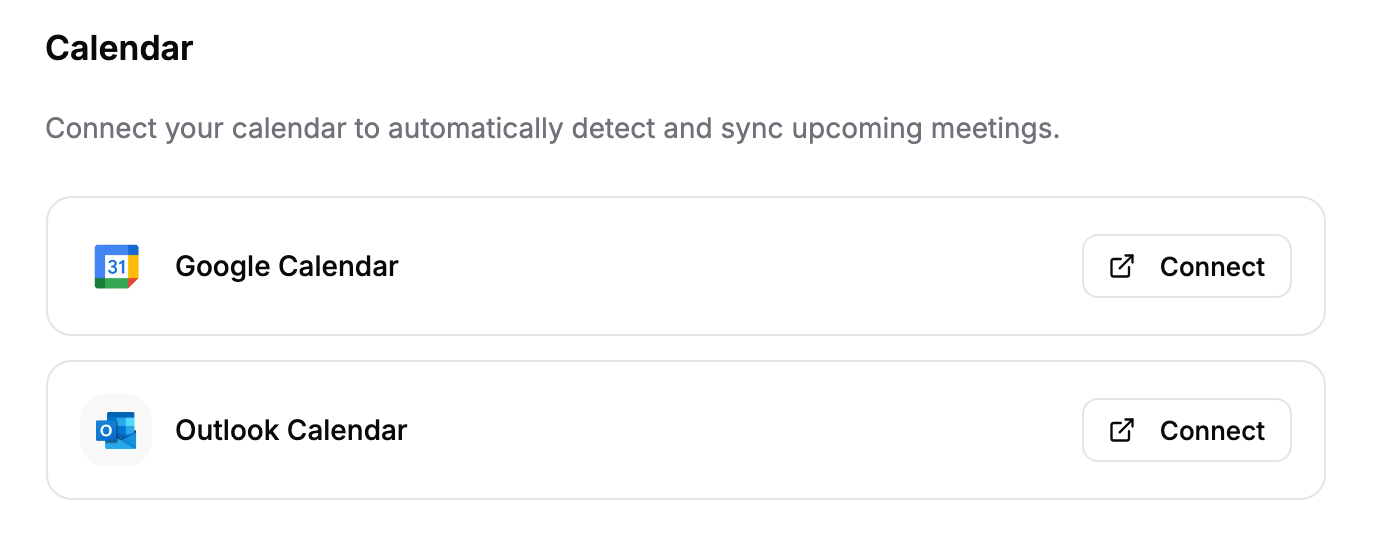
In the Calendar section, click Connect next to Google Calendar or Outlook Calendar.
Sign in to your Google or Microsoft account in the window that opens, and allow Templi access.
Return to Templi. The calendar shows Connected.
Your upcoming meetings then appear on the Meetings page. For what each provider shares, see Google Calendar and Outlook Calendar.
Let the notetaker join your calls
Templi Notetaker joins the video calls on your connected calendar and records them, so your notes are ready when the meeting ends. In the Notetaker section, turn on Join my calendar meetings automatically. The change saves straight away.
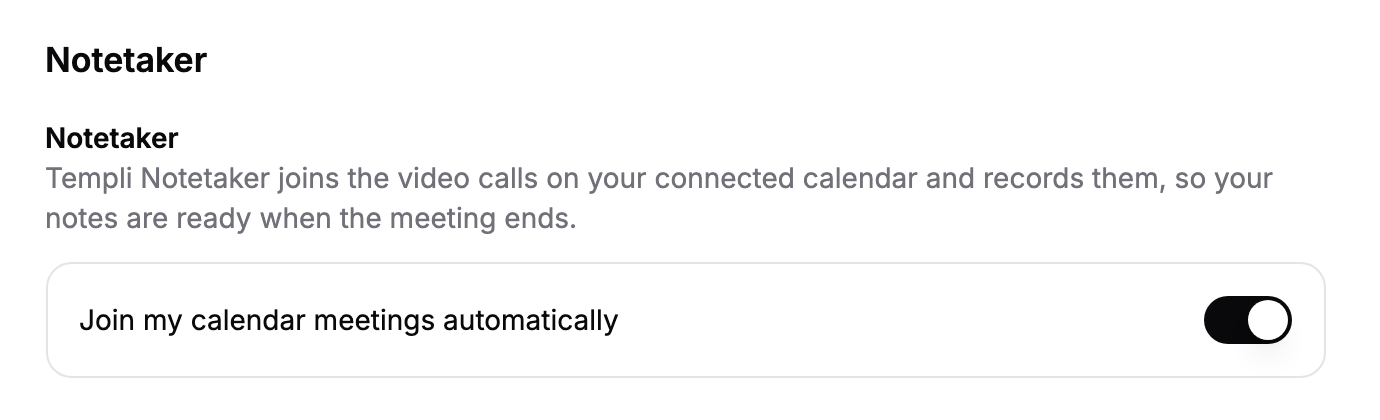
With it turned off, you can still send the notetaker to a single call from the meeting's page. Paste the Zoom, Google Meet or Microsoft Teams link and click Invite Templi.
Reconnect or disconnect a calendar
A calendar that shows Reconnection required needs you to sign in again. Click Reconnect and sign in to the same account.
Click Disconnect to remove the calendar from Templi.