

Chats
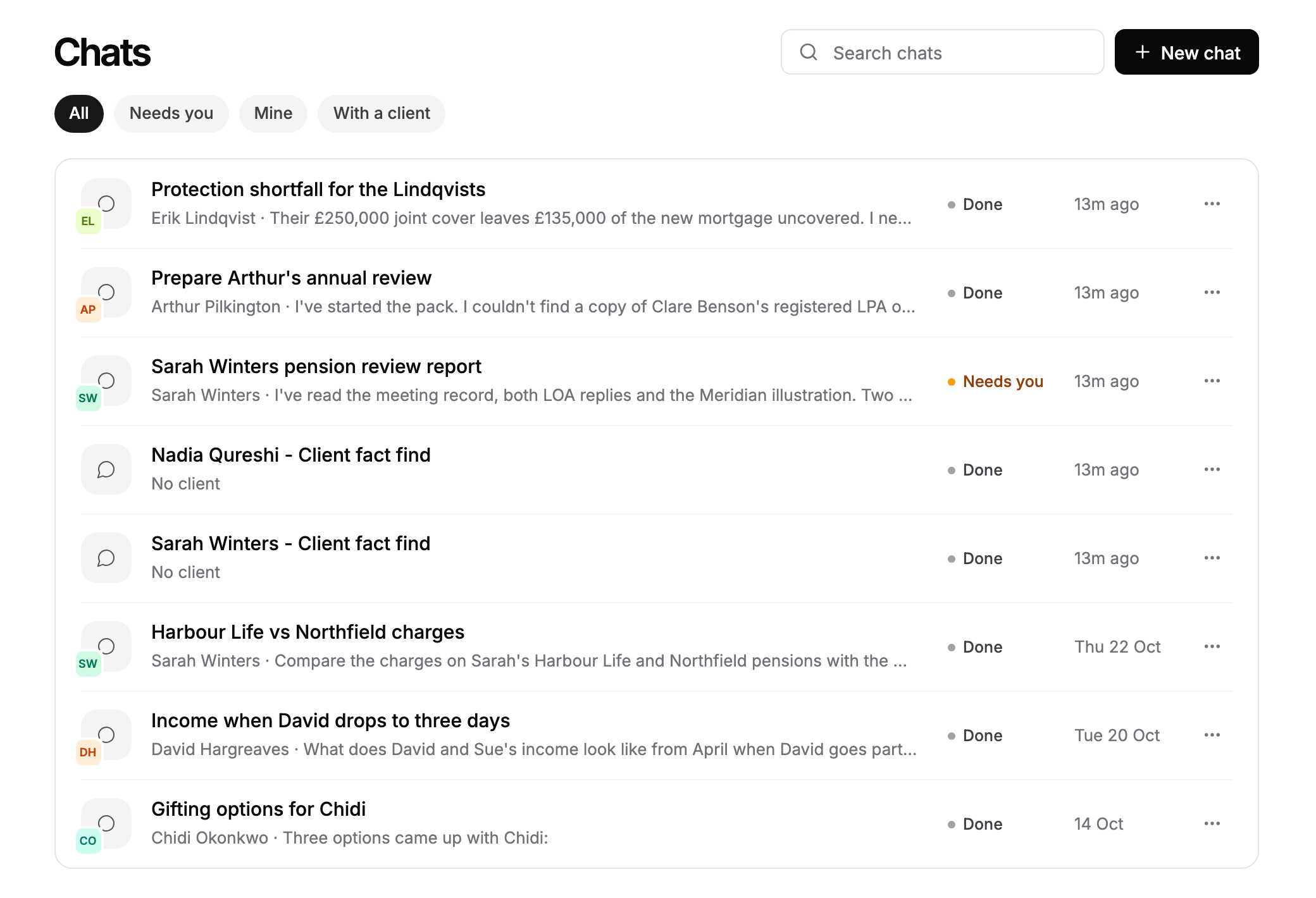
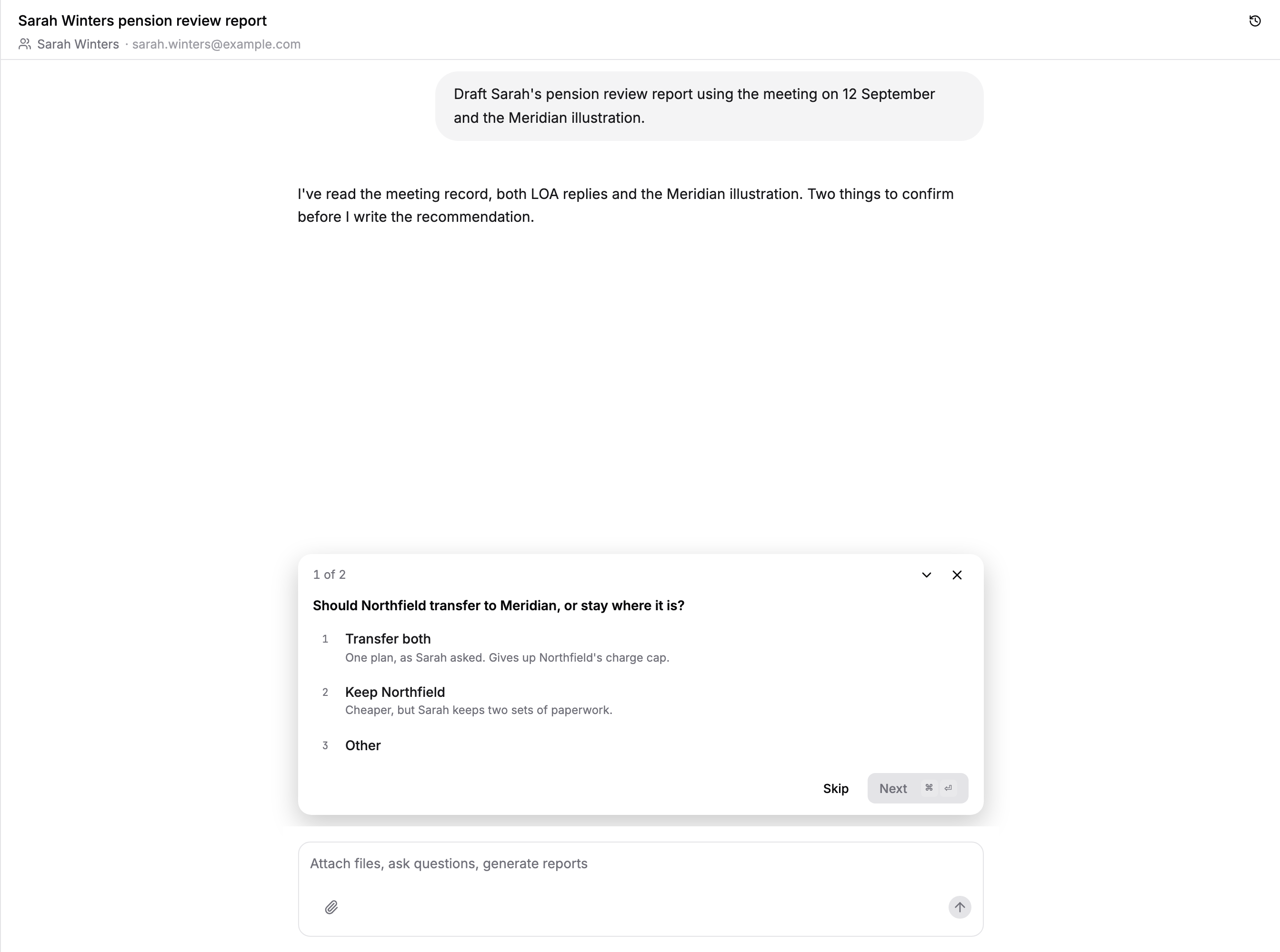
Every conversation you have with Templi is a chat, and the Chats page lists them all, newest first, with whether each one needs you, is still working or is done. Open a chat to carry on where you left off. Anything Templi writes or opens in the chat, such as a document, form, meeting or file, opens in a window beside it.
Where to find it
Sidebar: the Chats section lists your three most recent chats. Click All beside the heading for the full list.
All chats:
https://app.templi.ai/chatsOne chat:
https://app.templi.ai/chats/<chat>A client's chats: the Chats tab in their client hub,
https://app.templi.ai/clients/<client>/chats
Start a new chat
There are three places to start one, and each gives Templi different context.
On Desk, type into Ask Templi anything…. The chat starts with no client attached. New chat on the Chats page takes you here.
In a client hub, use the message box on the Activity tab, or Ask about and the client's name on the other tabs. The chat starts linked to that client.
On a meeting, file, knowledge note or skill, click its Ask about this… button. The chat starts about that item.
The Ask about buttons also open with Cmd+J on a Mac or Ctrl+J on Windows.
Find a chat
Open Chats from the sidebar and click All.
Type in Search chats to match a chat's title.
Click a filter: All, Needs you, Mine or With a client.
Click the chat to open it.
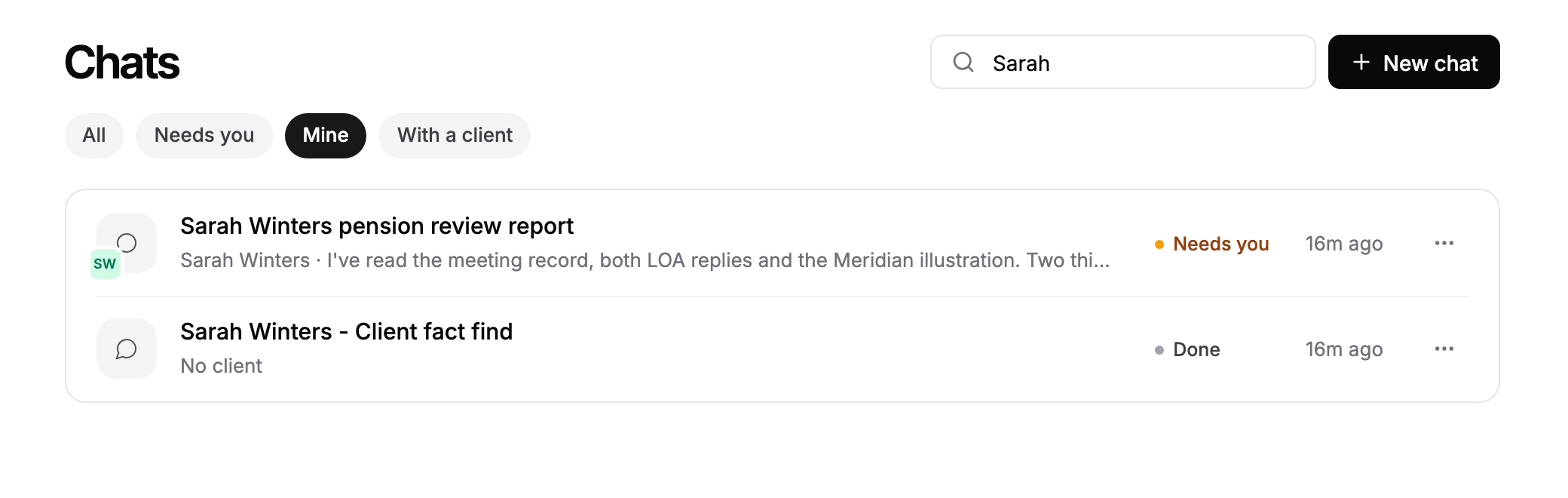
Each row shows its status. Needs you means Templi is waiting for an answer, Templi is working means it is still busy, and Done means it has finished. Inside a chat, the Chat history button beside the title lists your other chats.
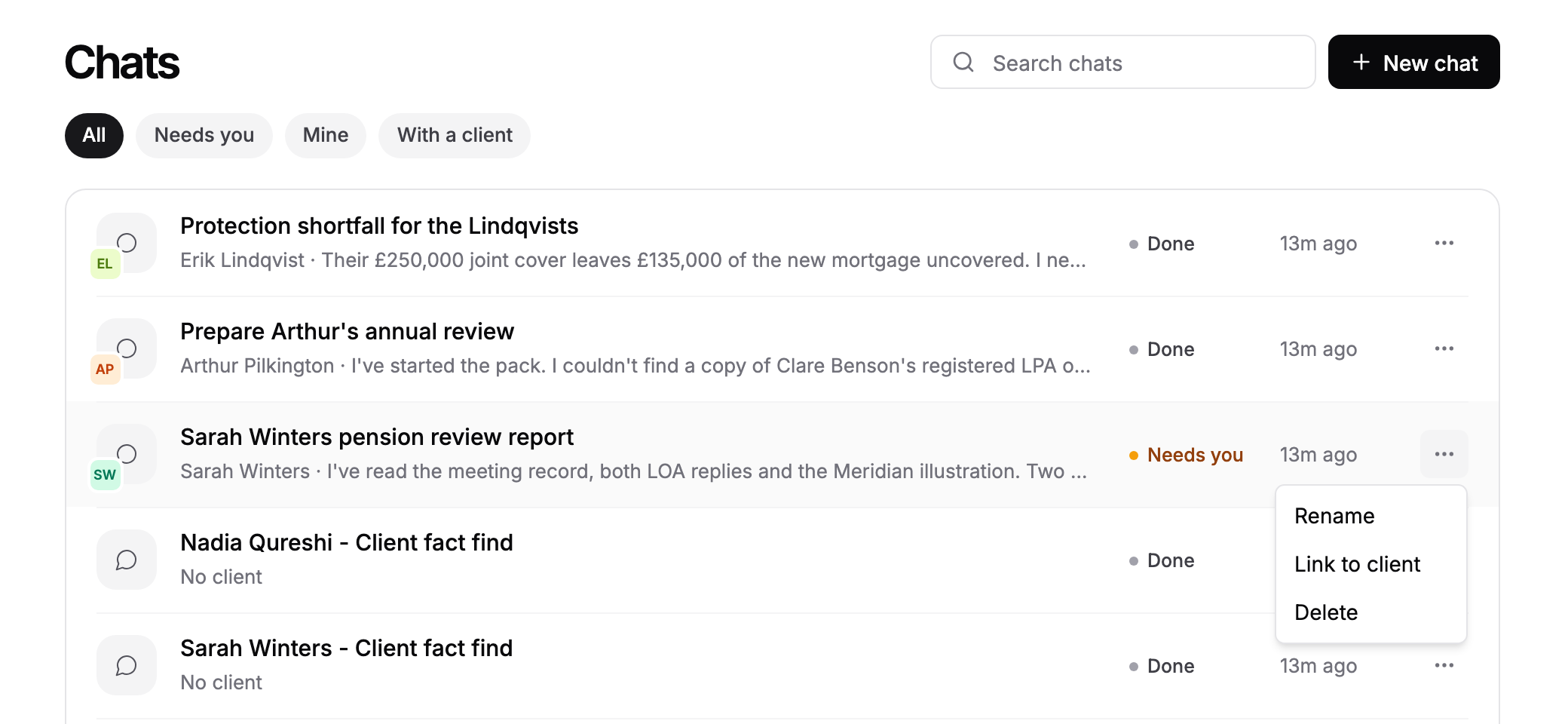
Rename, link or delete a chat
On the Chats page, click ... on a row.
Rename: give the chat a clearer title.
Link to client: attach the chat to a client, so it shows on that client's Chats tab. Use it for a chat you started on Desk.
Delete: remove the chat. Deleting is permanent and cannot be undone.
Work beside a document, form or meeting
When Templi writes a document, fills a form or opens a meeting or file, the chat moves to the left and the item opens in a window on the right. You can keep chatting while you read or edit it.
Each item Templi opens gets a tab along the top of the window. Click a tab to switch, or click its cross to close it.
Drag the divider between the chat and the window to make either side wider. Templi remembers the width in your browser.
Click the back arrow above the chat to close the window and go back.
The window's address is the item's own address with the chat attached, for example https://app.templi.ai/documents/<document>?chat=<chat>. Forms open at /forms/<form>/fill?chat=<chat>, meetings at /meetings/<meeting>?chat=<chat> and files at /files/<file>?chat=<chat>. Opening a document from anywhere else in Templi opens it beside the chat it was written in.
Attach files and use skills
Click the paperclip in the message box to Upload files, Browse sources or Attach webpage. You can also drag files onto the box or paste an image. Type / to pick one of your firm's skills. While Templi is working, you can still type and send a message, and it picks it up.
Example chats
"Draft a suitability report for Sarah Winters recommending she consolidates her three workplace pensions into her SIPP."
"Fill the annual review fact find for James and Helen Carter from yesterday's meeting."
"Compare Sarah's ISA and GIA charges and tell me what she pays each year."