

Client chats
The Chats tab on a client hub lists every chat with Templi that is linked to this client, with its status. Use it to pick up a conversation, find one that is waiting for you, or start a new one about the client.
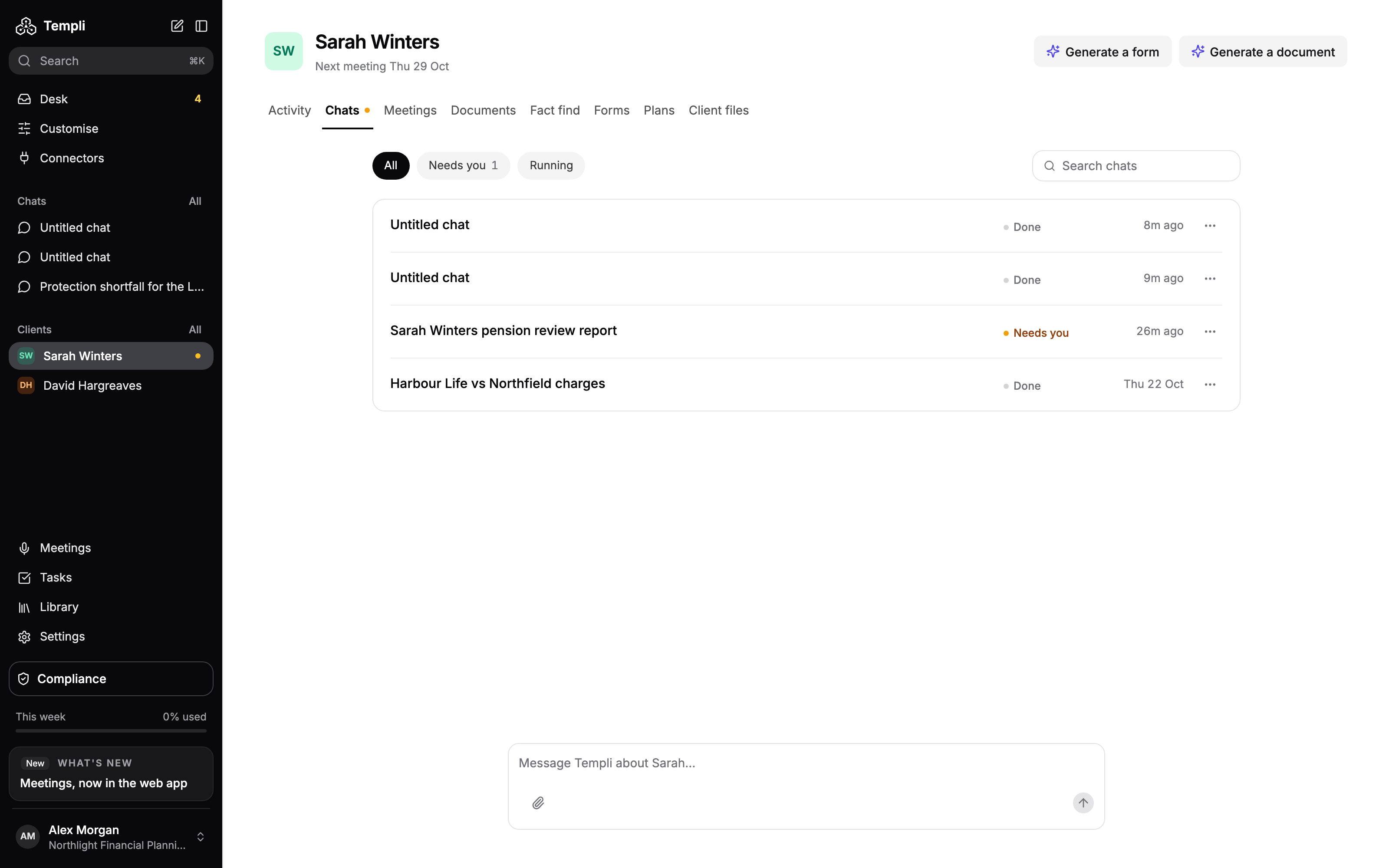
Where to find it
Open the client, then click the Chats tab. An amber dot on the tab means a chat needs you.
URL:
https://app.templi.ai/clients/<client>/chats
Find a chat
Each row shows the chat's title, its status and when it last had a message. Click a row to open the chat at https://app.templi.ai/chats/<chat>.
All shows every chat for the client.
Needs you shows chats where Templi is waiting for your answer or approval.
Running shows chats where Templi is still working.
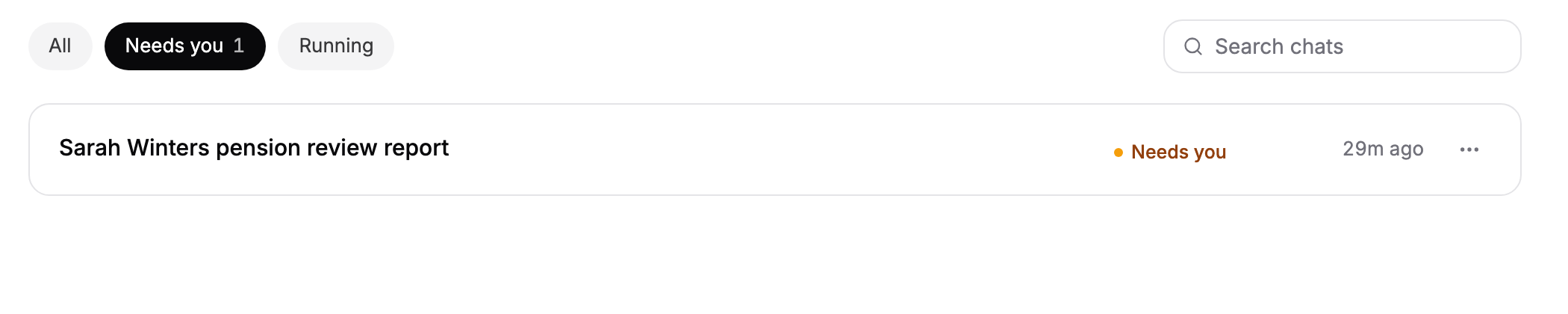
The Needs you and Running filters show a count when they have chats. To search by title, type in Search chats. Click Show more at the bottom to load older chats.
A chat's status is Needs you, Templi is working or Done.
Start a chat about this client
Type in the message box at the bottom of the tab and send. The new chat is linked to the client, so Templi works from their files, fact find, plans and memory. For example:
Compare Sarah Winters' two workplace pensions and tell me whether consolidating them makes sense. Note any guaranteed annuity rates or protected tax-free cash.
Check whether Sarah's life cover still matches her mortgage balance.
Chats you start from any other tab of the hub, with Ask about and the client's name, appear here too.
Delete a chat
Deleting a chat removes it permanently.
Click the three-dot menu on the chat's row and choose Delete.
Click Delete chat to confirm.
