

Fact find
The Fact find tab on a client hub shows the client's latest completed fact find, laid out by section. From here you run a new fact find, review one Templi has filled, see what changed between versions and re-import answers from your back-office system.
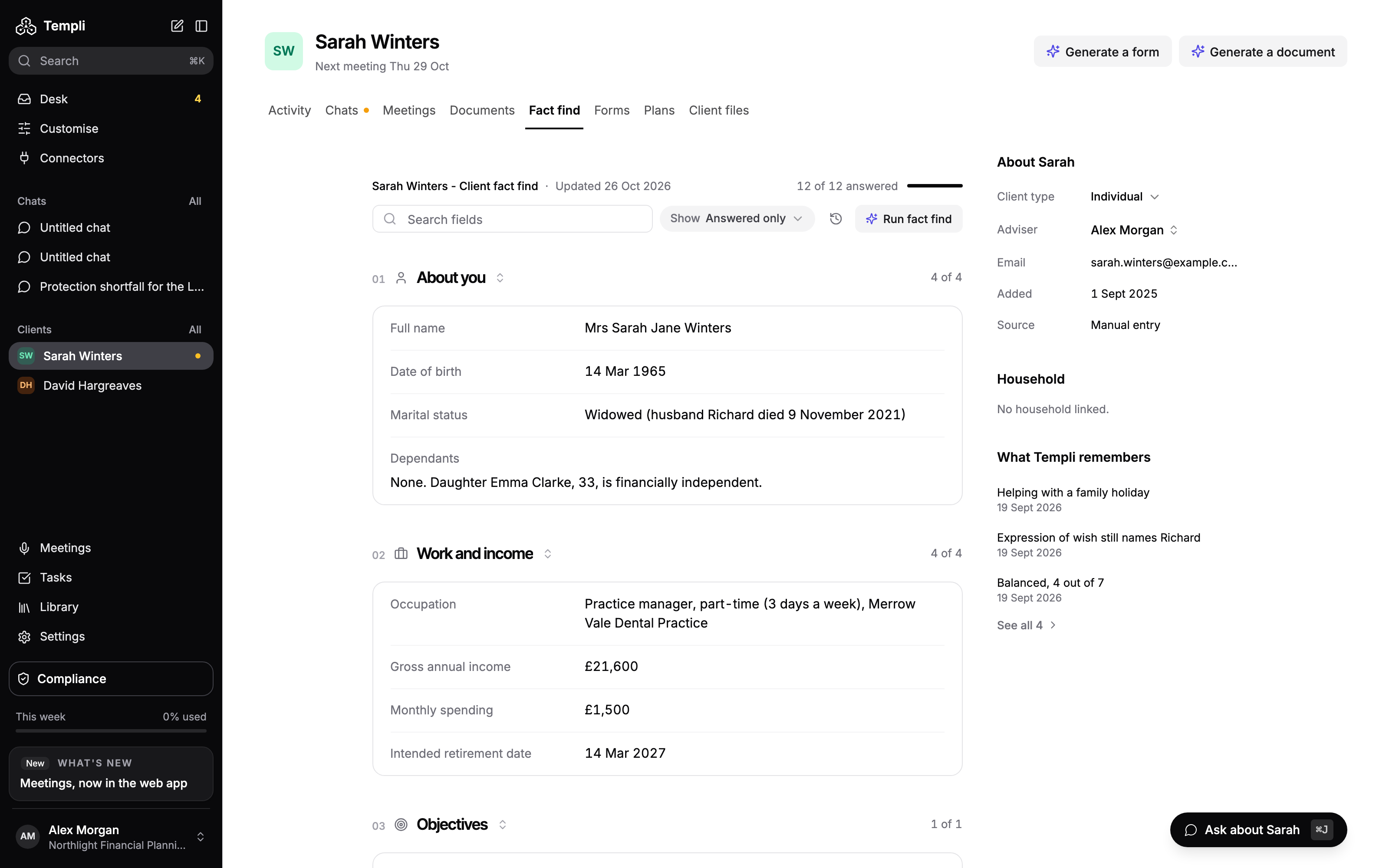
Where to find it
Open the client, then click the Fact find tab.
URL:
https://app.templi.ai/clients/<client>/fact-finds
Before you start
Your firm needs a default fact find template. Until one is set, Run fact find is unavailable and the tab shows No default fact find set.
To set it, go to Customise > Forms at https://app.templi.ai/forms, open the three-dot menu on a client fact find form and choose Use as default fact find. You need permission to change your organisation's settings.
Run a fact find
Run a fact find for a new client, or to refresh an old one at an annual review.

On the Fact find tab, click Run fact find.
The new fact find opens at
https://app.templi.ai/forms/<form>/fill. Attach files there, or ask Templi to fill it from your connected apps.
If the client's last fact find used a different template, Templi asks how to start. Choose Copy from previous fact find to bring their answers into the new template where the fields match, or Start fresh. Fill a form covers filling and completing it.
What the tab shows
Once a fact find is completed, the tab shows its answers by section, with the template name and the date it was updated. Empty answers are hidden.
A fact find started but not completed shows its status, with Open fact find to carry on and Run new fact find to start again.
A client's first fact find that Templi has filled shows Your first fact find is ready for review. Click Review Fact Find, check the answers and complete it to make it the active version.
A fact find's status is In progress, Filling, Updating, Review required or Completed.
History and changes
Click the history button next to Run fact find to see every fact find for this client, newest first. On each one you can:
Click Changes to see what changed since the version before it.
Click Review on one marked Review required.
Click Open to open it.
Click Delete to remove it from the client's history.

Re-import from your back-office system
For clients imported from Intelliflo Office, Iress Xplan or Plannr, the refresh button next to Run fact find re-imports their fact find from that system. While an import runs the button is unavailable, and the tab updates when it finishes. A client with no fact find yet shows the same option as Re-import from followed by the system's name.
If the fact find template is linked to a PDF, a Download PDF button also appears.
Ask Templi
Click Ask about and the client's name at the bottom right of the tab. For example:
Run a new fact find for Sarah Winters and fill it from her latest pension statements and our meeting notes from last week.
What changed in Sarah's fact find since last year? Flag anything that affects her protection needs.