

Find your way around Templi
This is a map of every screen in Templi: what each one is for, how to reach it from the sidebar, and its web address. The tables follow the sidebar from top to bottom. Every address starts with https://app.templi.ai, and words in angle brackets, such as <client>, stand for the number of that client, plan or document in the address bar.
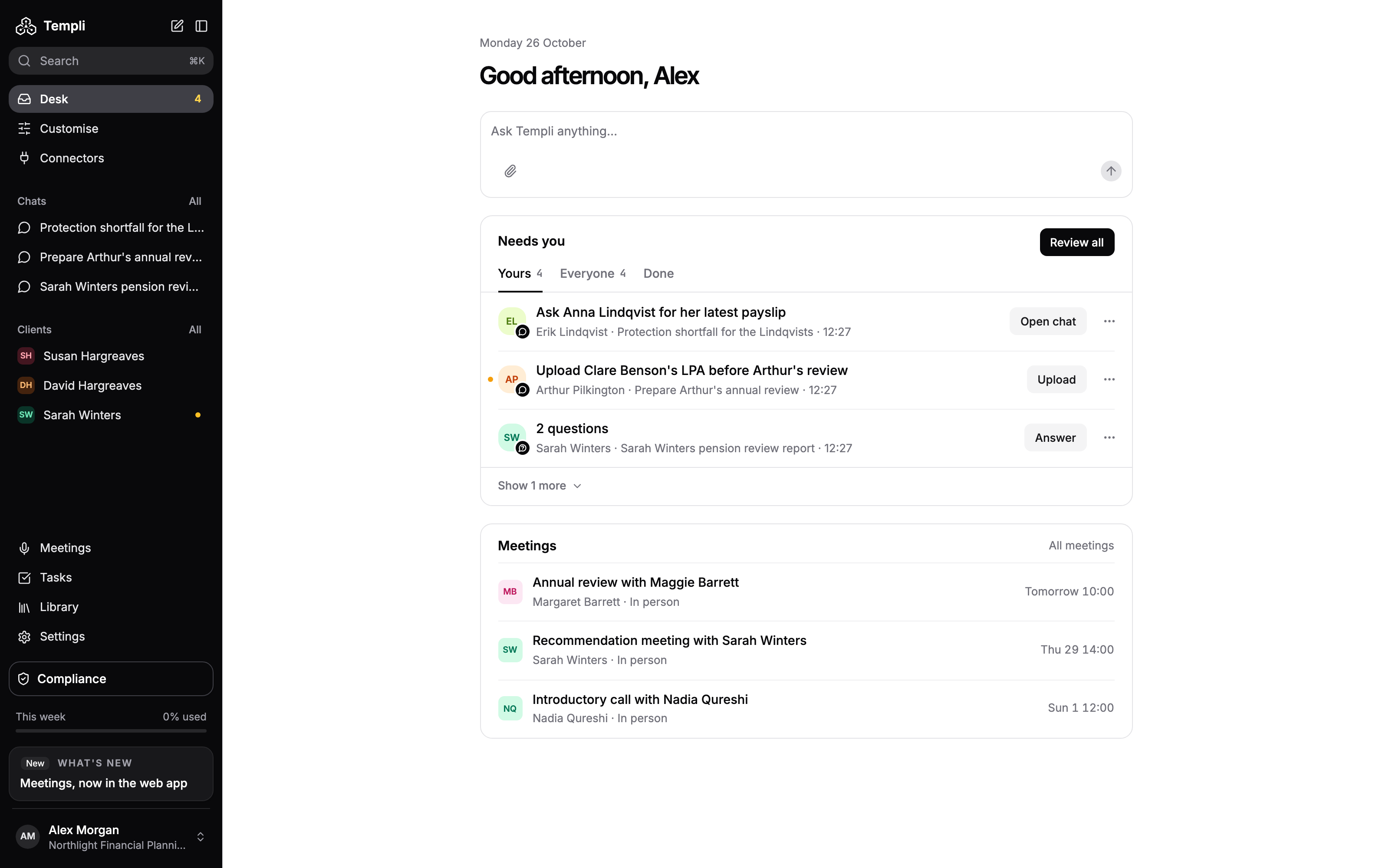
How the sidebar is laid out
Top: Search, Desk, Customise and Connectors.
Middle: your three most recent Chats, then your pinned and recent Clients. Each heading has an All link to the full list.
Bottom: Meetings, Tasks, Library and Settings, then Compliance if your firm has it.
Footer: your name. Click it for Profile, the light and dark theme, Help and support, Desktop app and Log out.
Old addresses from earlier versions of Templi still work and take you to the new screen.
Top of the sidebar
Screen | What it is for | Sidebar path | Address |
|---|---|---|---|
Search | Find a client, document, template, form, connector or settings page by name, or run an action such as creating a client | Search (or Cmd+K / Ctrl+K) | Opens over the current page |
Desk | Start a chat, see your next meeting and work through Needs you | Desk |
|
Needs you, open | Everything waiting on you, with snooze, assign, mark done and dismiss | Desk > Needs you card > See all |
|
Needs you, snoozed | Items you snoozed, until they come back | Needs you > Snoozed |
|
Needs you, done | Items closed, with who closed them and how | Needs you > Done |
|
Customise
Customise is where your firm sets up how Templi writes. Clicking Customise opens the Templates tab.
Screen | What it is for | Sidebar path | Address |
|---|---|---|---|
Templates | Your Word templates for reports and letters | Customise > Templates |
|
A template | Edit a Word template, beside a chat with Templi | Customise > Templates > click a template |
|
Template tuning | Test a template on real clients and refine it | Open a template, then tune it |
|
Meeting notes | Templates for the notes Templi writes after a meeting | Customise > Meeting notes |
|
Forms | Your fact finds and questionnaires | Customise > Forms |
|
Form editor | Change a form's questions and layout | Customise > Forms > click a form, or its Edit button |
|
Fill a form | Fill in a form for a client, beside a chat with Templi | In a client hub, Generate a form, or the Forms tab > click a form |
|
Knowledge | Notes on how your firm works, which Templi follows | Customise > Knowledge |
|
Skills | Written steps Templi follows when you type a skill's command in a chat. Formerly called recipes | Customise > Skills |
|
Compliance settings | Set up suitability report checks | Customise > Compliance |
|
Connectors
Screen | What it is for | Sidebar path | Address |
|---|---|---|---|
Connectors | Connect your back office, calendar, email and file stores, and reconnect ones that stopped | Connectors |
|
A connector | What a connector reads and writes, and Connect, Reconnect or Disconnect | Connectors > click a connector |
|
Chats
Screen | What it is for | Sidebar path | Address |
|---|---|---|---|
All chats | Every chat with Templi, with search and filters | Chats > All |
|
A chat | One conversation with Templi | Chats > click a chat |
|
A chat with a document, form, meeting or file beside it | Work on the item while you chat | Opens when Templi writes or opens the item | The item's address plus |
To start a new chat, use the box on Desk. New chat on the Chats page takes you there.
Clients and the client hub
Each client has a client hub: one page with tabs for everything about them. Open a client from the sidebar's Clients section or from the full list.
Screen | What it is for | Sidebar path | Address |
|---|---|---|---|
All clients | Your client list | Clients > All |
|
Activity | What has happened with the client, what needs you, and a box to message Templi about them | Clients > a client > Activity |
|
Chats | Chats about this client | Client hub > Chats |
|
Meetings | The client's meetings and notes | Client hub > Meetings |
|
Documents | Reports and letters written for the client | Client hub > Documents |
|
Fact find | The client's fact find, and re-importing it from your back office | Client hub > Fact find |
|
Forms | Forms filled for the client | Client hub > Forms |
|
Plans | The client's pensions, ISAs, protection and other plans | Client hub > Plans |
|
Client files | Files uploaded for the client | Client hub > Client files |
|
Memory | What Templi remembers about the client | Client hub > What Templi remembers > See all |
|
A plan
Open a plan from the client hub's Plans tab or from Library > Plans. Each tab has its own address.
Tab | Address |
|---|---|
Overview |
|
Holdings |
|
Transactions |
|
Valuations |
|
Contributions |
|
Charges |
|
Bottom of the sidebar
Meetings and Tasks
Screen | What it is for | Sidebar path | Address |
|---|---|---|---|
Meetings | Your upcoming and past meetings | Meetings |
|
A meeting | A meeting's Notes, Transcript and Recording tabs. During a meeting, the tabs are Live transcript and Notes | Meetings > click a meeting |
|
Tasks | Your task list | Tasks |
|
Library
Library holds what Templi has produced and what you have uploaded. Clicking Library opens the Generated tab.
Screen | What it is for | Sidebar path | Address |
|---|---|---|---|
Generated | Every document Templi has written | Library > Generated |
|
A document | Read, edit and download a document, beside the chat that wrote it | Library > Generated > click a document |
|
Files | Every file uploaded to Templi | Library > Files |
|
A file | View a file and ask Templi about it | Library > Files > click a file |
|
Plans | Every client plan across your book | Library > Plans |
|
Groups | Households and other groups of clients | Library > Groups |
|
A group | A group's Members, Documents and Files tabs | Library > Groups > click a group |
|
Settings
Clicking Settings opens the Account tab.
Screen | What it is for | Sidebar path | Address |
|---|---|---|---|
Account | Your Profile, Preferences and Security, each a section of this page | Settings > Account, or your name > Profile |
|
Meetings settings | Your Calendar connection and Notetaker options | Settings > Meetings |
|
Team | The people in your firm and their roles | Settings > Team > People |
|
Advisers | Adviser records, including ones imported from your back office | Settings > Team > Advisers |
|
Imports | Your imports from Intelliflo Office, Iress Xplan or Plannr | Settings > Imports |
|
New import | Choose a system to import advisers and clients from | Settings > Imports > New import |
|
An import | Review, start and follow one import | Settings > Imports > click an import |
|
Usage | Your firm's weekly allowance and what you have used | Settings > Usage |
|
Billing | Your plan and payment details | Settings > Billing |
|
Usage and Billing show only for people who can see your firm's plan or manage billing.
Compliance
Compliance sits at the bottom of the sidebar for firms that have suitability report checks.
Screen | What it is for | Sidebar path | Address |
|---|---|---|---|
Suitability report checks | Every checked report, filtered by All reports, To check, Needs attention or No gaps found | Compliance |
|
A check | One report's check against the FCA Handbook rules that apply | Compliance > click a report |
|
Screens outside the sidebar
Screen | What it is for | How to reach it | Address |
|---|---|---|---|
Dashboards | Firm-wide widgets you arrange yourself | Type the address |
|
Desktop app download | Download Templi Adviser for macOS, Windows or Linux | Your name > Desktop app |
|
Help and support | Search this help centre without leaving Templi | Your name > Help and support | Opens over the current page |
Setting up a new firm
The first time you sign in, Templi walks you through four steps before you reach Desk.
Step | What it is for | Address |
|---|---|---|
Let's get you set up | Your name and details |
|
Build your team | Invite teammates. You can also do this later from Settings > Team |
|
Connect your tools | Connect the tools you use every day. You can add more later from Connectors |
|
Download Templi Adviser | Get the desktop app, or choose Skip for now |
|
Ask Templi where something is
You can ask in any chat, for example "Where do I connect my Outlook calendar?" or "Where are Sarah Winters' pension valuations?", and Templi tells you which screen to open.