

Connect your back-office system
Connecting your back-office system is the first thing to do in Templi. Once Intelliflo Office, Iress Xplan or Plannr is connected, you can bring your advisers and clients across, fill fact finds from meetings, and write the results back. Calendars, mailboxes and file stores connect the same way, from the same page.
Before you start
You need to be an administrator in Templi, and you need an account in the system you are connecting that is allowed to authorise third-party apps.
Back-office connections are shared by everyone in your firm. Calendar, email and file connections are personal: each person connects their own.
Iress Xplan asks for your firm's Xplan site address before it can connect. Intelliflo Office is bought through the Intelliflo App Store and billed by Intelliflo. Plannr needs a login with write access to your firm.
Connect an app
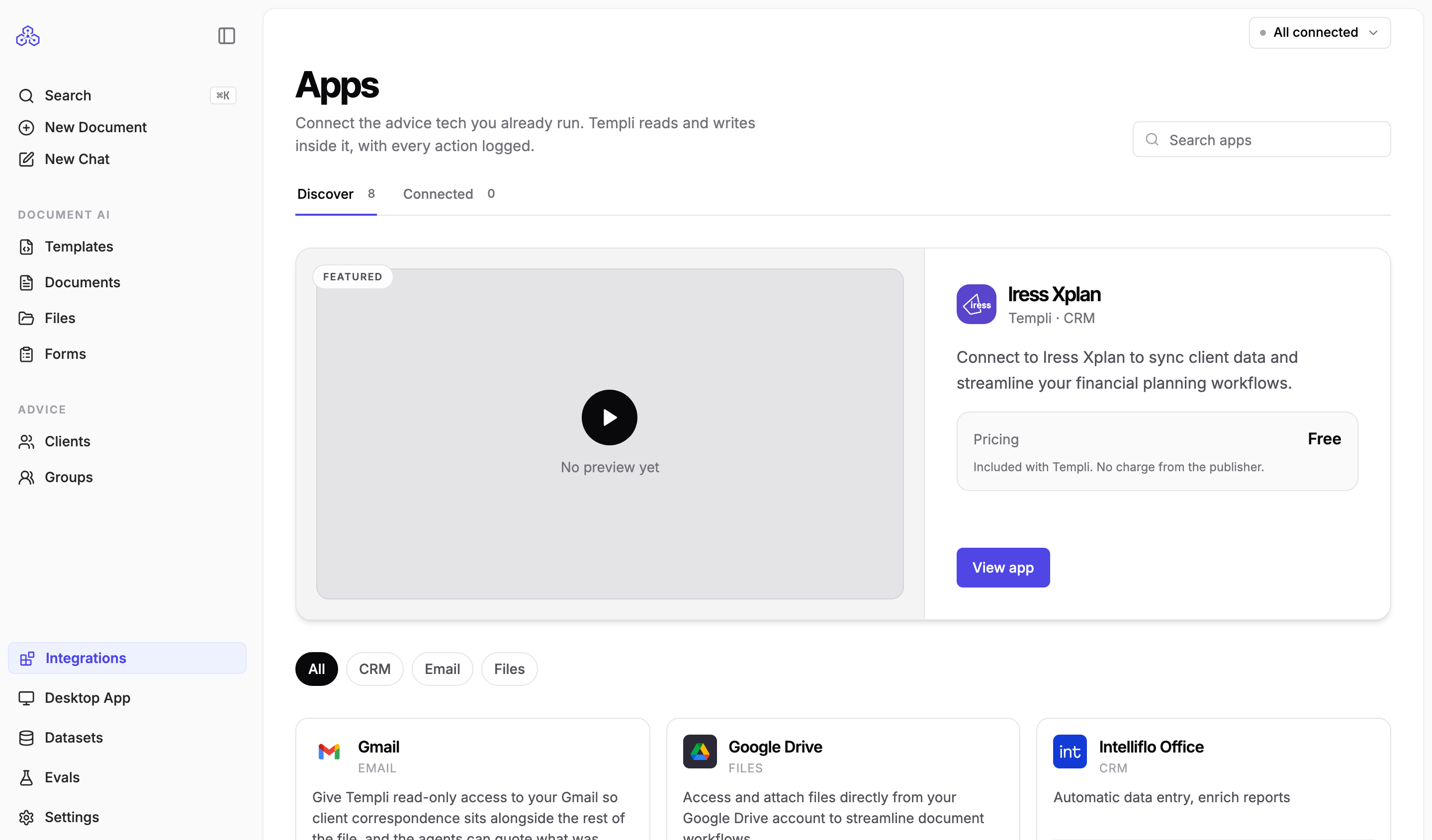
Click Integrations in the sidebar. The Apps page lists everything you can connect, with a Connected tab for what is already in place.
Open the app you want.
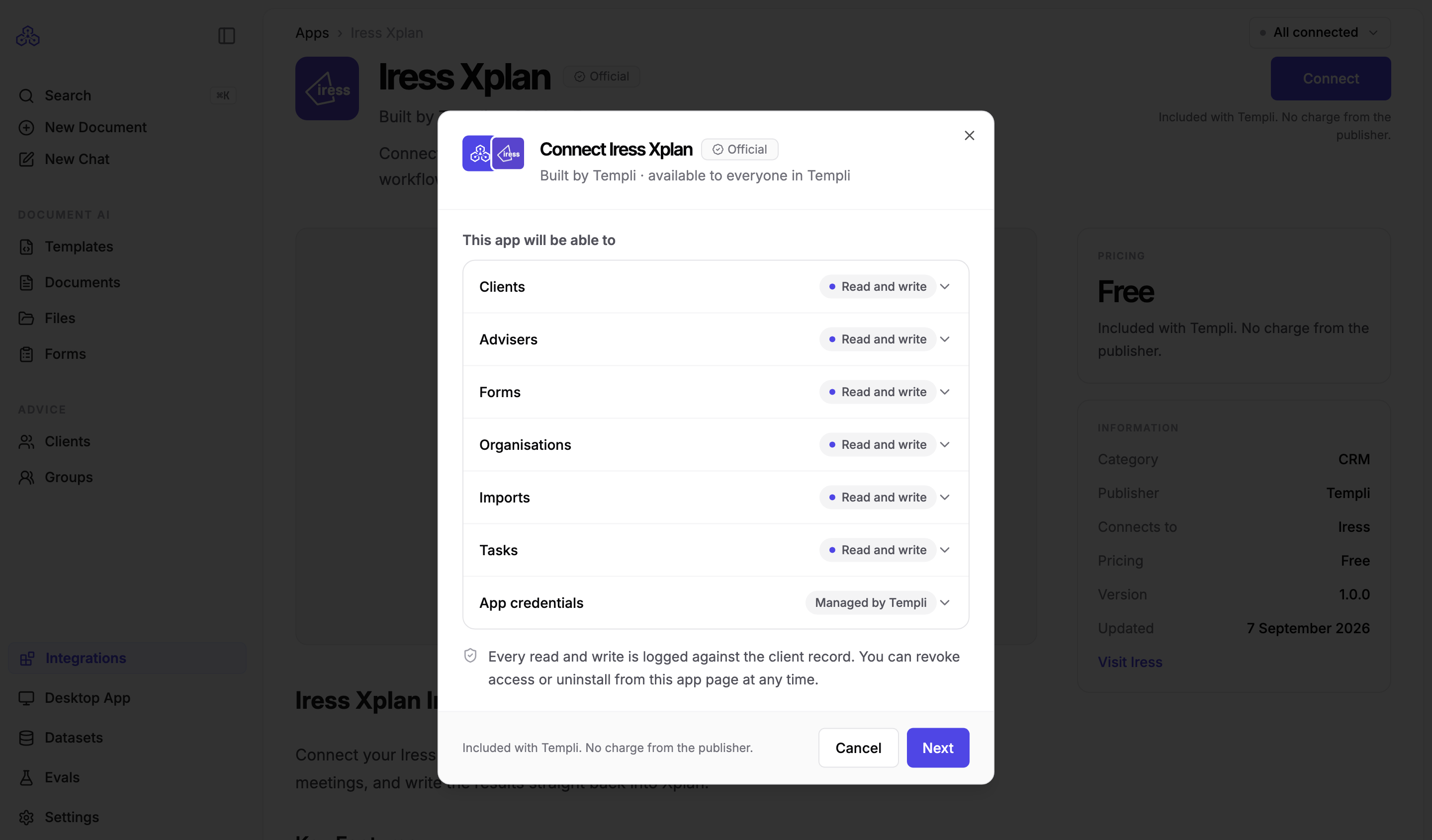
Click Connect. The dialog lists what the app will be able to read and write in Templi. Every read and write is logged against the client record, and you can disconnect from this page at any time.
Click Authorise and connect. For Xplan, click Next first and enter your Xplan site address.
Sign in to the other system in the tab that opens and approve the connection.
You are brought back to Templi with a confirmation that the app is connected.
What happens after a back-office system connects
Templi sets up a fact find template for that system, named after it, and makes it your firm's default. The template's options, such as titles, income types and asset types, come from your own system's lists, so anything written back matches what your team already uses. An Import clients task appears in the sidebar. Follow Import your clients to bring your book across.
When an app needs reconnecting
If the other system stops accepting Templi's connection, for example because a password changed or access was revoked there, the app shows an amber status with the reason and a Reconnect button. Imports are paused until you reconnect. Reconnecting does not remove any clients, documents or fact finds already in Templi.
Disconnect an app
Open the app from the Connected tab and click Disconnect. Templi stops reading and writing to that system immediately. What is already in Templi stays.