

Needs you
Needs you is the list of everything Templi or a colleague is waiting on you for: a question in a chat, a fact find to review, a meeting with speakers to name, a connector to sign in to again, or a compliance check to look at. Work through it from your Desk, or open the full page to see snoozed and finished items.
Where to find it
Sidebar: Desk. The Needs you card sits on Desk, and the number beside Desk counts your open items. On the card, click See all for the full page.
Full page, open items:
https://app.templi.ai/needs-you/openSnoozed:
https://app.templi.ai/needs-you/snoozedDone:
https://app.templi.ai/needs-you/doneEveryone's open items:
https://app.templi.ai/needs-you/open?assignee=all
A client's open items also show at the top of the Activity tab in their client hub.
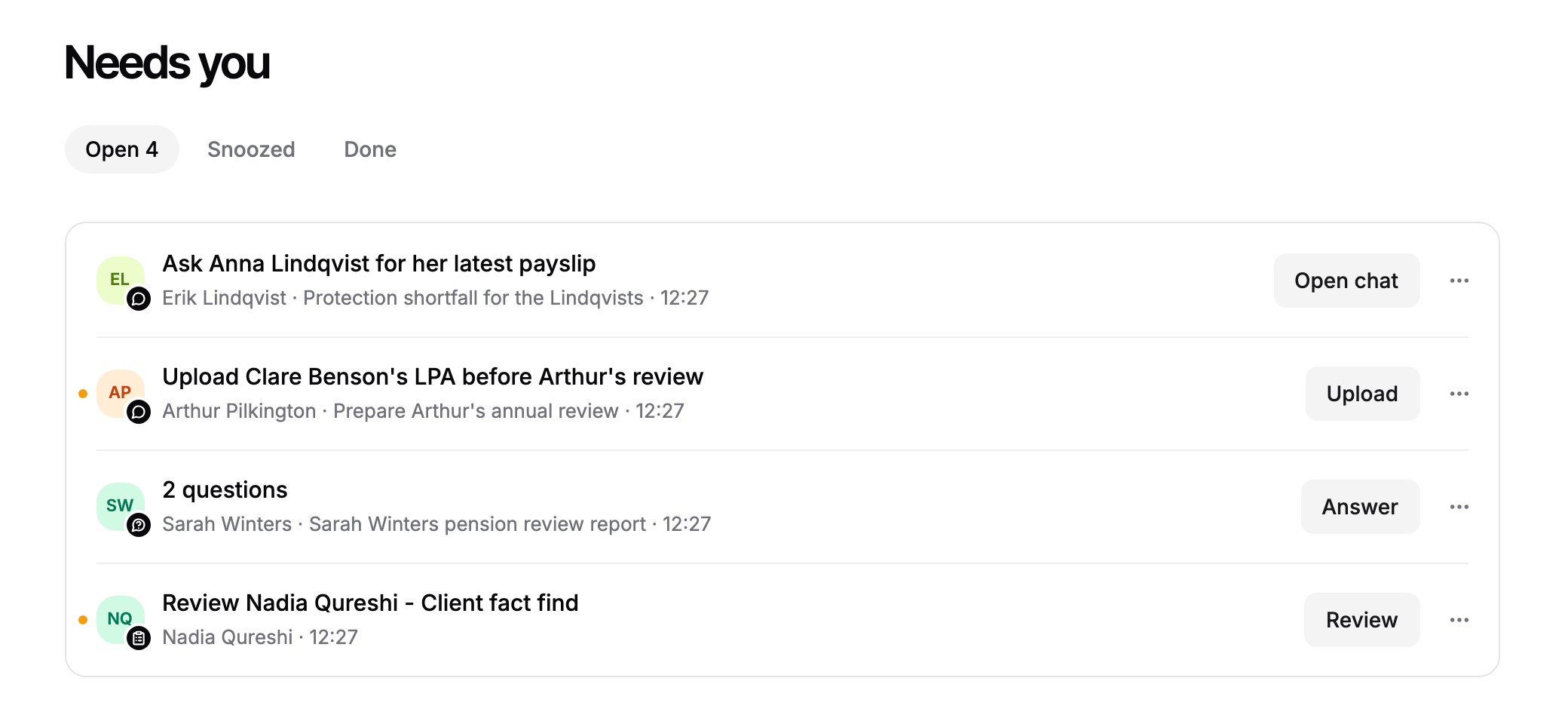
What lands in Needs you
Item | What it means | Where clicking it takes you |
|---|---|---|
Questions | Templi asked you something in a chat and is waiting for your answer before it carries on. | The chat, at the question. When the chat is about a document, the document opens beside it. |
Requests and approvals | Templi or a colleague needs a decision from you in a chat. | The chat |
Unknown speakers | A recorded meeting has speakers Templi could not name. | The meeting |
Fact find review | Templi has filled a fact find and it is ready for you to check. | The fact find |
Compliance review | A suitability report check found things to fix or points for your judgement. The item shows how many of each. | The check |
Integration sign-in | A connector stopped working and needs you to sign in again. | The connector's page in Connectors |
Close, snooze or hand off an item
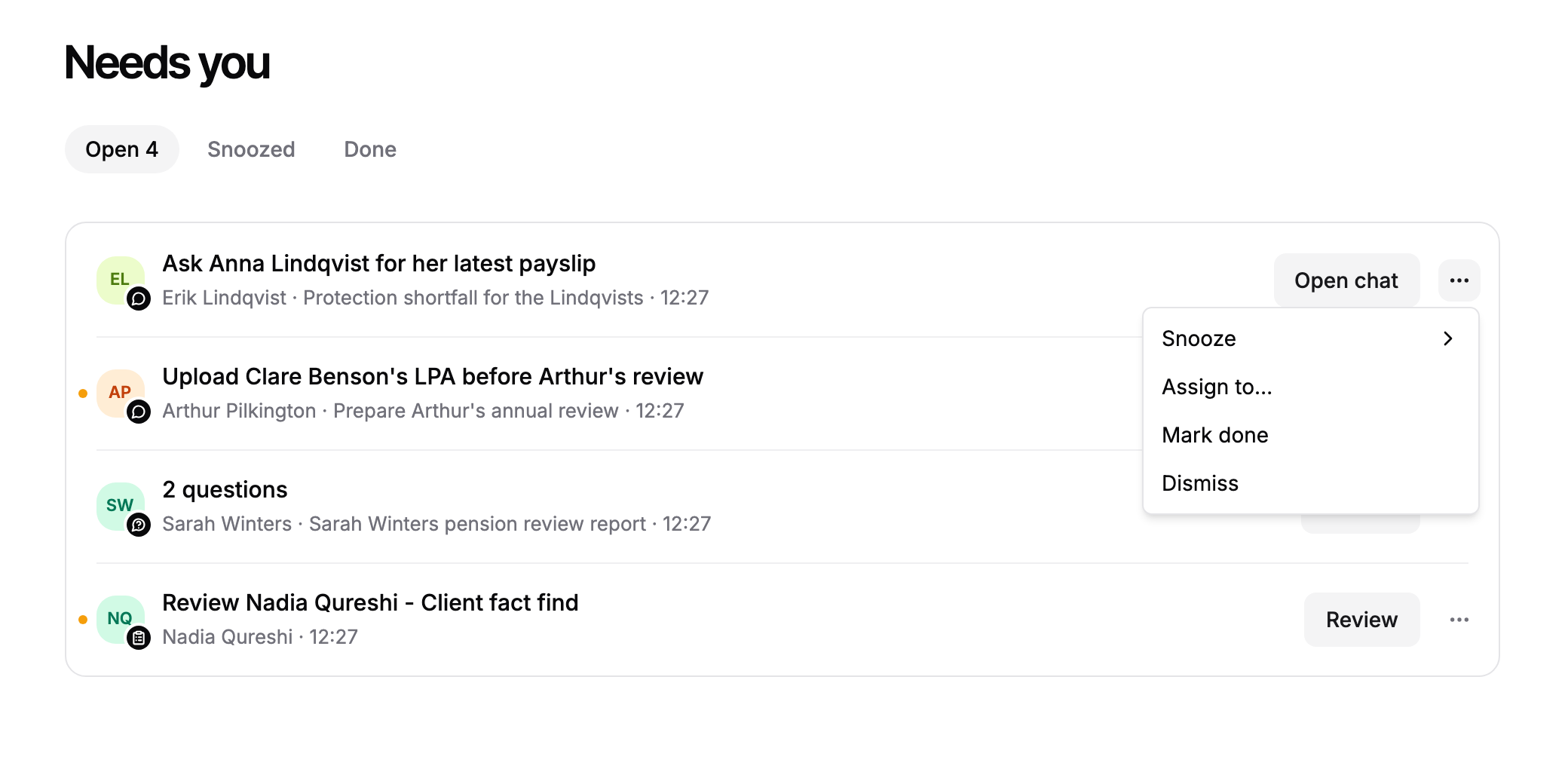
Each item has a ... menu. Answering a question in its chat closes the item for you.
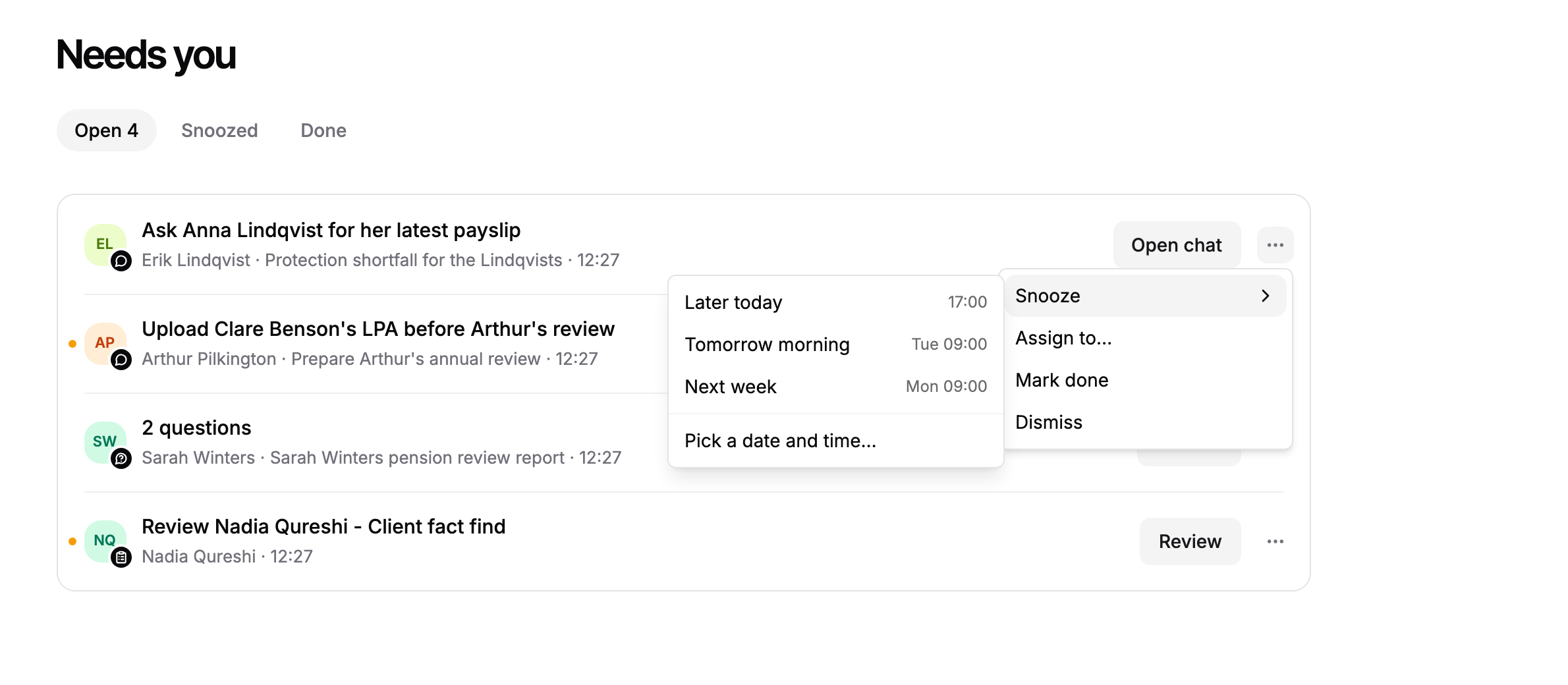
Snooze: hide the item until Later today, Tomorrow morning or Next week, or choose Pick a date and time…. It comes back to the open list at that time.
Assign to…: pick a colleague. The item moves to their list.
Mark done: close it once you have dealt with it.
Dismiss: close it without acting on it.
Re-check (compliance reviews only): run the suitability check again after you have changed the report.
Mark done and Dismiss both show an undo option for a few seconds.
Review everything in one pass
Use Review all on the Desk card when you have several items and want to clear them in order.
On Desk, click Review all on the Needs you card.
Templi opens the first item. The sidebar folds away and a bar across the top shows the item and its client.
Deal with the item, or click Mark done. The ... menu in the bar has the other actions.
Click Next item, or use the up and down arrows in the bar to move between items.
When nothing is left, the bar shows All clear. Click Back to Desk.
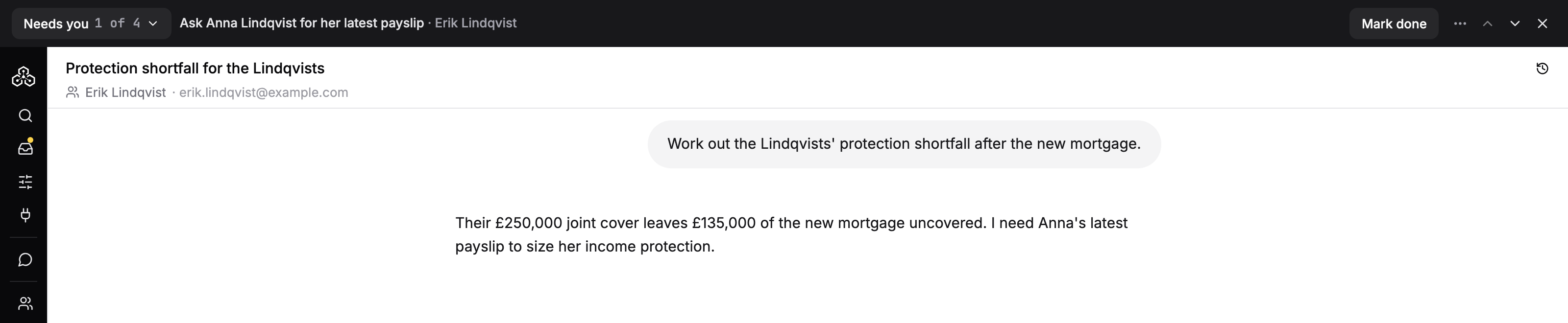
If you click away to another page during a review, Back to this item in the bar returns you to where you were.
The Needs you page
The full page has three tabs: Open, Snoozed and Done, each with its count. The Done tab has a search box and shows who closed each item and how, for example answered, marked done or dismissed.
Ask Templi about it
You can also ask in any chat, for example:
"What's waiting on me today?"
"Is anything outstanding on Sarah Winters' pension transfer?"