

Clients
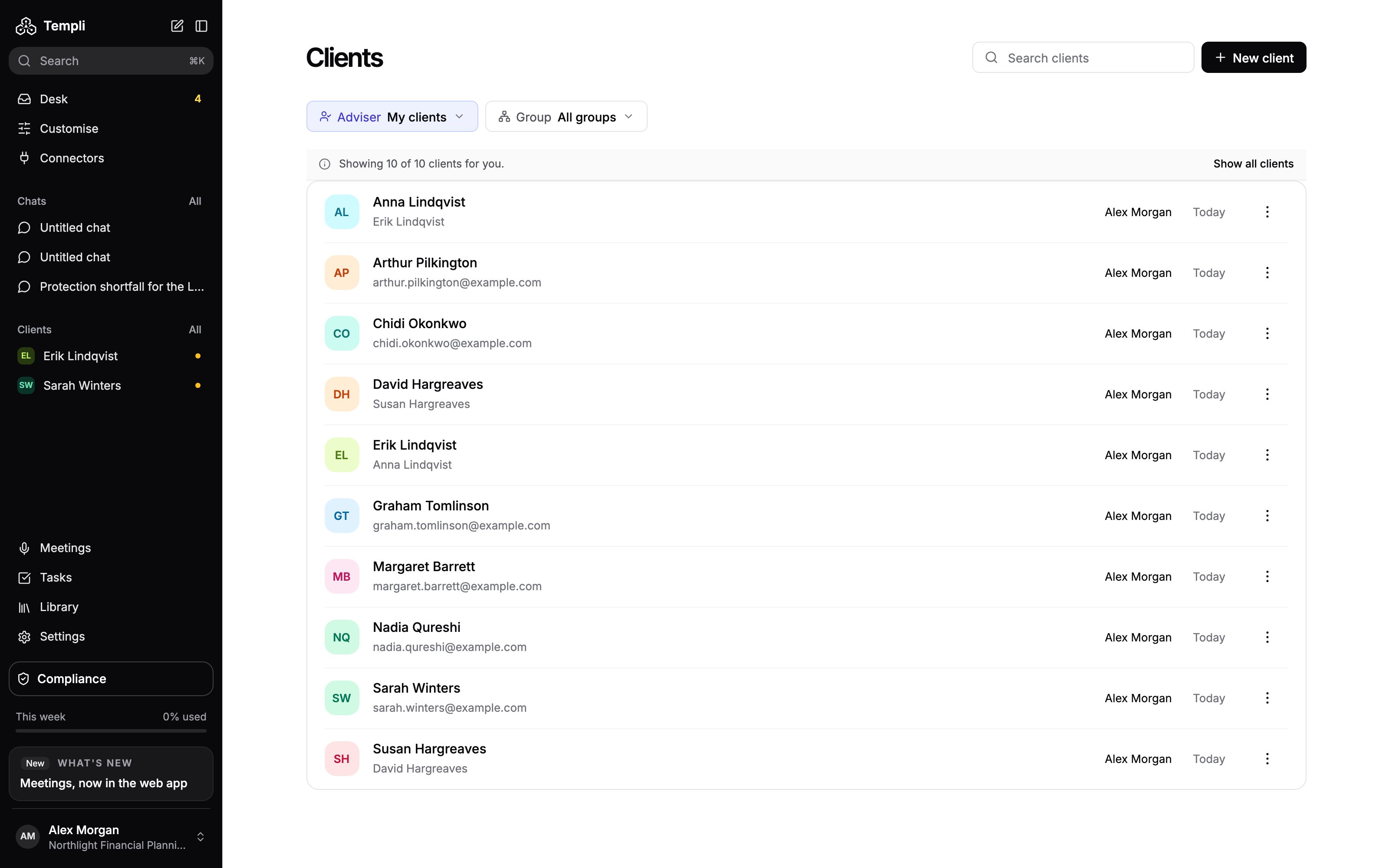
The Clients page lists every client in your firm. Use it to find a client, filter by adviser or group, add a new client, or delete clients you no longer need. Click a client to open their client hub.
Where to find it
Sidebar: click All next to Clients.
URL:
https://app.templi.ai/clients
The Clients section of the sidebar also lists up to five recently opened clients and any you have pinned. Hover over a client there to pin it, unpin it or remove it from the sidebar. An amber dot next to a name means a fact find needs review or something is waiting for you.
Find a client
Type a name or email into Search clients. Each row shows the client's name, their household members or email, their adviser and a date.
If you are set up as an adviser, the list opens on your own clients. A line above the list shows how many of the firm's clients you are seeing. Click Show all clients to see everyone, and the list remembers that choice.
Filter the list
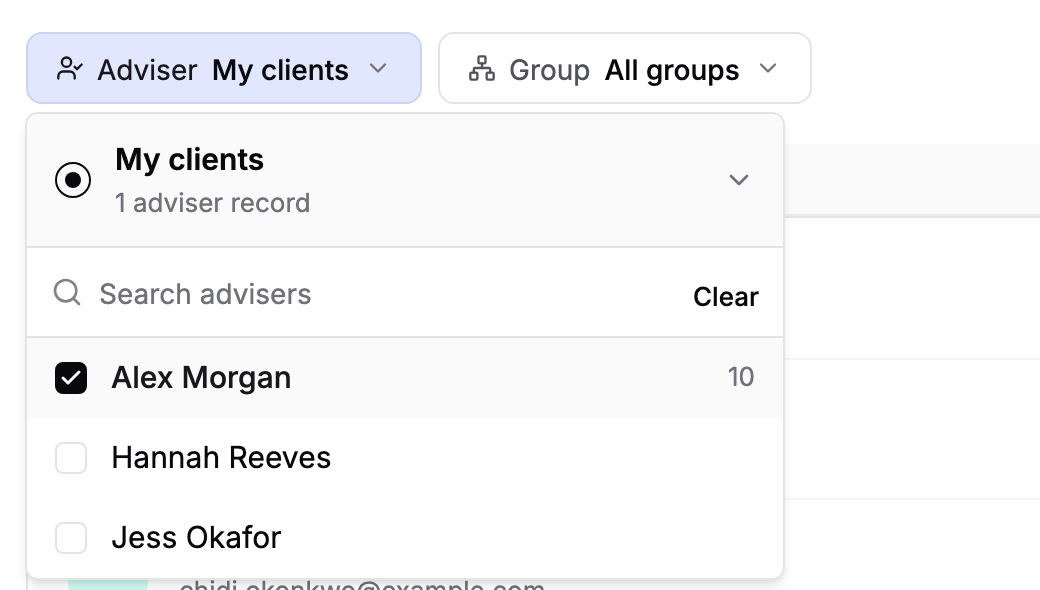
Adviser: choose My clients, one or more advisers, or All advisers.
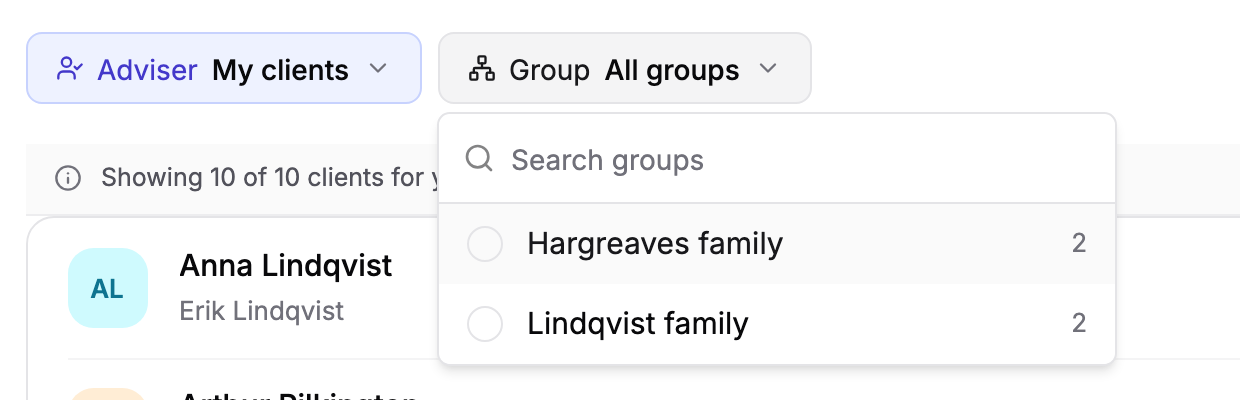
Group: choose a group to see only its members, or All groups. Client groups covers how to make one.
Add a client
Add a client by hand when they are not in your back-office system yet. Clients from Intelliflo Office, Iress Xplan or Plannr arrive through an import instead, which Import your clients explains.
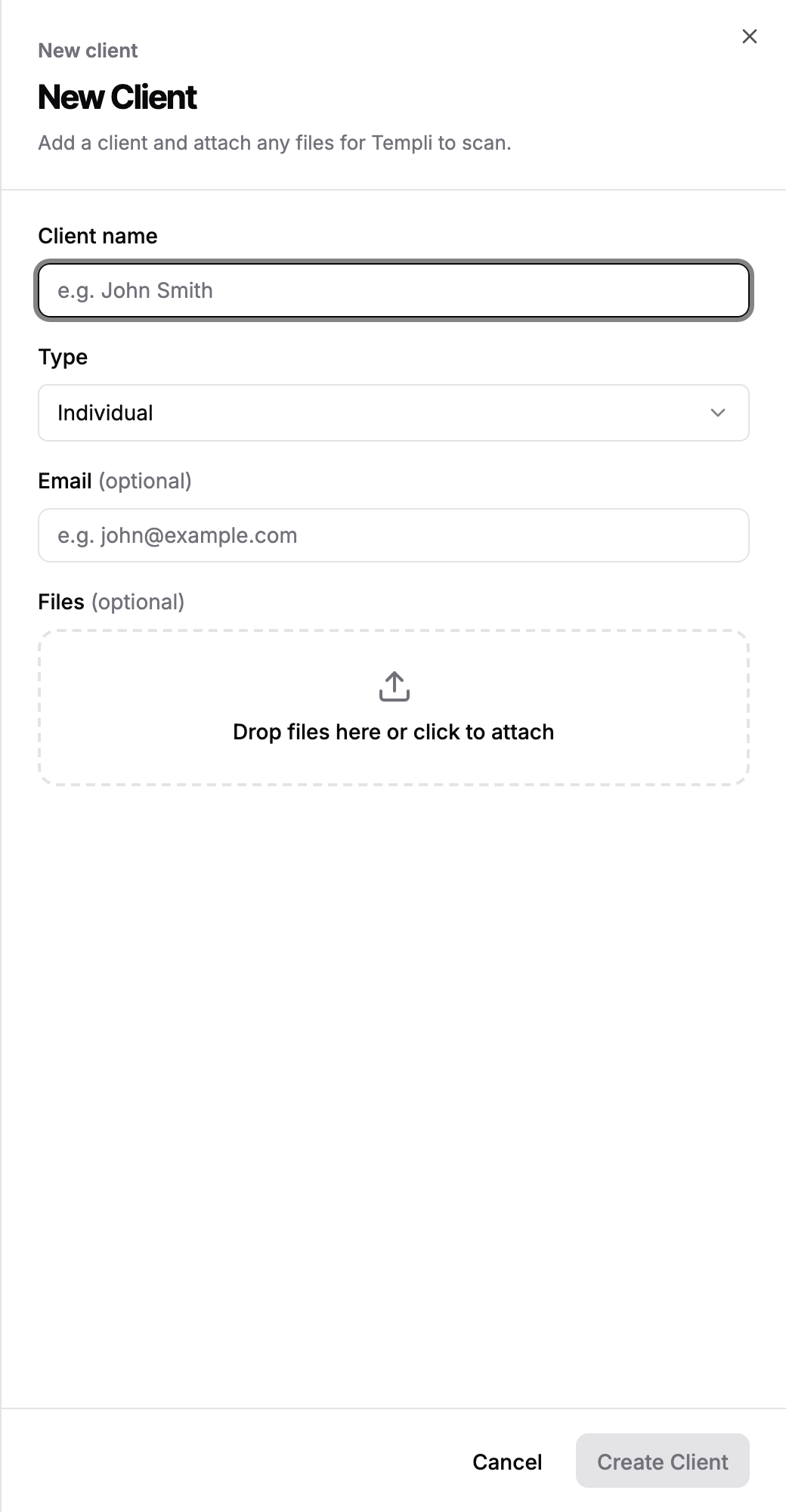
Click New client, or press N then C.
Enter the Client name.
Choose a Type: Individual, Business, Trust or Charity.
Optionally add an Email and drop in Files for Templi to scan, up to 10 MB each.
Click Create Client.
The new client's hub opens. Any files you added upload in the background and appear under Client files.
Delete clients
Deleting a client cannot be undone.
Click the three-dot menu on the client's row and choose Delete Client.
Confirm in the dialog.

To delete several at once, tick their rows and click Delete in the bar that appears.
Ask Templi
You can find or open clients from any chat. For example:
Open Sarah Winters.
Which of my clients are married to each other but not in a group yet?