

Client activity
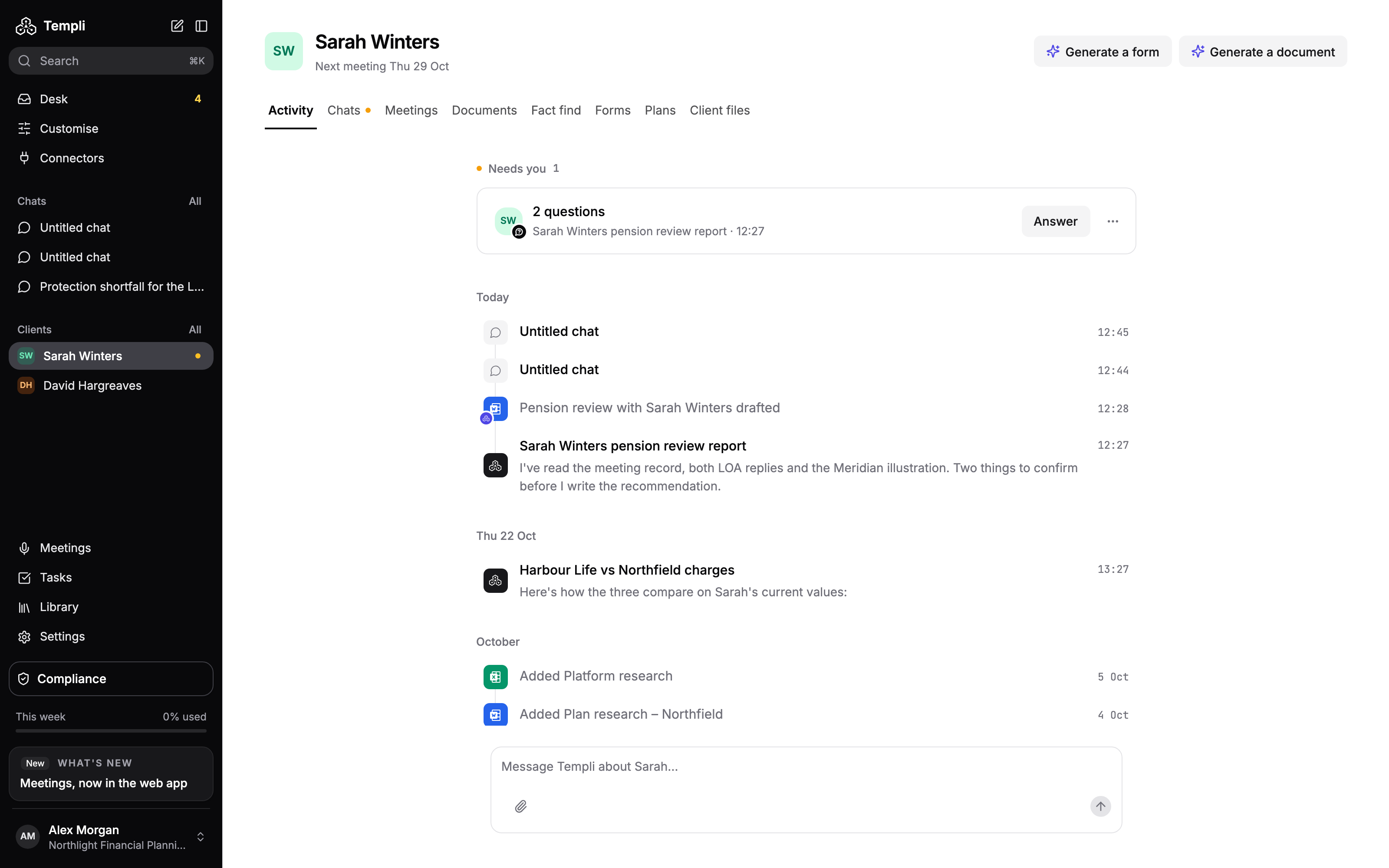
The Activity tab is the first thing you see on a client hub. It shows what is waiting on you for this client, then everything that has happened on their case, newest first, with a message box to ask Templi about them.
Where to find it
Open a client from Clients in the sidebar. The hub opens on Activity.
URL:
https://app.templi.ai/clients/<client>/activity
Needs you
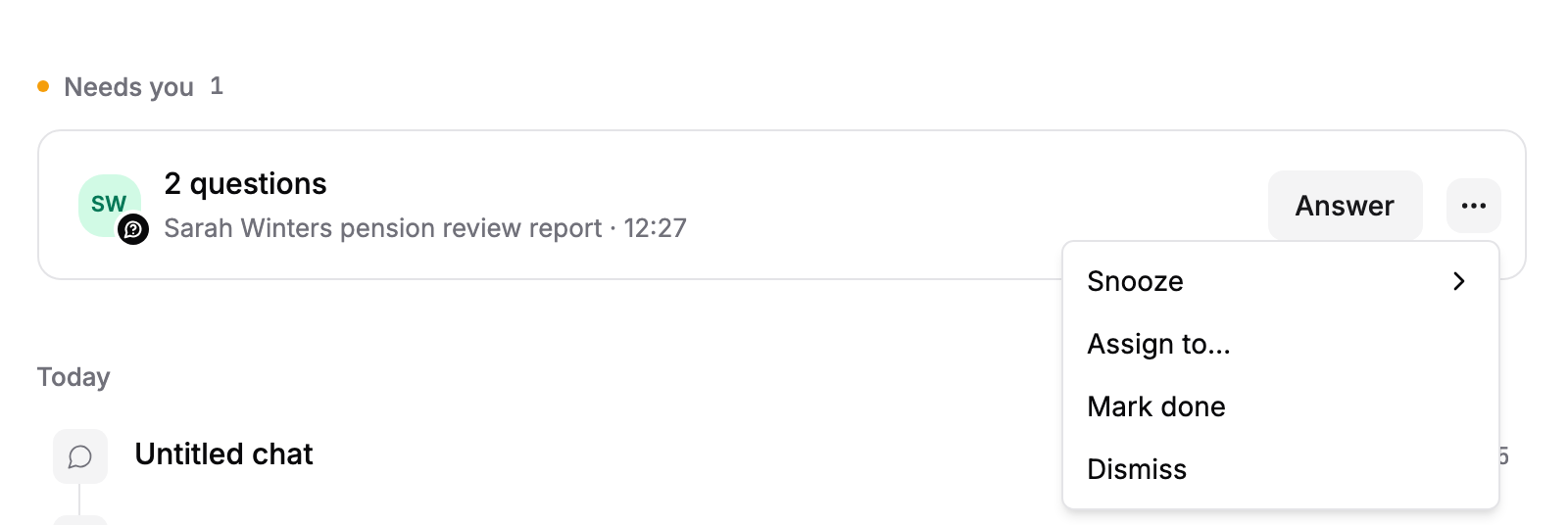
The Needs you section lists work on this client that is waiting for a person, such as a question Templi asked in a chat or a compliance review. The count shows how many items there are and how many are yours. The first three show, and Show more reveals the rest.
Click an item to deal with it. Its three-dot menu lets you Snooze it, Assign to a colleague, mark it done with Mark done, or Dismiss it.
History
The history is grouped by day. Click any line to open the thing it describes.
Line | Opens |
|---|---|
A chat title, or Templi's latest reply in that chat | The chat |
A document drafted, in review, updated or signed off | The document |
Added, followed by a file name | The file |
Meeting, followed by its title | The meeting |
Remembered, followed by an entry title | That entry in the client's memory |
Plans synced from your back-office system | The Plans tab |
A form or plan saved to your back-office system | The form or plan |
Imported from your back-office system, or Added to Templi | The day the client arrived |
Fact find imported | The fact find |
A document Templi is still writing shows as in progress. Click Show earlier at the bottom to load older history.
A new client
A client with no fact find and no history yet shows a prompt in place of Needs you. Click Run fact find to open a new fact find from your firm's default template, then attach files or ask Templi to fill it from your connected apps.
If the button is unavailable, your firm has no default fact find yet. Fact find explains how to set one.
Ask Templi about this client
Type in the message box at the bottom of the tab, which reads Message Templi about and the client's first name, and send. The chat is linked to the client and opens at https://app.templi.ai/chats/<chat>. It then shows in the client's history and on the Chats tab.

For example, on Sarah Winters' hub:
What's changed for Sarah since her last annual review? Check her plans, documents and memory.
Draft a follow-up email to Sarah about topping up her stocks and shares ISA before the end of the tax year.