

Billing
The Billing tab shows your firm's plan, what it costs and when it renews, and is where you change plan, set a monthly limit on extra usage, update payment details or cancel. Every plan covers everyone at your firm, and prices exclude VAT.
Where to find it
Click Settings in the sidebar, then the Billing tab, or go to https://app.templi.ai/settings/billing.
Who can change billing
Only people with billing access, usually your firm's Owners, can change the plan, the extra usage limit or the payment details. Everyone else sees the plan, the extra usage limit, and the names of the people who can change them under Who can change the plan or cap, with a View usage link to Usage.
Your plan
The top card shows the plan name, the price, the renewal date and this week's usage. Its status tells you where the plan stands.
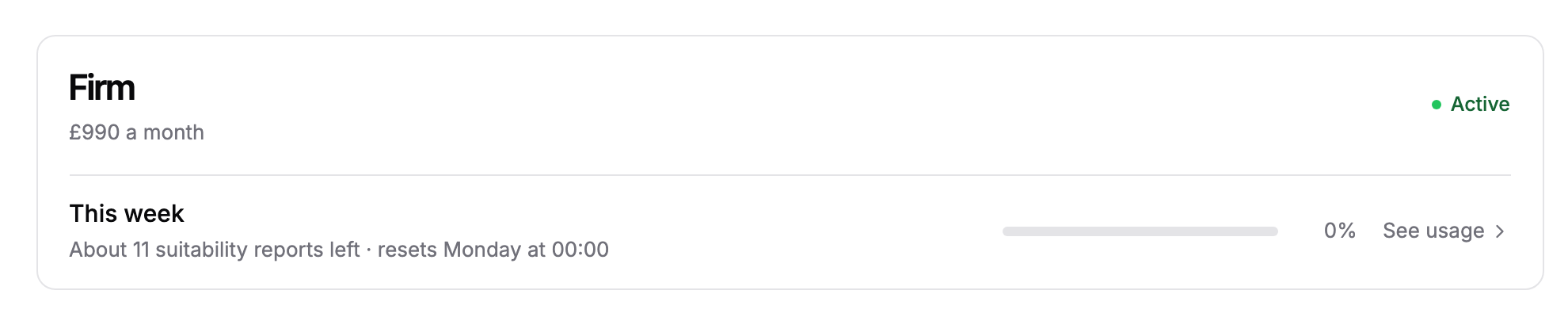
Active means the plan is paid and renews on the date shown.
Moves to a plan on a date means a downgrade is booked. Click Keep and your current plan's name to cancel it.
Ends on a date means the subscription is cancelled and stops at the end of the period.
Payment failed means your last payment did not go through.
If a payment fails, update your payment details by the date shown on the Billing tab to keep your plan. After that date your firm moves to Free.
Change plan
Paying firms see a Change plan list, and firms on Free see Plans. Each plan shows its price and roughly how many reports a week its allowance covers. When you choose a plan for the first time, pick Monthly or Annual · 2 months free under Billing period.
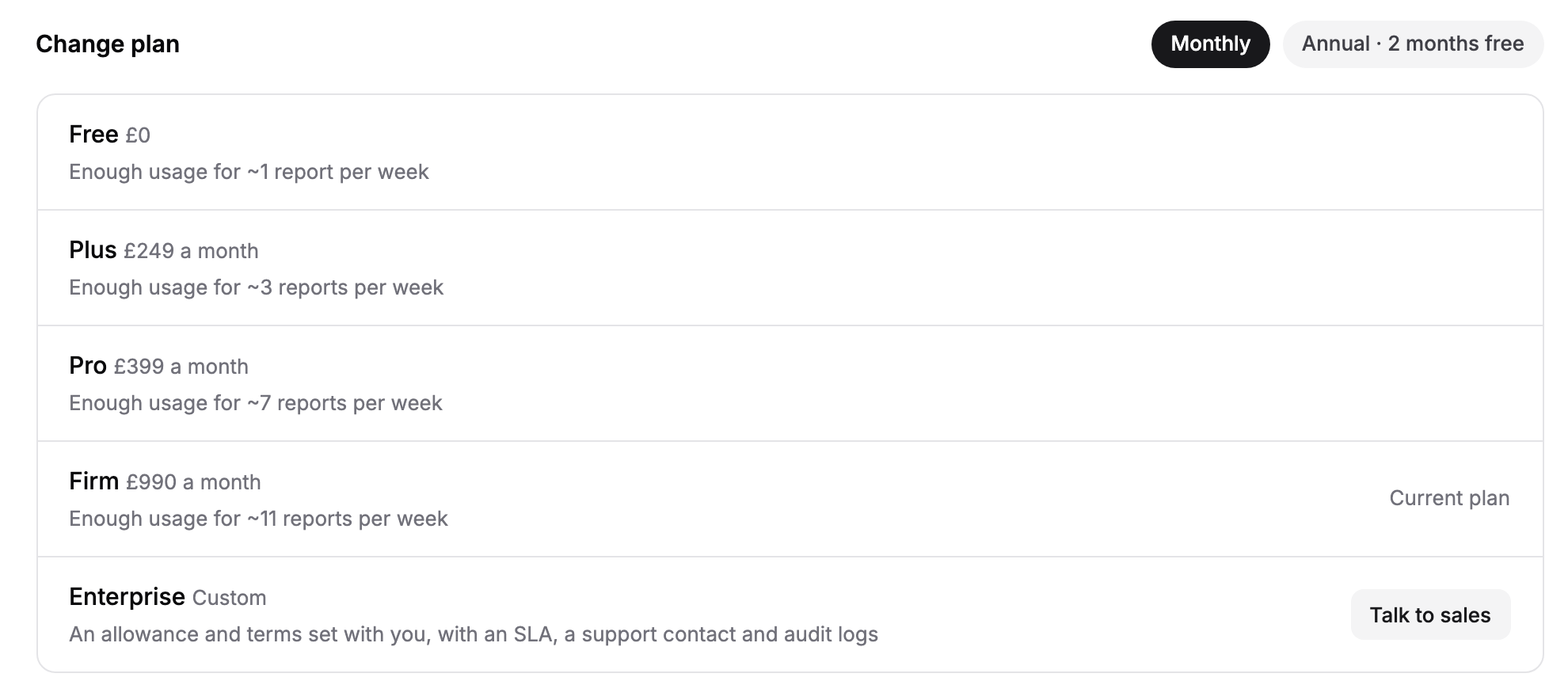
Click Upgrade to and the plan's name, or Downgrade.
If you are on Free, complete the checkout that opens. If you already pay, confirm with the button in the dialog.
Moving from a paid plan back to Free opens the billing portal instead.
An upgrade starts straight away, and today we charge the difference for the rest of the billing period. A downgrade waits until your current period ends, and you keep the current plan until then. For an Enterprise plan, with an allowance and terms set with you, click Talk to sales.
Set the extra usage limit
On paid plans, work carries on past the weekly allowance as extra usage, up to a monthly limit you set. Extra usage is billed with your next invoice, and work already running always finishes.
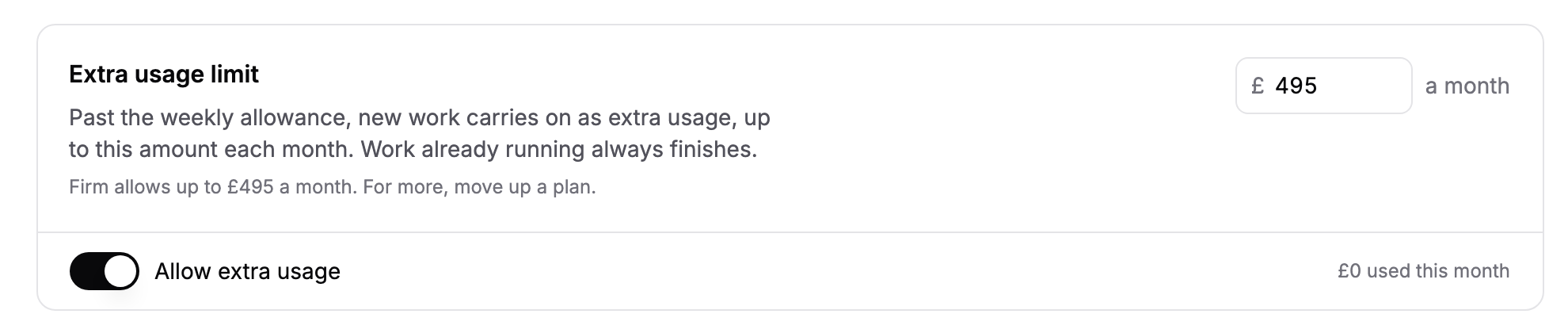
In Extra usage limit, turn on Allow extra usage.
Enter the most you want to spend each month in pounds. It saves when you click away or press Enter.
Each plan has a highest limit, shown on the card. For more, move up a plan. Click Reset to the plan limit to go back to the plan's limit. Turn Allow extra usage off to stop all new work once the weekly allowance is used.
Update payment details or cancel
Payment details and cancelling are handled in our payment provider's billing portal.
Click Manage payment details at the top of the Billing tab to update how you pay.
Click Cancel subscription under the plan list to cancel.
Account setup pending
If your firm does not have an active plan yet, team members who cannot manage billing see Account Setup Pending at https://app.templi.ai/billing/account-pending instead of the app. Someone with billing access needs to choose a plan first. Once that is done, everyone has full access.
Ask Templi
Ask Templi about plans and billing and it answers from this help centre. For example:
Our annual review season is coming up. How do I raise our extra usage limit for the month?