

Team
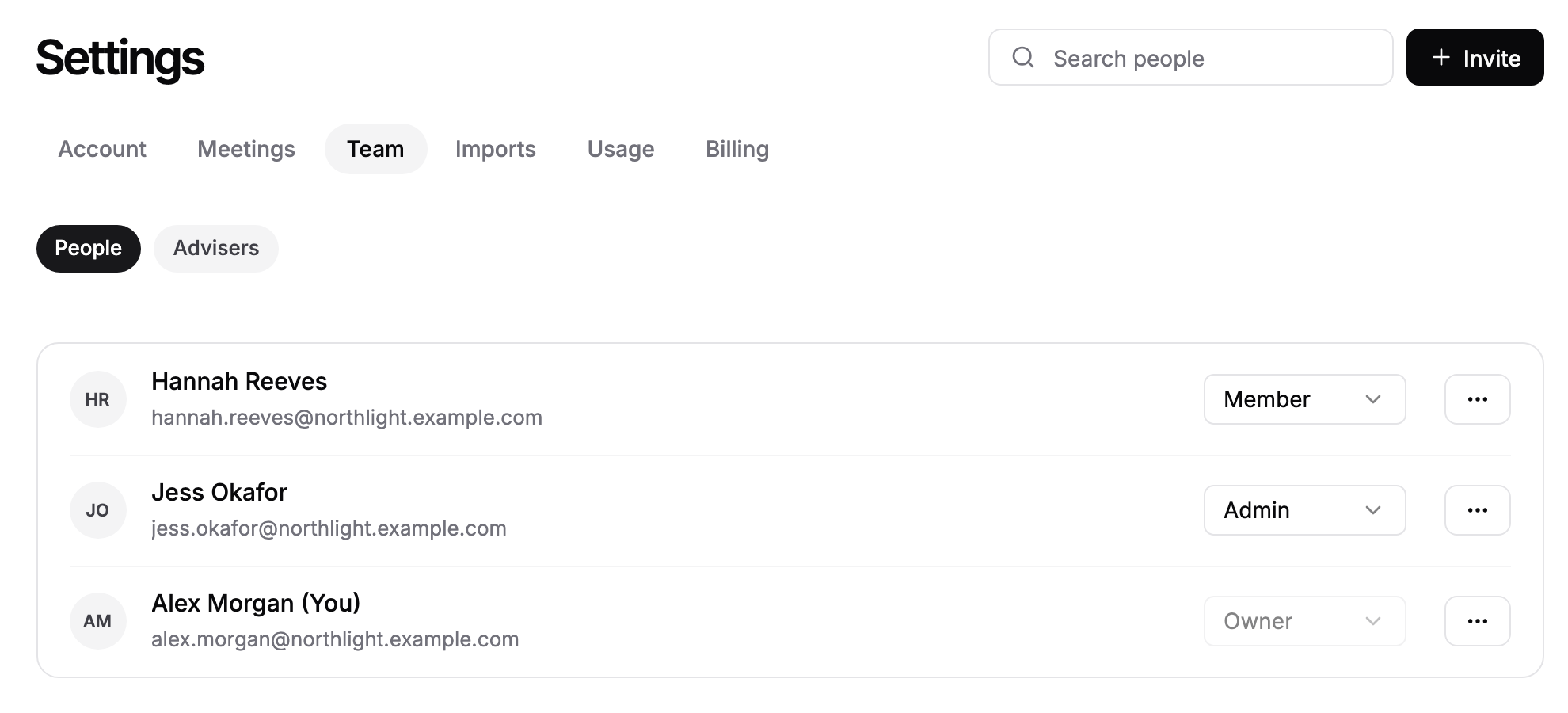
The Team tab is where you invite colleagues to Templi, set their role, remove people who have left, and manage the adviser records your CRM import brought in. It has two views: People for the members of your firm, and Advisers for adviser records.
Where to find it
Click Settings in the sidebar, then the Team tab.
People:
https://app.templi.ai/settings/teamAdvisers:
https://app.templi.ai/settings/team?view=advisers
Switch between them with the People and Advisers chips at the top of the tab. The older address /settings/advisers opens the Advisers view.
Roles
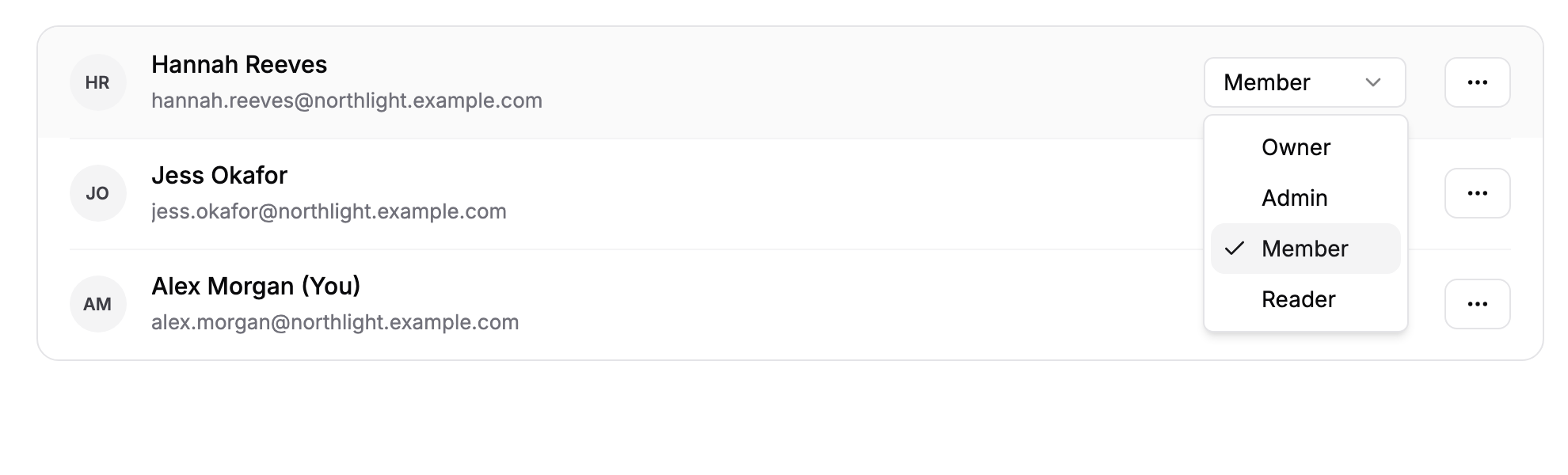
Every member has one role. The role decides what they can change.
Role | What they can do |
|---|---|
Owner | Everything, including billing and changing other people's roles. |
Admin | Everything except billing and changing roles. Can connect firm-wide connectors such as your CRM. |
Member | Day-to-day work on clients, documents and forms. Cannot see billing or connect firm-wide connectors. |
Reader | Read-only access. Cannot see billing. |
Only an Owner can choose a role when inviting someone or change a role afterwards. Everyone else's invitations join as Member.
Invite team members
Invite colleagues when they need their own Templi login. If you do not see Invite, your role cannot add people. On a current plan, inviting people does not change what you pay, because every plan covers everyone at your firm.
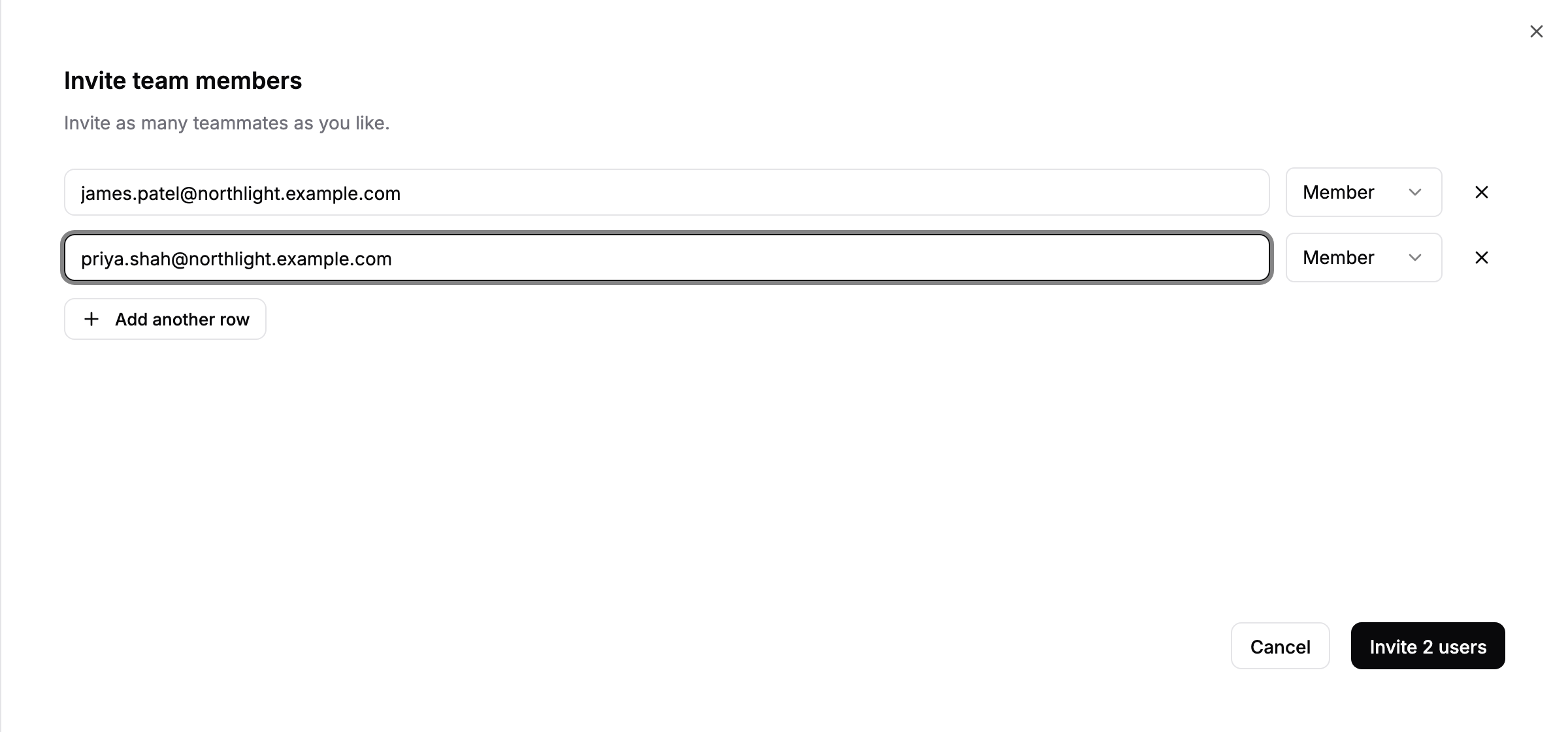
On the People view, click Invite.
Enter a colleague's email address. If you are an Owner, pick their role next to it. New rows default to Member.
Click Add another row to invite more people at once.
Click the invite button at the bottom of the panel. It counts the people you are inviting, for example Invite 2 users.
Each person gets an email invitation to set their password. An address that already belongs to a Templi account at another firm cannot be invited. Ask that person to leave their current firm first, or use a different address.
See a member's details
Click a person on the People view to see their role and, if they are linked to an adviser record, their FCA number and preferred name. Type in Search people to find someone by name or email.
Change someone's role
On the People view, open the menu in the Role column on the person's row.
Choose the new role. It saves straight away.
You cannot change your own role, and you cannot change the role of your firm's last Owner.
Remove someone
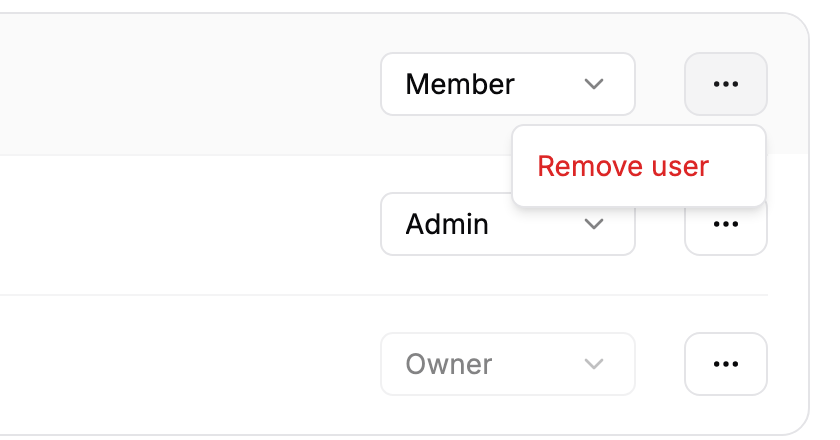
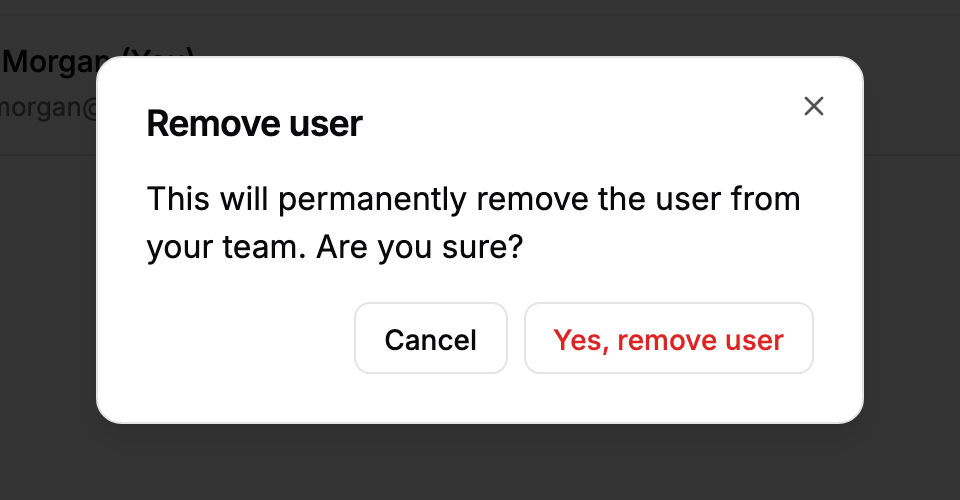
On the People view, click the ... menu on the person's row and choose Remove user.
Click Yes, remove user.
Removing a user is permanent. They can no longer sign in to your firm's Templi.
Advisers not on Templi
When a CRM import brings in advisers who are not yet linked to a team member, the People view lists them under Advisers not on Templi. Until you invite or link them, they do not appear in adviser pickers or exports.
Invite sends them a Templi invitation. If your CRM holds no email address for them, we ask you to enter one first.
This is me / Link links the record to an existing team member. Pick the person and click Link adviser.
Archive hides a record you do not need, such as an adviser who has left.
Advisers view
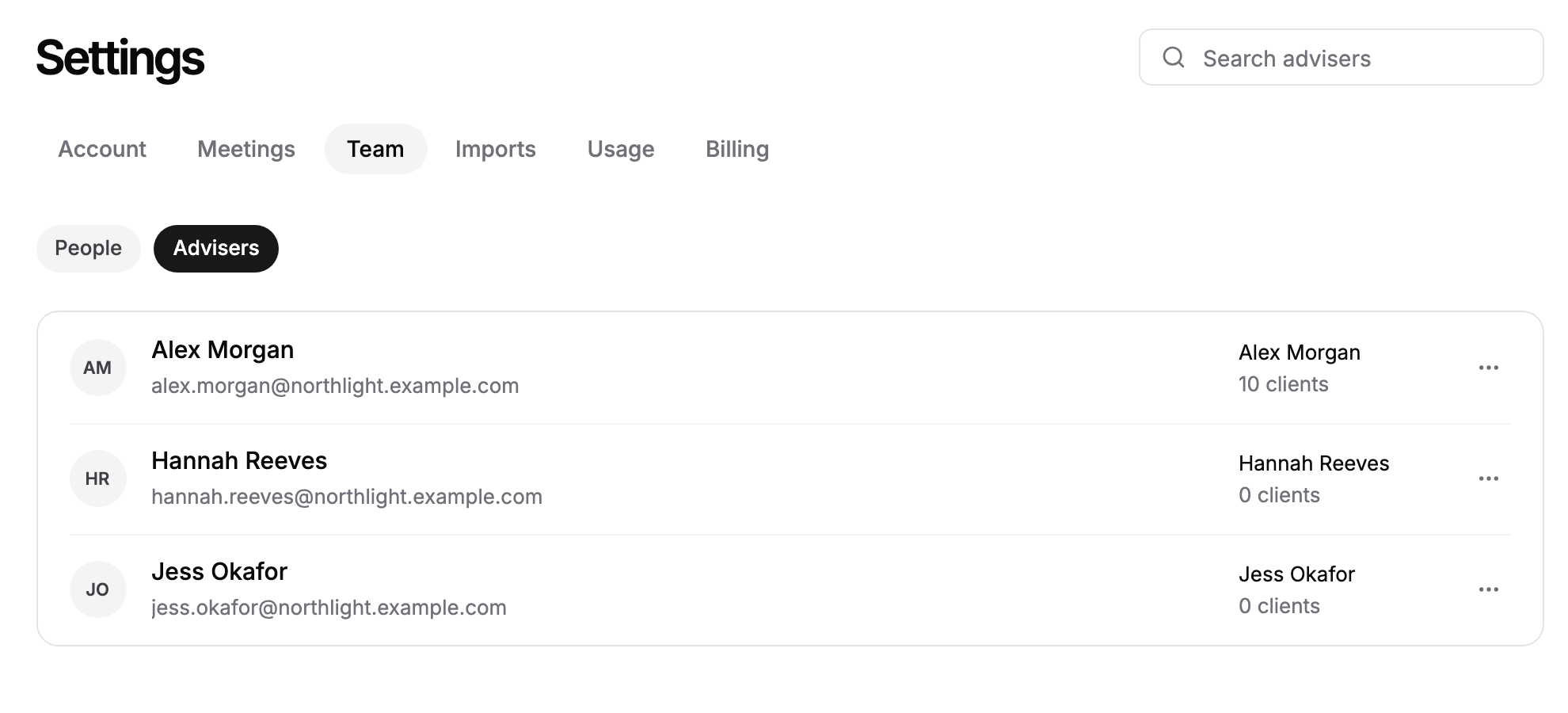
The Advisers view lists every adviser record in your firm, who it belongs to and how many clients it holds. A record shows Not linked until it is linked to a team member. One person can hold several records, for example when your CRM registers them once per office. Each record keeps its own clients and CRM identity.
Link an adviser record
On the Advisers view, click Link on a record that shows Not linked.
Pick the team member the record belongs to.
Click Link adviser.
Remove an adviser record
Click the ... menu on the record and choose Remove.
If the record holds clients, choose the record they should move to.
Click Remove record.
A record that holds clients cannot be removed until you pick where its clients go.
Ask Templi
Ask Templi how to set up your team and it answers from this help centre with the steps. For example:
How do I invite our new adviser, James Patel, and link him to his adviser record from Intelliflo?