

Search, filter and select in lists
Every list in Templi, such as Clients, Chats, the Library tabs and the Customise tabs, works the same way: a search box at the top, filters where the list has them, and a ... menu on each row. Lists show each item as a row with its icon, name, a short description, a status and the date it last changed.
Where to find it
These controls are on every list page. For example:
Clients > All:
https://app.templi.ai/clientsChats > All:
https://app.templi.ai/chatsLibrary > Generated, Files, Plans or Groups:
https://app.templi.ai/documents,/files,/plans,/groupsCustomise > Templates, Forms, Knowledge or Skills
Connectors:
https://app.templi.ai/integrations/apps
Search and filter a list
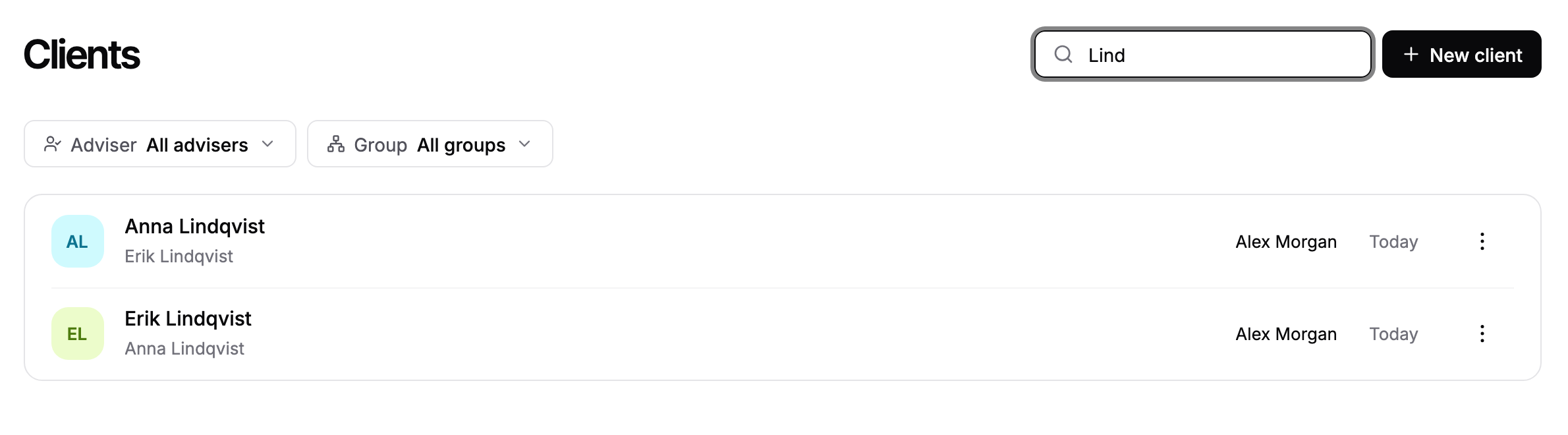
Type in the search box at the top of the page, for example Search chats or Search connectors. The list narrows as you type.
Click a filter above the list to narrow it further. On Chats, for example, the filters are All, Needs you, Mine and With a client.
Click a row to open it.
Act on one row or several
Click ... on a row for its actions, such as Rename, Edit or Delete. What the menu offers depends on the list.
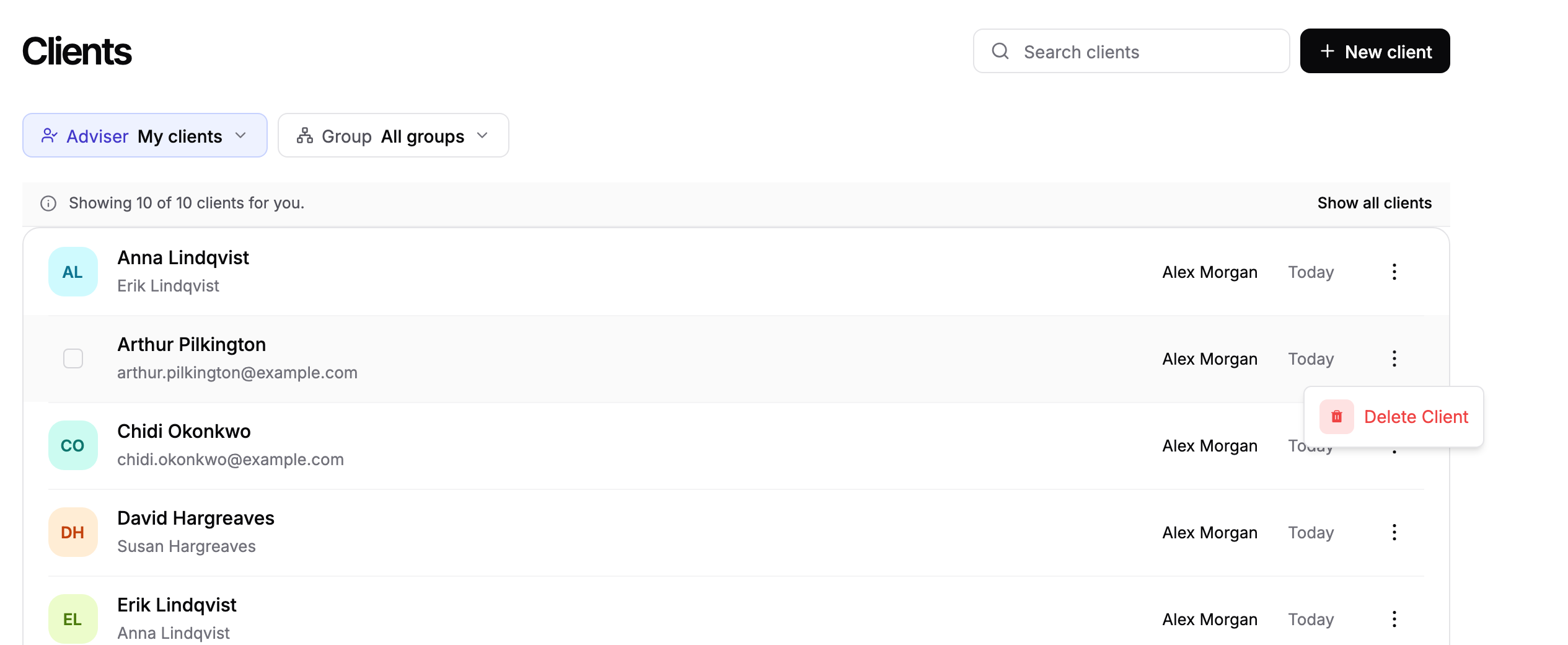
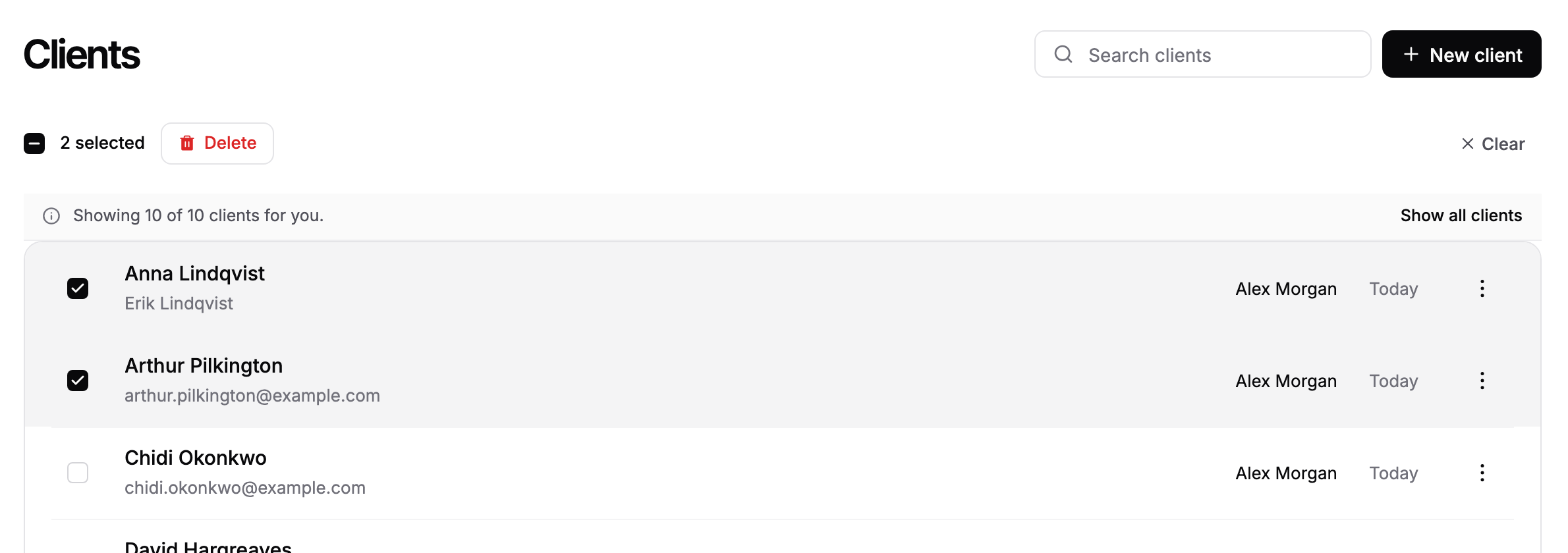
Lists that support bulk actions, including Clients, Generated documents, Files and Forms, let you select several rows.
Hover over a row's icon. A tick box takes its place.
Tick the rows you want. A bar shows how many are selected and the actions you can take on all of them.
Use the tick box in the bar to select every row, or Clear to deselect.
Use the keyboard
Key | What it does |
|---|---|
Up and down arrows | Move between rows |
Enter | Open the row |
Space | Select or deselect the row |
Shift with an arrow | Extend the selection |
Escape | Clear the selection |
Row height and columns
Lists have one fixed layout. The Table settings menu, with its row height and column choices, is no longer part of Templi's lists.
Ask Templi
For a question a filter cannot answer, ask in a chat, for example "List my clients with a SIPP and no protection in place" or "Which chats about Sarah Winters still need me?"