

Client documents
The Documents tab on a client hub lists every document Templi has written for the client, such as suitability reports, research and meeting notes. Use it to find a document, see which ones need your review, and start a new one.
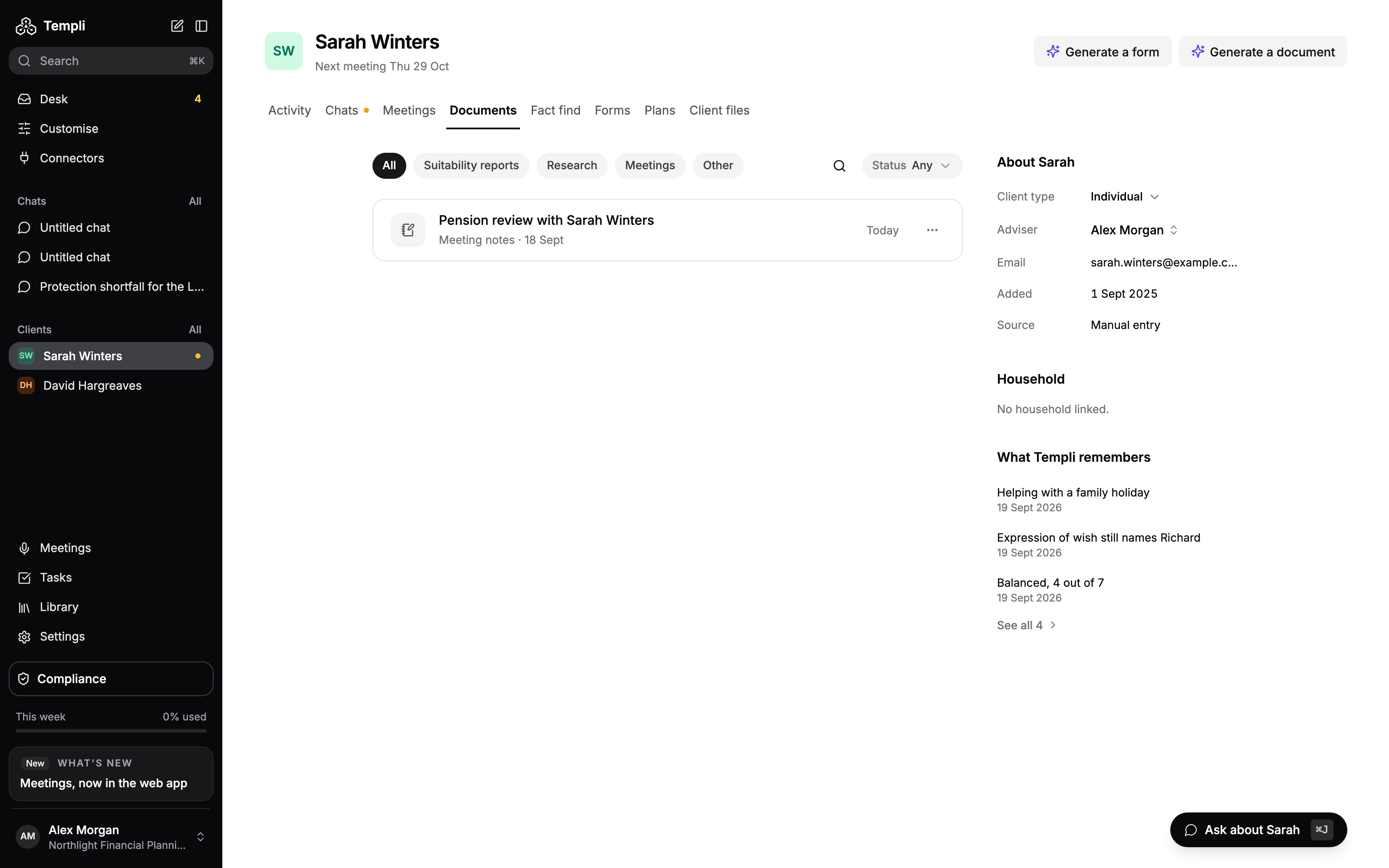
Where to find it
Open the client, then click the Documents tab.
URL:
https://app.templi.ai/clients/<client>/documents
The same documents also appear, with every other client's, under Library > Generated at https://app.templi.ai/documents. The client's fact finds are on the Fact find tab, not here.
Generate a document
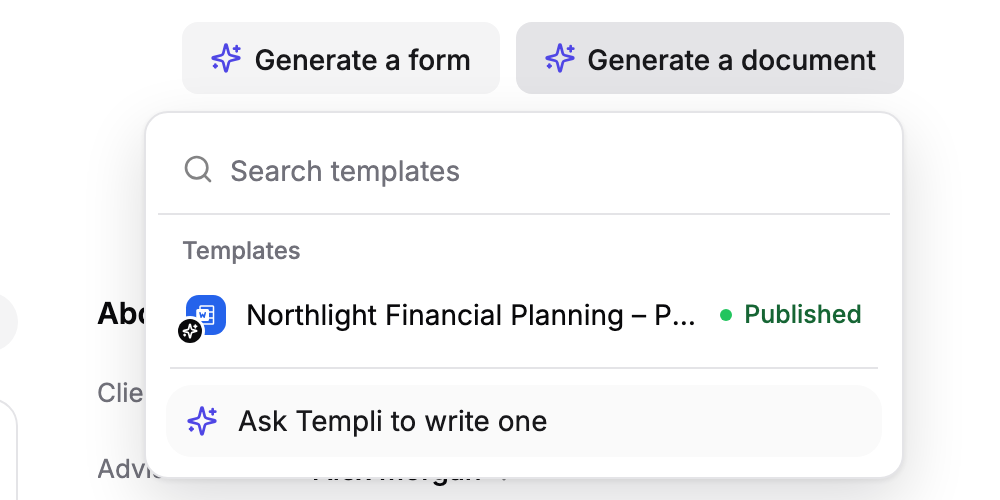
Click Generate a document at the top of the hub.
Pick a template, or type in Search templates to find one. To have Templi write something without a template, choose Ask Templi to write one.
In the dialog, check the client under Clients, add any Files and sources, and use Anything the agent should know for instructions.
Click Generate.
If the template has not been tested yet, Templi warns you before the dialog opens. Click Generate anyway to carry on, or Test on a past case to try the template first.
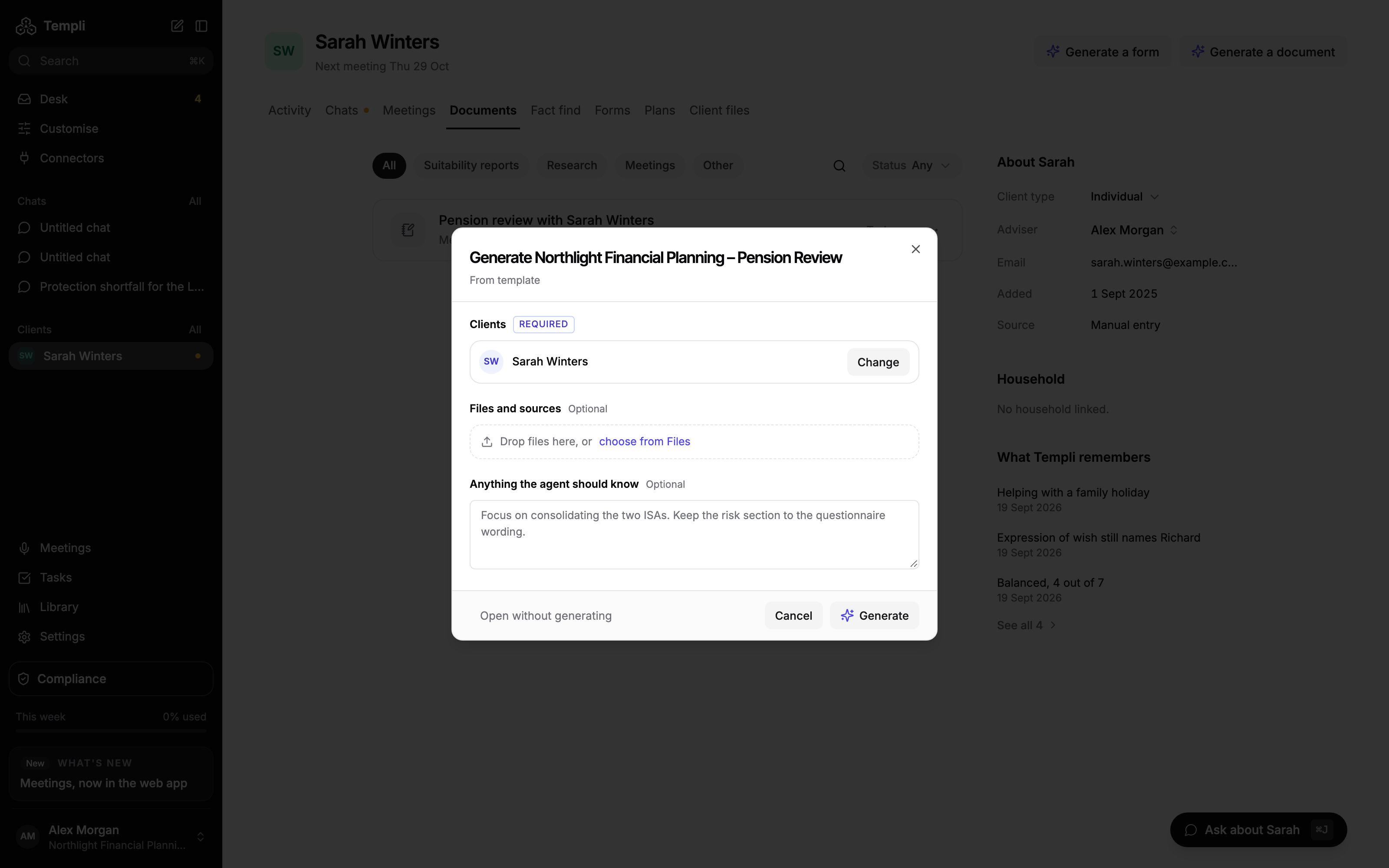
The document opens at https://app.templi.ai/documents/<document> while Templi writes it. To open it empty and write yourself, click Open without generating instead. Generate a report covers the dialog in full.
Find a document
Click a row to open the document.
Type: All, Suitability reports, Research, Meetings or Other.
Status: Any, Writing, Ready, In review or Signed off.
Search generated finds a document by name.
When documents are waiting for review, a line at the top shows how many. Click Show them to list only those, and Show everything to go back.
Archive or delete a document
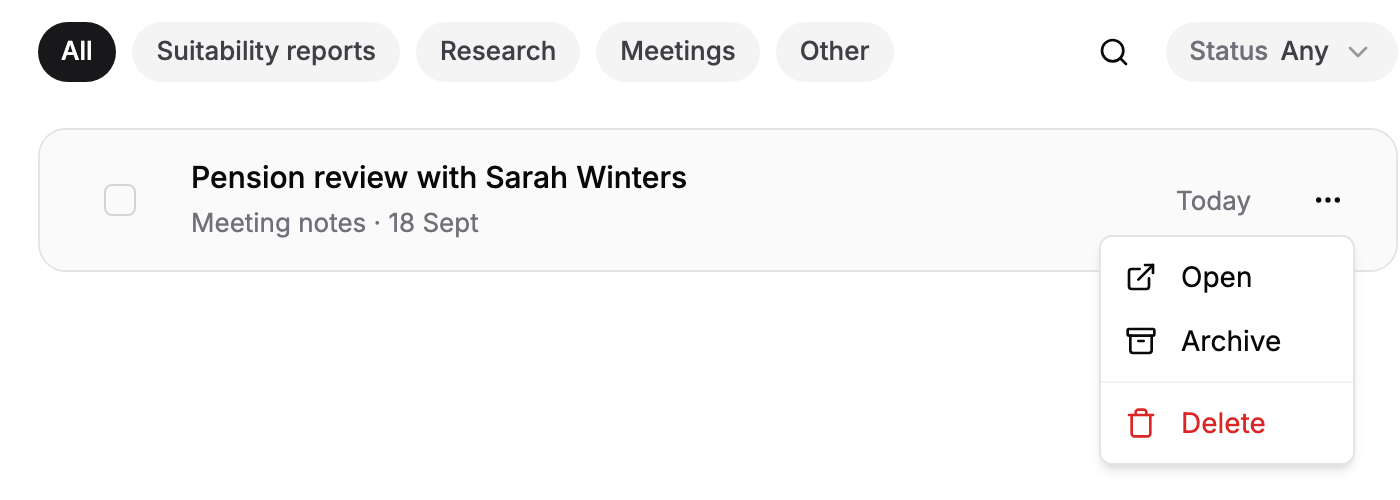
Open the three-dot menu on a document's row.
Open opens it.
Archive archives it.
Delete deletes it after you confirm.
Ask Templi
Click Ask about and the client's name at the bottom right of the tab. For example:
Write Sarah Winters' annual review letter using our annual review template and her latest valuations.
Which of Sarah's documents are still in review?