

Two-factor authentication
Two-factor authentication asks for a security code as well as your password when you sign in to Templi, so a stolen password alone cannot open your account. You get the code from an authenticator app on your phone or by email.
Where to find it
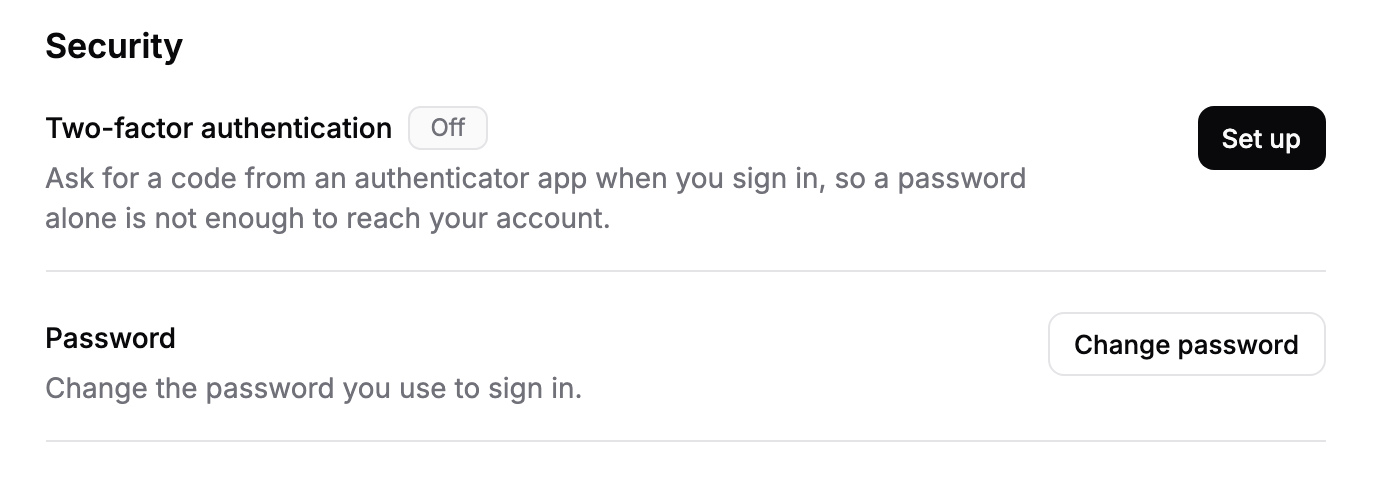
Click Settings in the sidebar, open the Account tab and scroll to the Security section, or go to https://app.templi.ai/settings/account. The Two-factor authentication row shows On or Off.
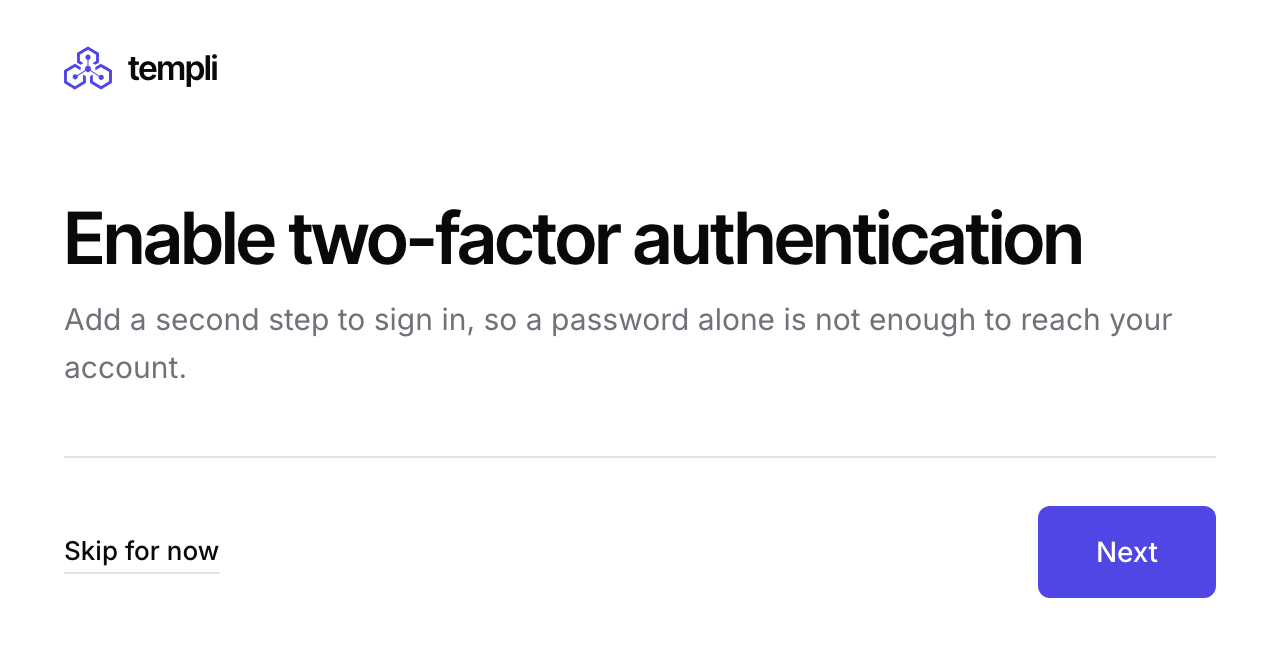
Once your firm has an active plan, Templi also takes you to the setup page after you sign in if two-factor authentication is still off. Click Skip for now to carry on without it. We ask again after 24 hours.
Set up two-factor authentication
Have your phone with an authenticator app installed, such as Microsoft Authenticator, Google Authenticator or 1Password, or access to your work email.
In the Security section, click Set up next to Two-factor authentication.
On the Enable two-factor authentication page, click Next.
Choose Authenticator app or Email, then click Next.
For an authenticator app, scan the QR code with the app. If you cannot scan it, type the secret key shown under the code into the app instead. For email, we send a security code to your email address.
Enter the code from your app or your email and click Next.
On the Setup complete page, click View backup codes and save them somewhere safe.
Click Continue to dashboard.
From then on, each time you sign in you enter your email and password, then a security code.
Backup codes
Backup codes are single-use codes that get you in if you lose your phone. To see them later, go to the Security section and click View codes next to Backup codes. Click Generate new codes if you have used them up or think someone else has seen them.
To sign in with one, click use a backup code on the security code screen and enter one of your codes.
Move to a new phone
Use Change device when you still have your old phone and want to move to a new one.
In the Security section, click Change device.
Tick Yes, I have my new device ready and click Continue to setup.
Set up the new phone with the same steps as above.
Your old authenticator stops working as soon as you continue.
Lost your phone
If you can no longer get a code and have no backup codes, reset your authenticator from the sign-in page. You need your Templi password.
Sign in with your email and password.
On the security code screen, click Reset it next to New phone or lost your authenticator?
Enter your email address and click Send reset link.
Open the link in the email, enter your Templi password and click Remove authenticator.
Click Sign in and set up your new authenticator app when we ask.
The reset link works once and expires after 24 hours. If the email has not arrived, check your spam folder or contact [email protected].
Turn off two-factor authentication
In the Security section, click Turn off.
Tick Yes, I am sure and click Turn off two-factor authentication.
Your account is then protected by your password alone.
Ask Templi
Ask Templi how to secure your login and it answers from this help centre. For example:
I've got a new phone. How do I move my Templi authenticator across?