

Install the Templi Adviser desktop app
Templi Adviser is the desktop app that records your client meetings, transcribes them as they happen and turns them into notes and a completed fact find. It runs on your computer, so it can record meetings on Teams, Zoom or Google Meet without a bot joining the call. Install it once, sign in, and it keeps itself up to date.
Before you start
Your firm needs an active Templi subscription. If there is no active subscription, the app shows a "No active subscription" message after you sign in and points you to your team page, where you can manage billing.
It runs on macOS and Windows.
Download and install
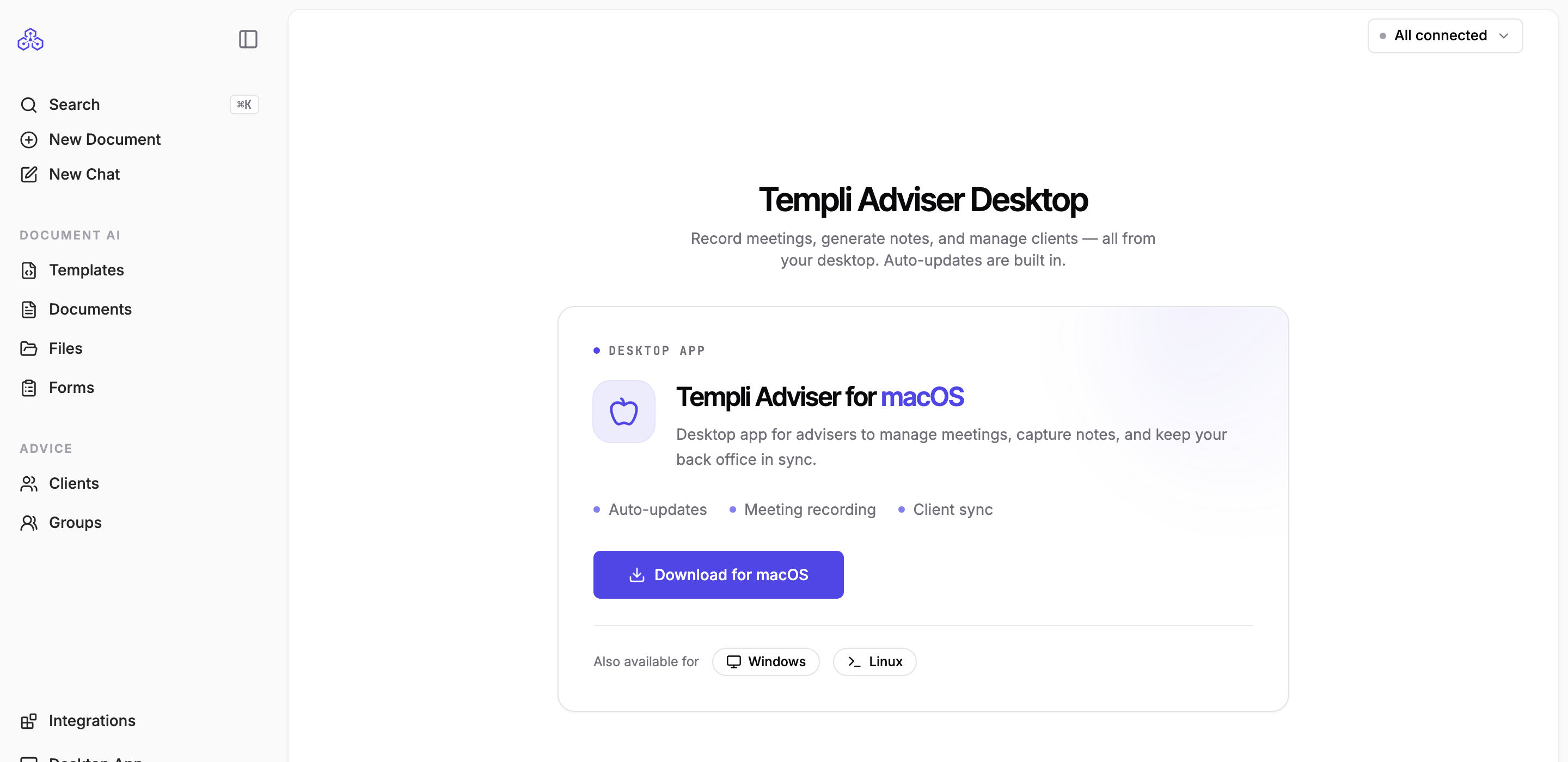
In Templi, click Desktop App at the bottom of the sidebar.
Click Download for your computer. The download starts straight away.
Open the downloaded file and follow the installer. On Windows the installer adds a desktop shortcut and a Start Menu entry.
Sign in
Open Templi Adviser and click Sign In. Your browser opens so you can sign in with your usual Templi account, then hands you back to the app. You stay signed in until you sign out.
Allow the permissions it needs
On a Mac, the app asks for three permissions the first time it runs. It cannot detect or record meetings without them.
Accessibility, to detect when a meeting is running and who is speaking.
Microphone, to record your side of the conversation.
Screen & Audio Recording, to capture the other participants' audio.
Click Grant Permissions and approve each request as macOS shows it. If you dismiss one, use Open System Settings to switch it on under Privacy & Security, then Check Again. The app notices as soon as all three are on.
Connect your calendar
The app shows your upcoming meetings when a calendar is connected. Click Connect Calendar, choose Google Calendar or Outlook Calendar, and sign in. Meetings with a Teams, Zoom or Google Meet link are recognised, and attendees are matched to your clients by email address.
Scheduled meetings from your calendar are recorded automatically when they start. You can pause or resume from the recording indicator at any time.
What you get after a meeting
The transcript is available as the meeting runs. When it ends, Templi writes the meeting notes and fills in the fact find for the client, ready for you to review in the app or in Templi on the web. Meeting reminders, recording alerts and a "notes ready" notification can be switched on or off under Settings, Notifications.
Updates
Templi Adviser updates itself in the background. When a new version is ready, a message in the app lets you restart to apply it.