

Client hub
The client hub is one page per client. It holds their activity, chats, meetings, documents, fact find, forms, plans, files and memory, and it is where you ask Templi to work on their case. Click a client anywhere in Templi to open their hub.
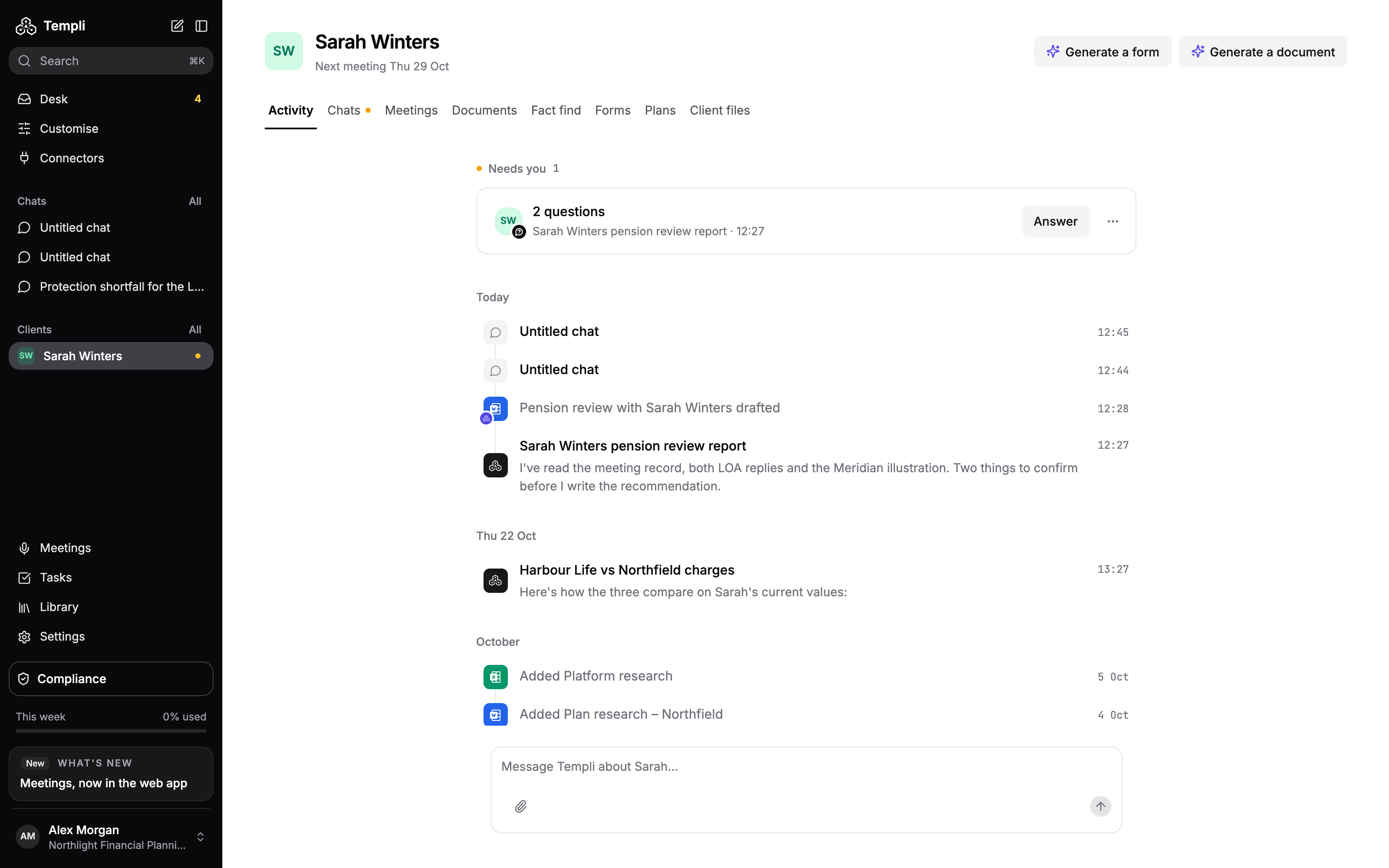
Where to find it
Sidebar: under Clients, click a pinned or recent client. Click All next to Clients to search your whole list, as Clients explains.
URL:
https://app.templi.ai/clients/<client>. It opens on the Activity tab.
Older links to a client's dashboard still work. They open the Activity tab.
The header
The top of the hub shows the client's name. Under it you see their next booked meeting, or Added today for a client created today.
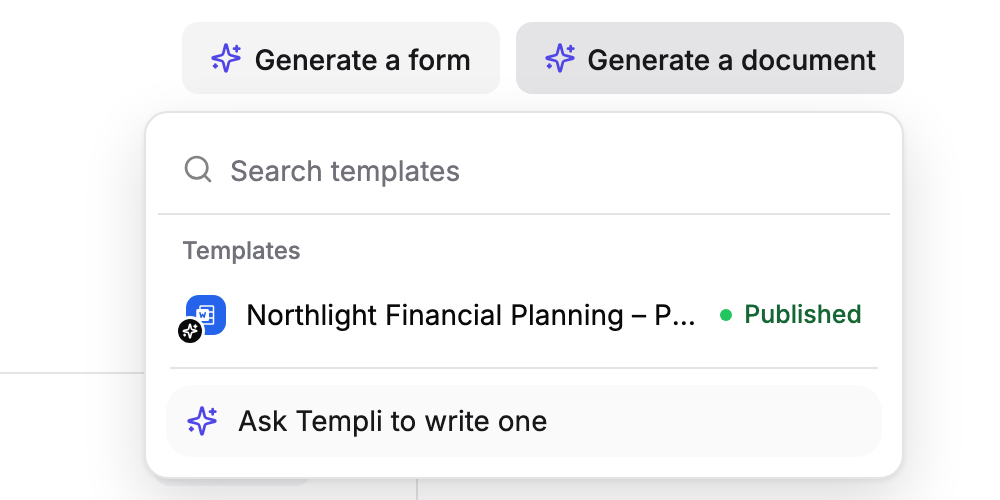
Generate a document lists your published templates. Pick one to start a document for this client, or choose Ask Templi to write one.
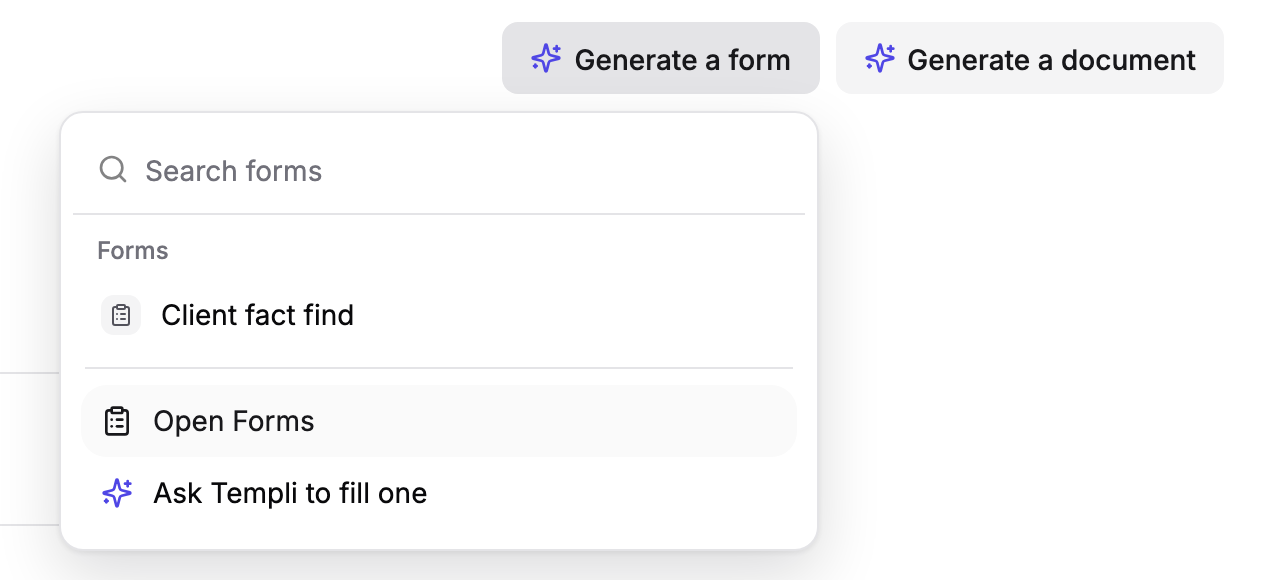
Generate a form lists your forms. Pick one to fill it for this client, or choose Ask Templi to fill one.
The three-dot menu has Open in followed by your back-office system, for example Open in Intelliflo Office. It only shows for clients imported from a back-office system.
Tabs and their URLs
Each tab has its own URL, so you can bookmark or share a tab directly.
Tab | What it holds | URL |
|---|---|---|
What needs you and a day-by-day history |
| |
Every chat about this client |
| |
Annual review status, upcoming and past meetings |
| |
Reports and letters Templi has written for the client |
| |
The latest completed fact find and its history |
| |
Every form filled for the client |
| |
Pensions, investments, protection and mortgages, with values |
| |
Uploaded files, folders and connected drives |
|
An amber dot on the Chats tab means a chat is waiting for you. The client's memory journal is not a tab. Open it from the About panel, or go to /clients/<client>/memory.
The About panel
On every tab except Activity and Chats, a panel on the right shows the client's details. It appears on wide screens.
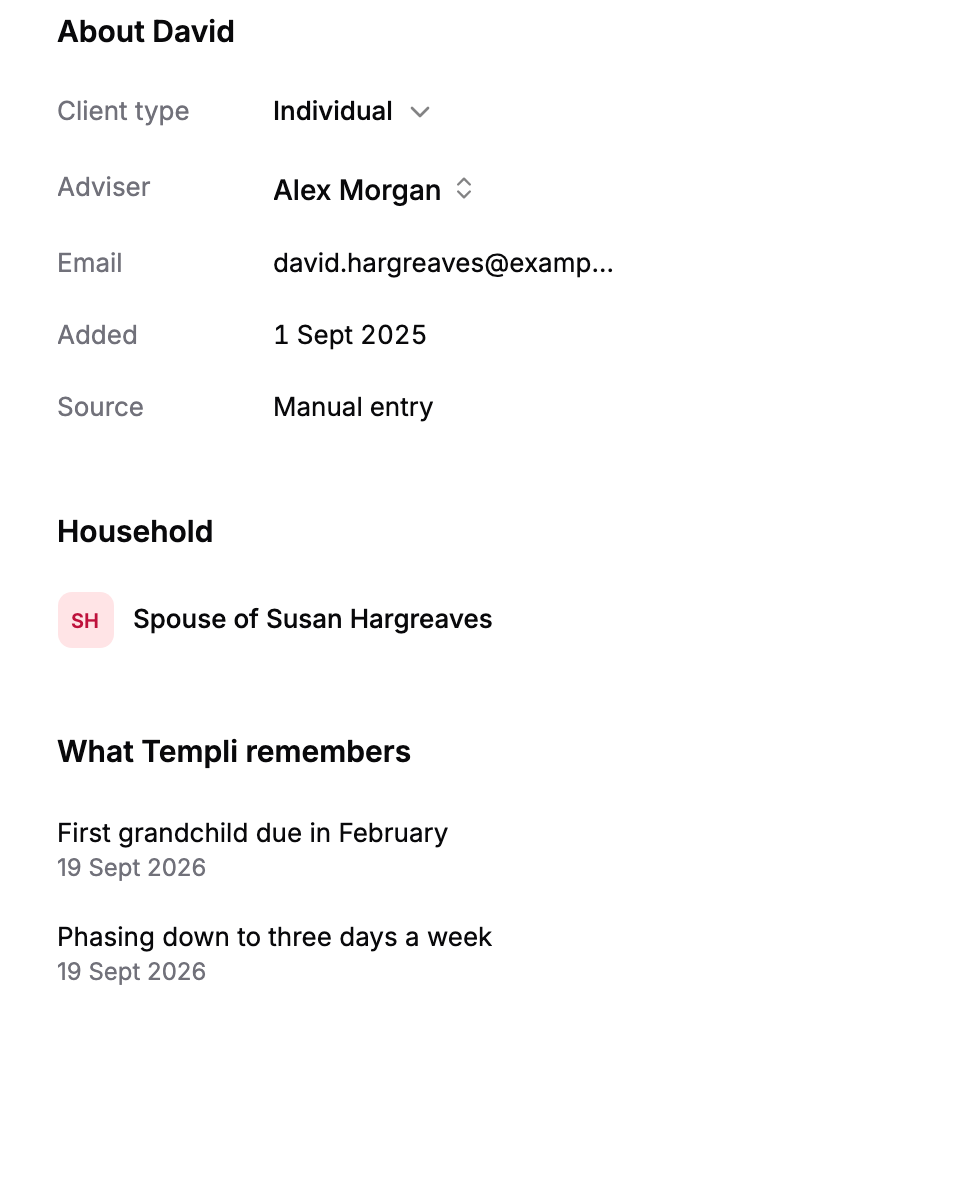
About shows Client type and Adviser, which you can change in place, plus Email, Added and Source. Client type is Individual, Business, Trust or Charity. Source is the system the client came from, or Manual entry.
Household lists the clients linked to this one, such as a spouse. Click a name to open their hub. Client groups covers households and groups.
What Templi remembers shows the three newest memory entries. Click See all to open the full journal.
Ask Templi about this client
Every chat you start from the hub is linked to the client, so Templi works from their files, fact find, plans and memory without you naming them.
On the Activity and Chats tabs, type in the message box at the bottom and send.
On the other tabs, click Ask about and the client's name, at the bottom right.
The chat opens at https://app.templi.ai/chats/<chat>. For example, on Sarah Winters' hub you might send:
Sarah wants to retire at 60. Summarise her pensions from the latest valuations and list what we need to confirm at her annual review.
Add files by dropping them
Drag files from your computer onto any part of the hub to add them to the client's files. If you are inside a folder on the Client files tab, they go into that folder. Each file can be up to 10 MB.
Dropping a file onto the message box attaches it to your message instead of adding it to the client's files.