

Hide a section
Hide a section, or a smaller piece of content, whenever a condition you describe is true for the client. Templi checks the client's details when it writes the report and leaves that content out if the condition holds. You can ask Templi to set this up in chat, or set it up yourself in the template.
Ask Templi to set it up
Name the template and the section, then say when it should be left out, in plain words.
Click Ask Templi in the top bar to open the side panel.
Type your request, for example: In my Pension Switch Suitability Report template, hide the "Your protection" section when the client has no protection policies.
Send it. Templi sets the hide rule on the heading while the Ask Templi side panel stays open.
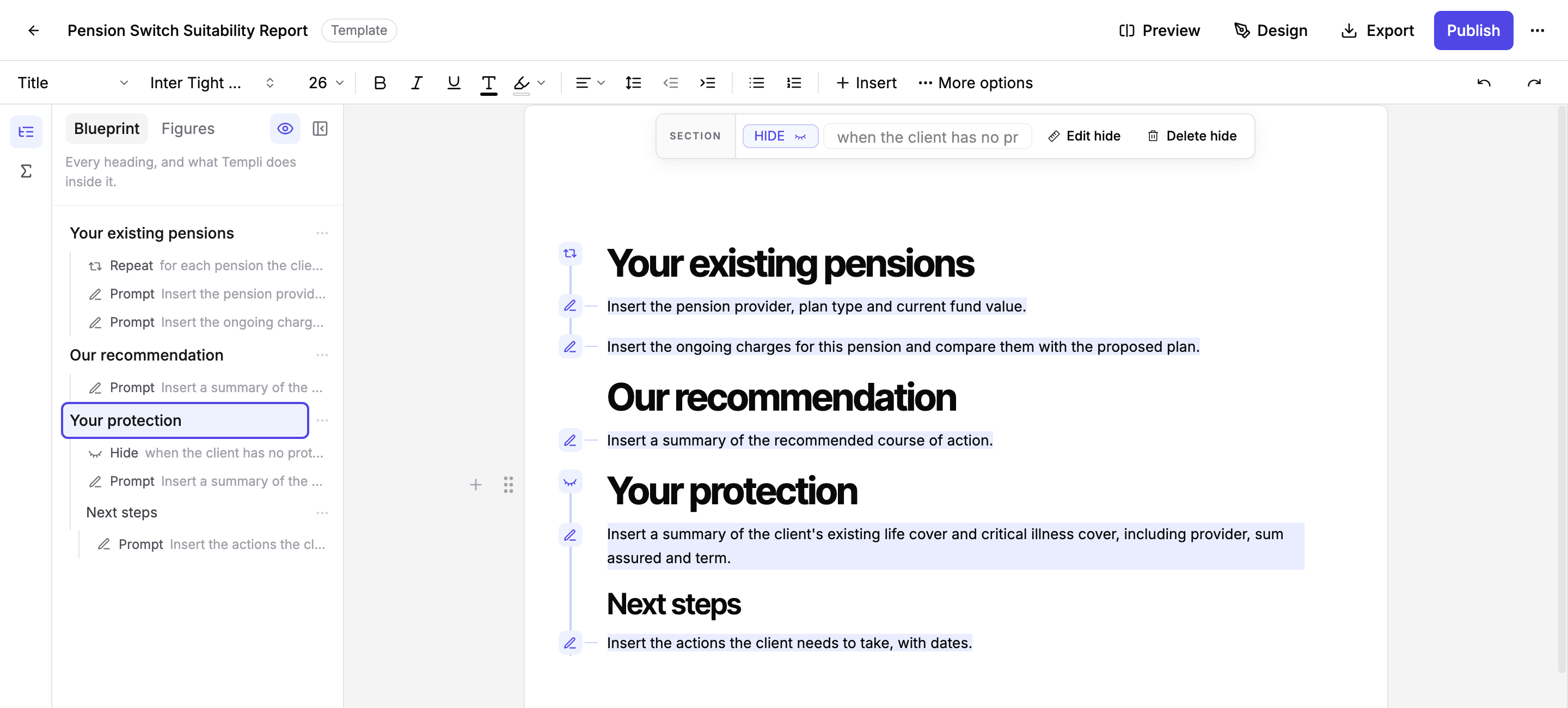
Check the section in the template. The heading carries a hide marker in the margin, and the Blueprint panel lists the rule under it.
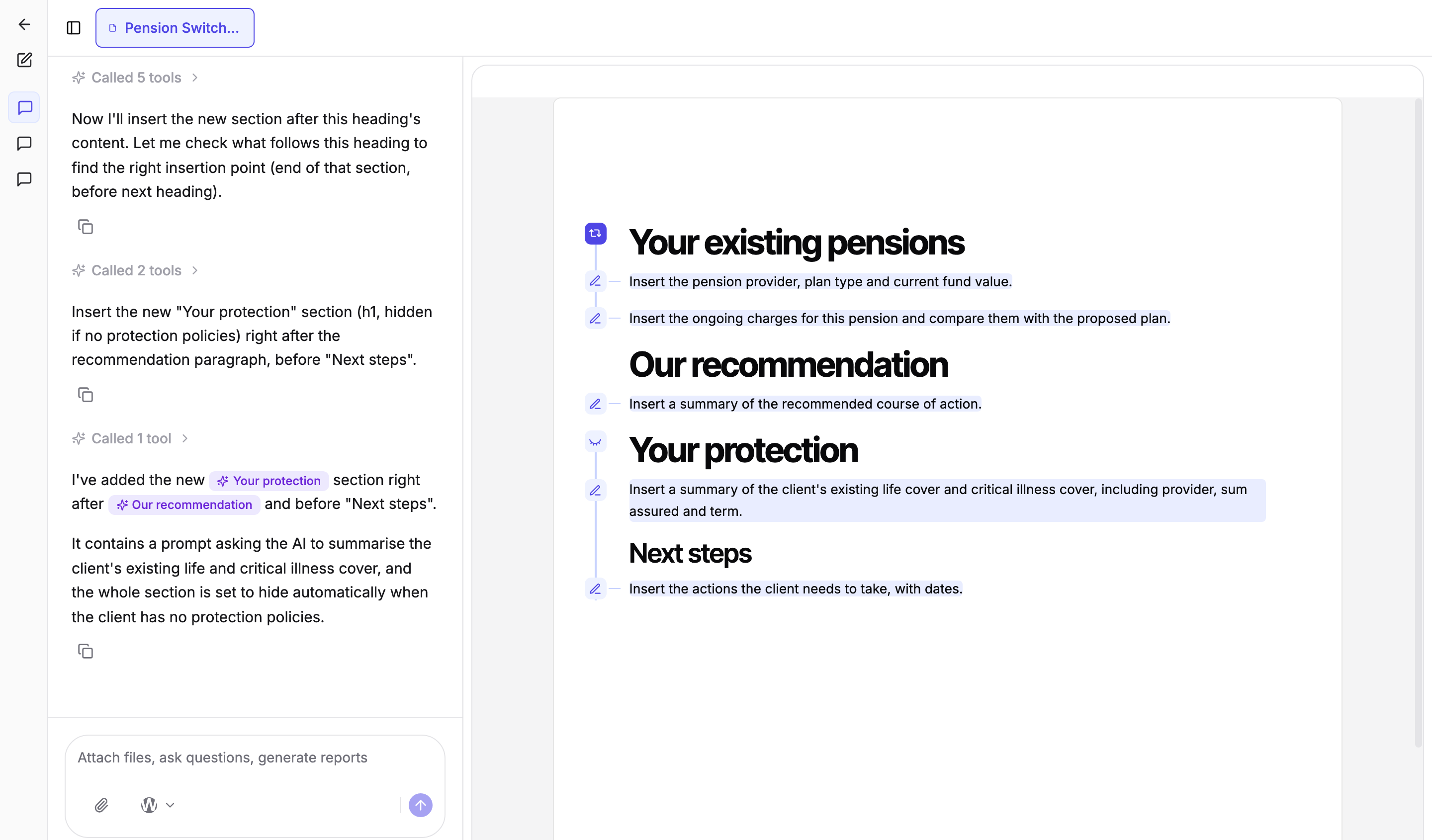
Templi can add the section and the rule in one go, as in the example above, where the request also asked for a new "Your protection" section with a prompt inside it. Other requests that work the same way:
Hide the "Existing ISAs" section when the client does not hold an ISA.
Hide the "Your partner" section when the client is single.
Hide the "Ongoing service" section when the client has chosen a one-off fee.
Set it up yourself in the template
A section is a heading and everything below it, down to the next heading of the same level or higher. Sub-headings underneath are part of the section, so give the content you want to hide its own heading first.
Click the section heading. A menu appears above it.
Click Hide this section when….
Describe the condition, for example the client has no protection policies. Templi works out which client details to check.
Click Add hide.
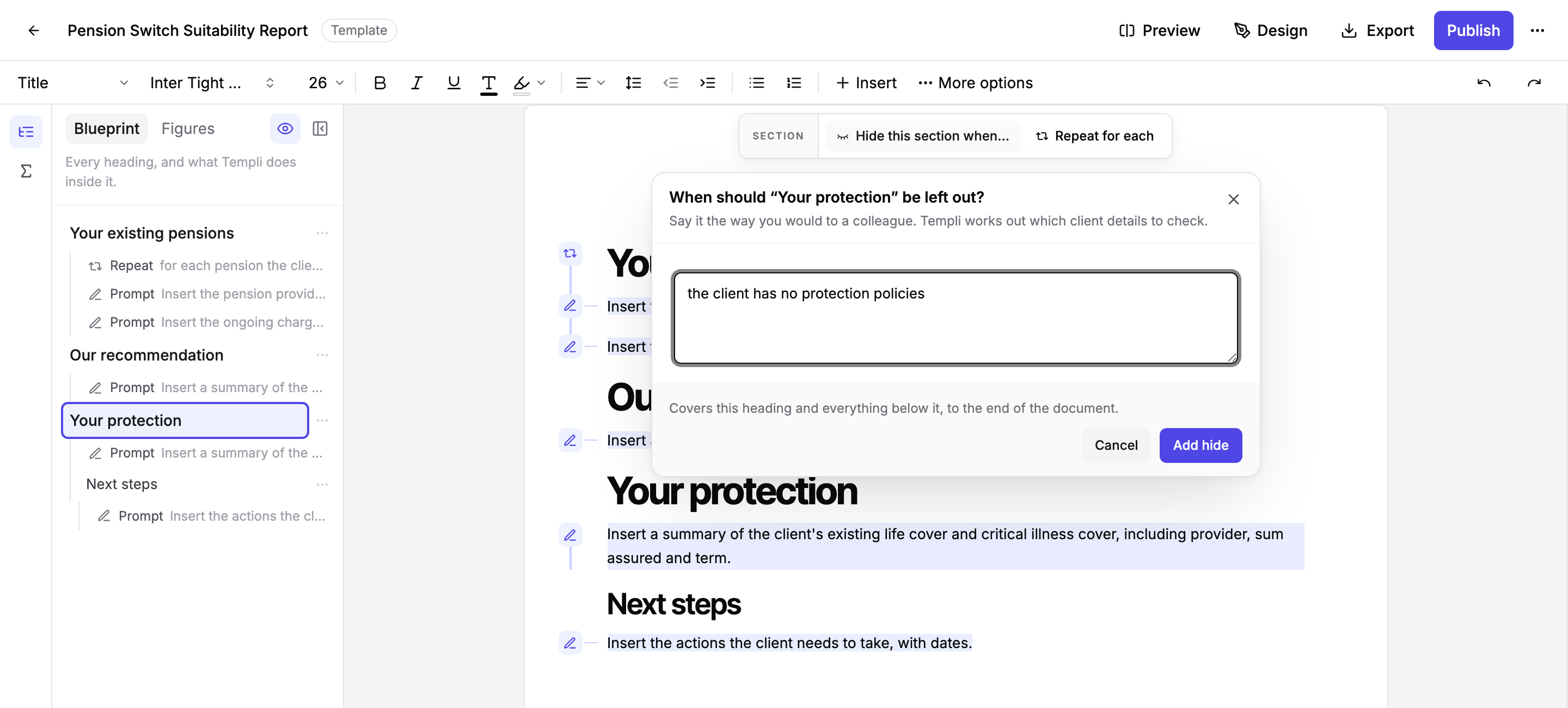
The footer of the editor shows exactly where the section ends, so you know what the rule covers before you save. Once saved, the heading shows a hide marker in the margin, a HIDE badge with the condition in its menu, and a Hide entry in the Blueprint panel.
Hide a sentence or paragraph instead
You do not need a heading to hide something small. Highlight the text, click Hide when… in the menu that appears, describe the condition and click Add hide. This suits a single sentence, such as a line about a spouse's income or an employer contribution.
What happens when you generate a report
Templi reads the client's details from every source it has and decides whether the condition is true. If it is, the section is left out of the report, including any prompts inside it. If it is not, the section is written as normal.
Hover the marker in the generated report to see why Templi kept or removed the section.
Change or remove a hide rule
Click the heading and use Edit hide to reword the condition, or Delete hide to make the section always appear. The content itself stays where it is. You can also ask Templi in chat, or use the section menu in the Blueprint panel.
Limits
A section can be hidden or repeated, not both. To leave something out of a repeated section, hide the content inside it instead. See Repeat a section.
Content above the first heading in a template cannot be hidden as a section. Highlight it and hide it as content instead.
If you add a new heading of the same level or higher inside a hidden section, the rule now ends at that new heading.