

Copy Paste Section
A Copy Paste Section block brings wording into a report from somewhere else: a heading in one of your firm's templates, or a passage in a file attached to the client's meeting. The template keeps a link, not a copy, so every report picks up the latest wording when it is generated. It is the block that lets you keep risk warnings, service descriptions and compliance paragraphs in one place instead of pasting them into every template.
Ask Templi to set it up
Name the template you are editing, the wording you want, and where it lives.
Click Ask Templi in the top bar to open the side panel.
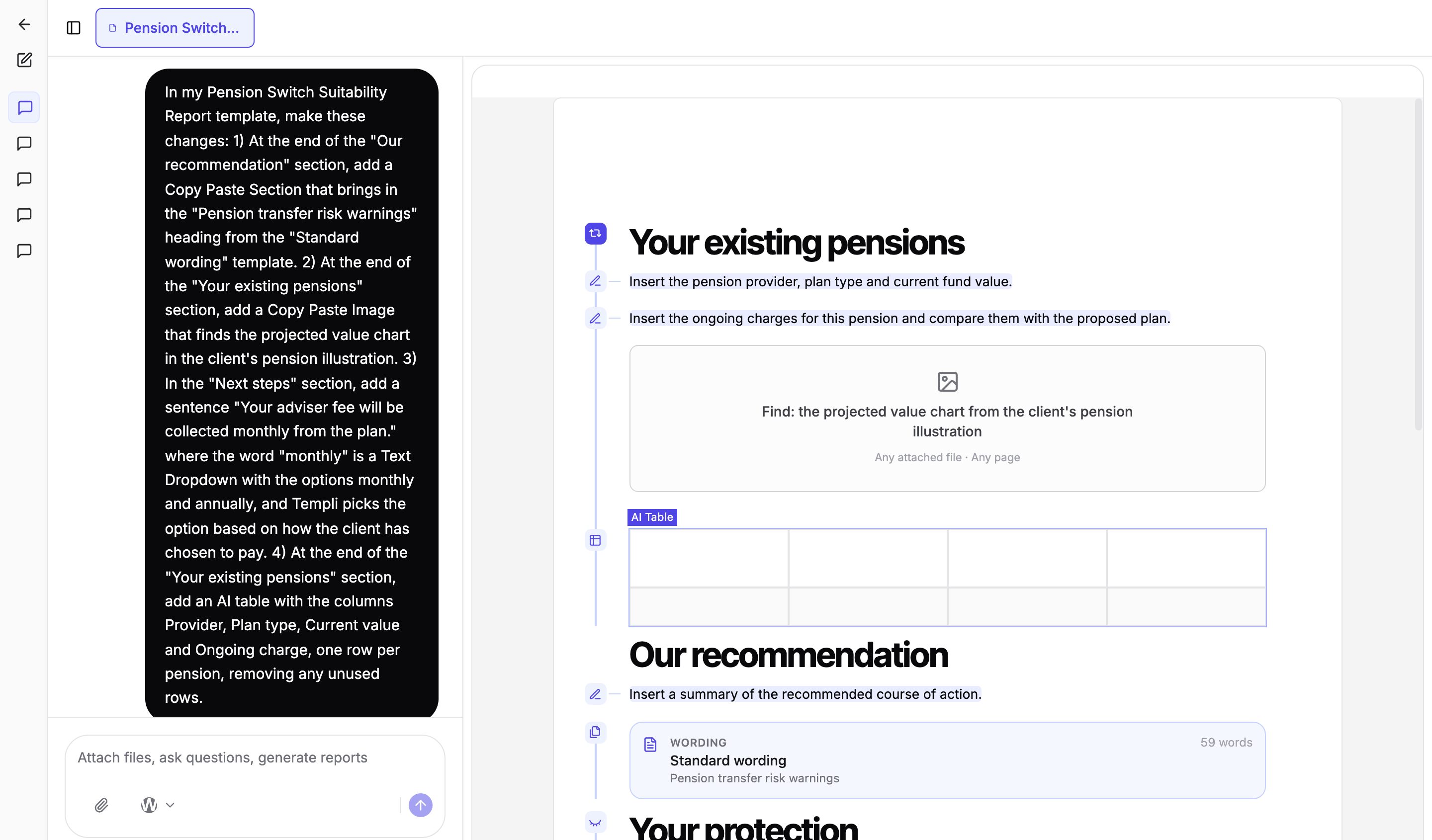
Type your request, for example: At the end of the "Our recommendation" section of my Pension Switch Suitability Report, add a Copy Paste Section that brings in the "Pension transfer risk warnings" heading from the "Standard wording" template.
Send it. Templi finds the heading in the source template and adds the block while the Ask Templi side panel stays open.
Other requests that work the same way:
Bring in "Our ongoing service" from the Standard wording template under "Next steps".
Copy the client's objectives word for word from page 26 of the fact find into the "Your objectives" section.
Bring in either "Under 55" or "Over 55" from the Pension access wording template, depending on the client's age.
Set it up yourself in the template
Standing wording needs a home first. Put each paragraph you reuse under its own heading in a template, for example a General template called "Standard wording" with headings for each risk warning and service paragraph. Then, in the report template:
Place the cursor where the wording should appear and click Insert in the toolbar.
Choose Copy Paste Section under Templi AI Blocks.
Leave From a template selected and pick the source template from the list, or search for it by name.
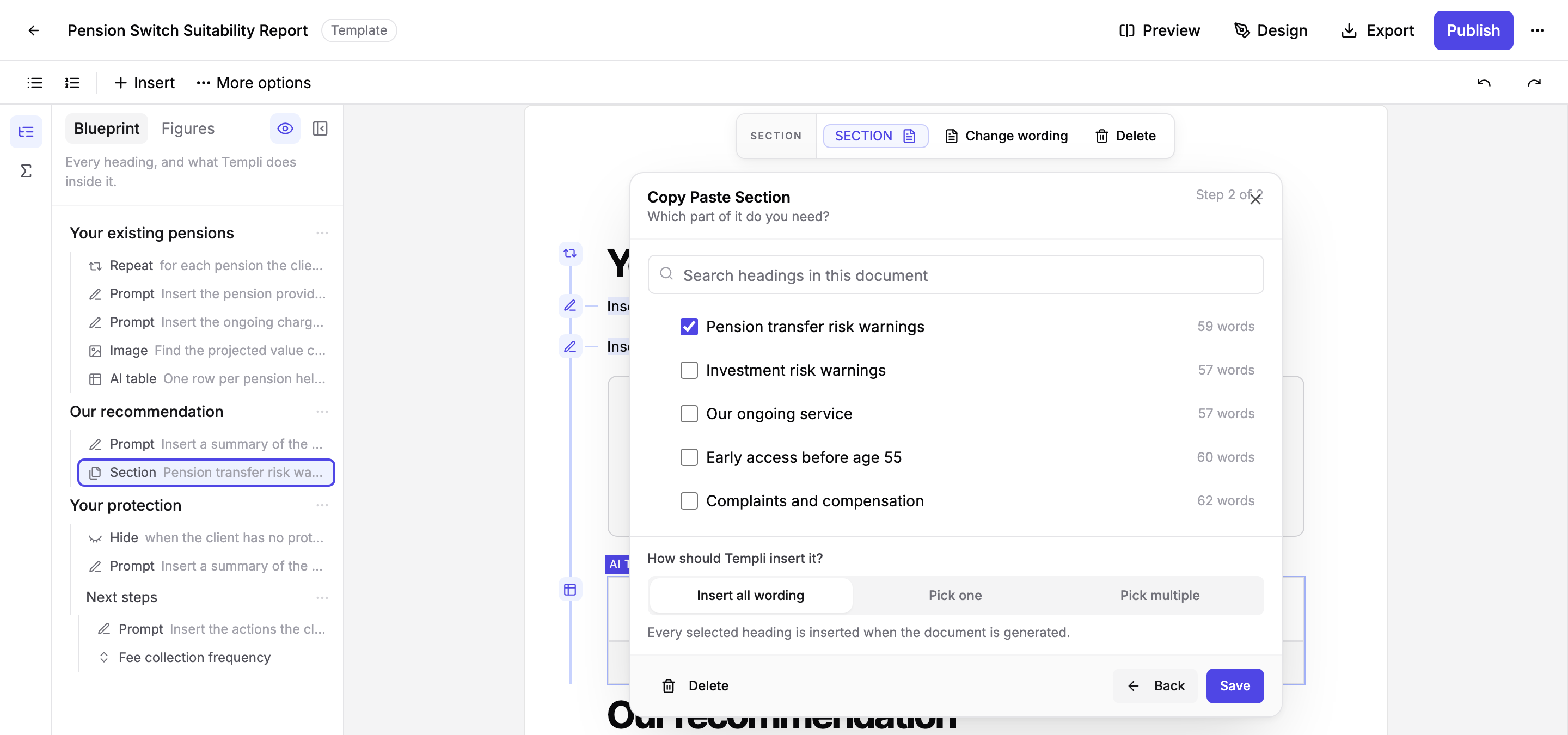
Tick one or more headings. Each shows its word count so you can see how much you are bringing in.
Choose how Templi should insert it, then click Insert.
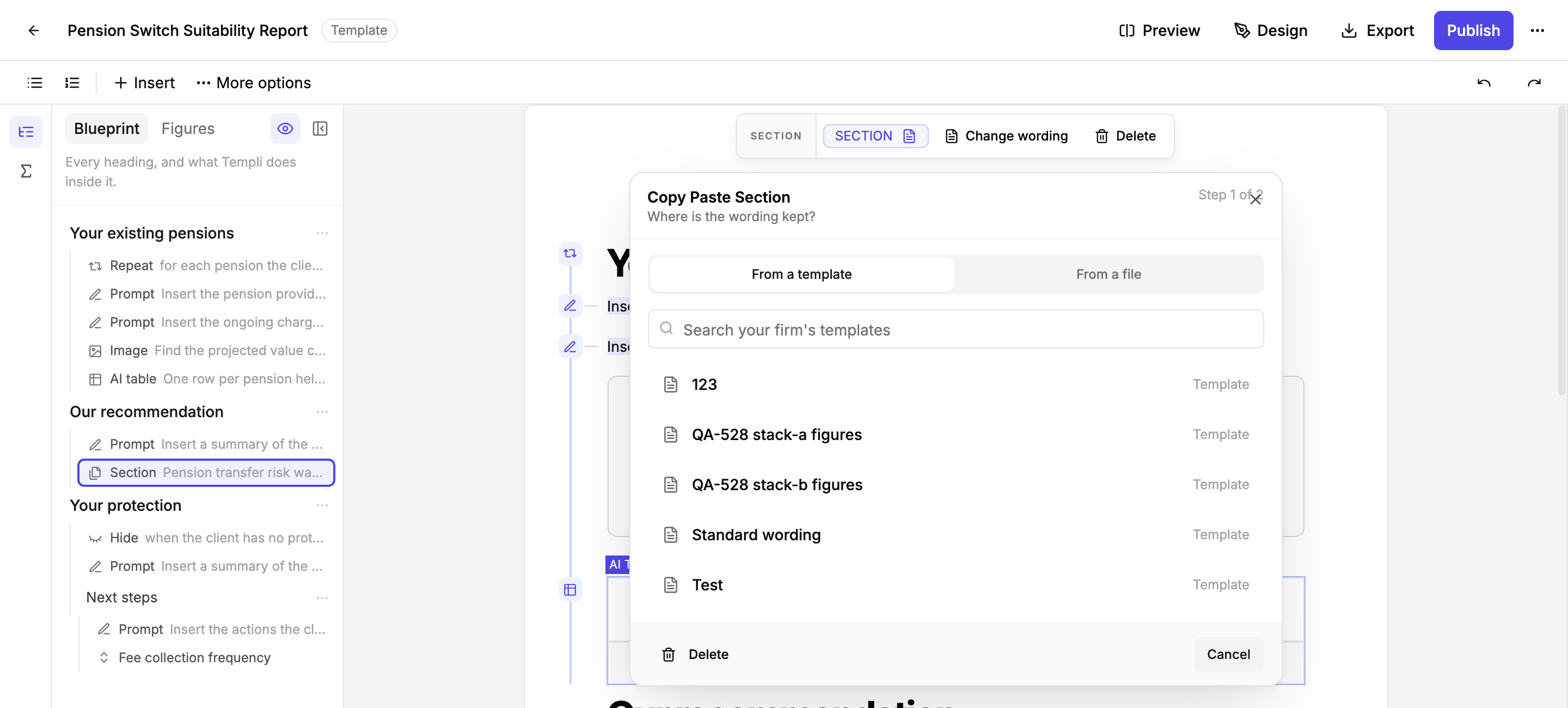
The block appears in the template as a card showing the source template, the heading and the word count. The wording itself is not shown in the template, because it lives in the source.
Insert everything, or let Templi pick
The How should Templi insert it? choice decides what happens when several headings are ticked.
Insert all wording puts every ticked heading into the report, in the order they sit in the source.
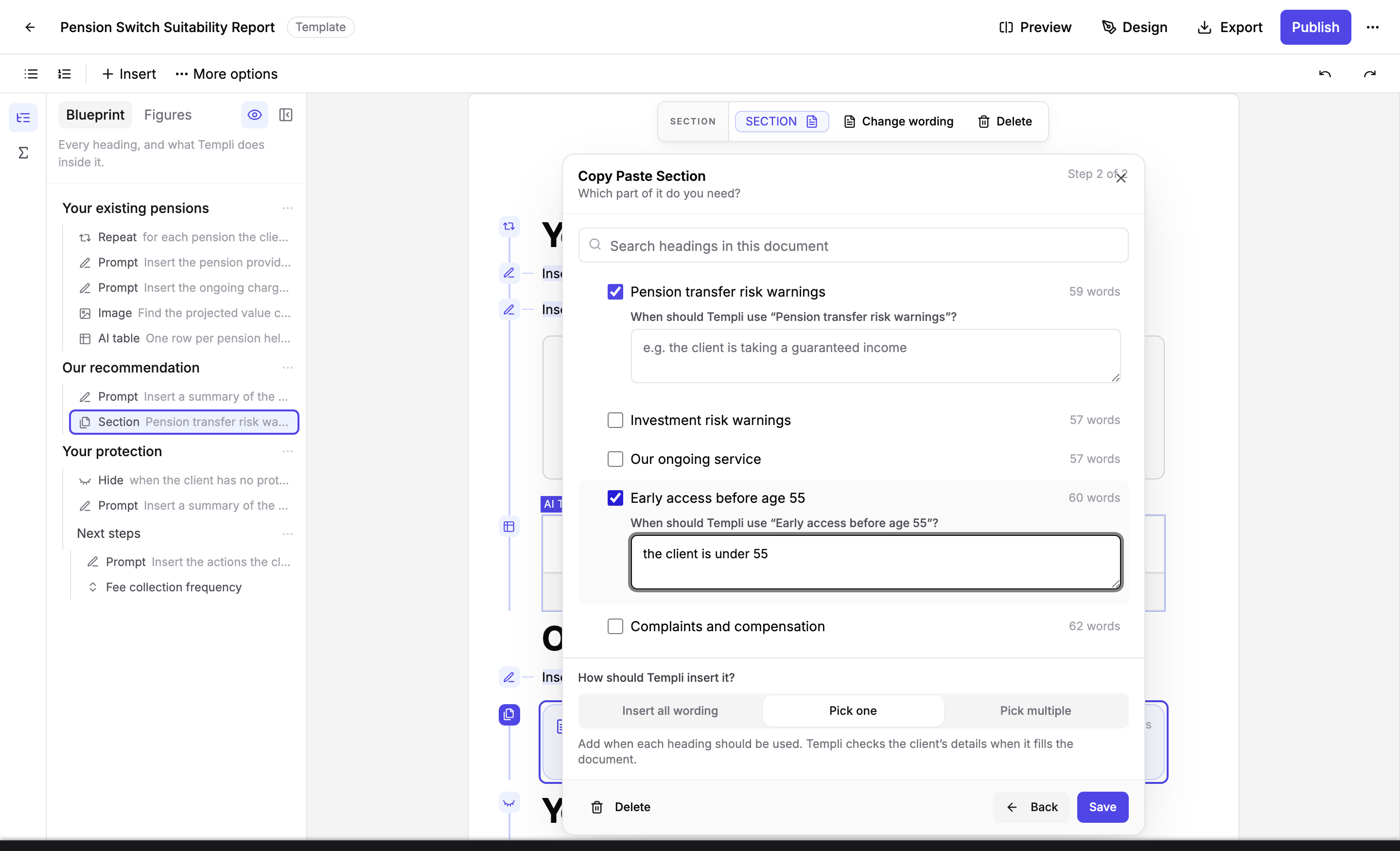
Pick one asks you to say when each heading applies, for example "the client is under 55". Templi checks the client's details and inserts the one that matches.
Pick multiple works the same way but inserts every heading whose condition is true.
This is the recommended replacement for a Content Dropdown holding long alternative passages.
Bring wording in from an attached file
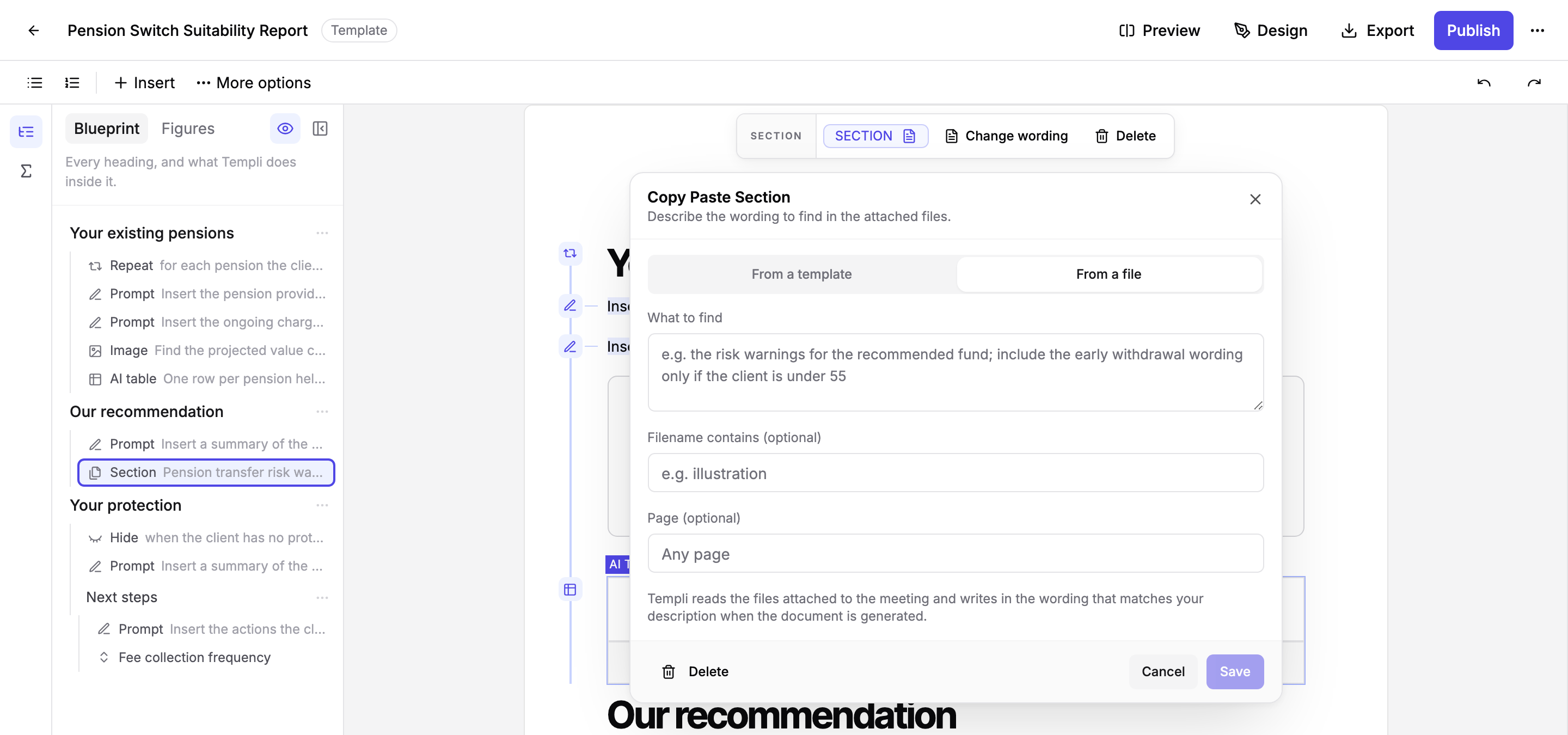
Switch to From a file when the wording is in a document attached to the meeting rather than in a template: the adviser's own notes on a fact find, or a proforma the client completed. Describe what to find, and optionally narrow it down to a file whose name contains a word, or to one page. Templi reads the attached files when the report is generated and writes the matching wording in word for word.
What happens when you generate a report
Templi fetches the current wording from the source at the moment the report is generated. Plain text is copied in exactly as it is. If the source heading contains prompts of its own, those prompts are filled in for the client like any other prompt.
Once a report is generated, its wording is fixed. Later changes to the source template do not alter reports that have already been produced, and the source cannot be changed from inside a generated report.
A Copy Paste Section can sit inside a repeated section, in which case each copy gets the wording.
Change or remove the block
Click the block and use Change wording to pick a different template or heading, or Delete to remove it. If someone renames or deletes the source heading, or archives the source template, the block shows a warning so you can point it somewhere else. The block is listed as a Section in the Blueprint panel.
Limits
Only templates can be used as a source. Generated documents cannot.
A source heading that itself contains a repeated section cannot be brought into another repeated section.