

Dropdowns
A dropdown holds a fixed set of options in the template and shows one of them in the report. Use a Text Dropdown for a word or phrase inside a sentence, such as "monthly" or "annually", and tell Templi how to choose so it picks the right option for each client. There is also a Content Dropdown for larger alternatives, though for anything longer than a sentence a Copy Paste Section is usually the better tool.
Ask Templi to add one
Click Ask Templi in the top bar to open the side panel.
Describe the sentence, the options and how to choose, for example: In the "Next steps" section of my Pension Switch Suitability Report, add the sentence "Your adviser fee will be collected monthly from the plan." where "monthly" is a Text Dropdown with the options monthly and annually, and Templi picks the option based on how the client has chosen to pay.
Send it. Templi adds the sentence, the dropdown and the rule for choosing.
Add a Text Dropdown yourself
Place the cursor in the sentence where the choice goes and click Insert in the toolbar.
Choose Text Dropdown under Templi AI Blocks.
Click the dropdown and use New Option to add each option, typing the text for each.
Pick the option that should show by default from the list in the menu.
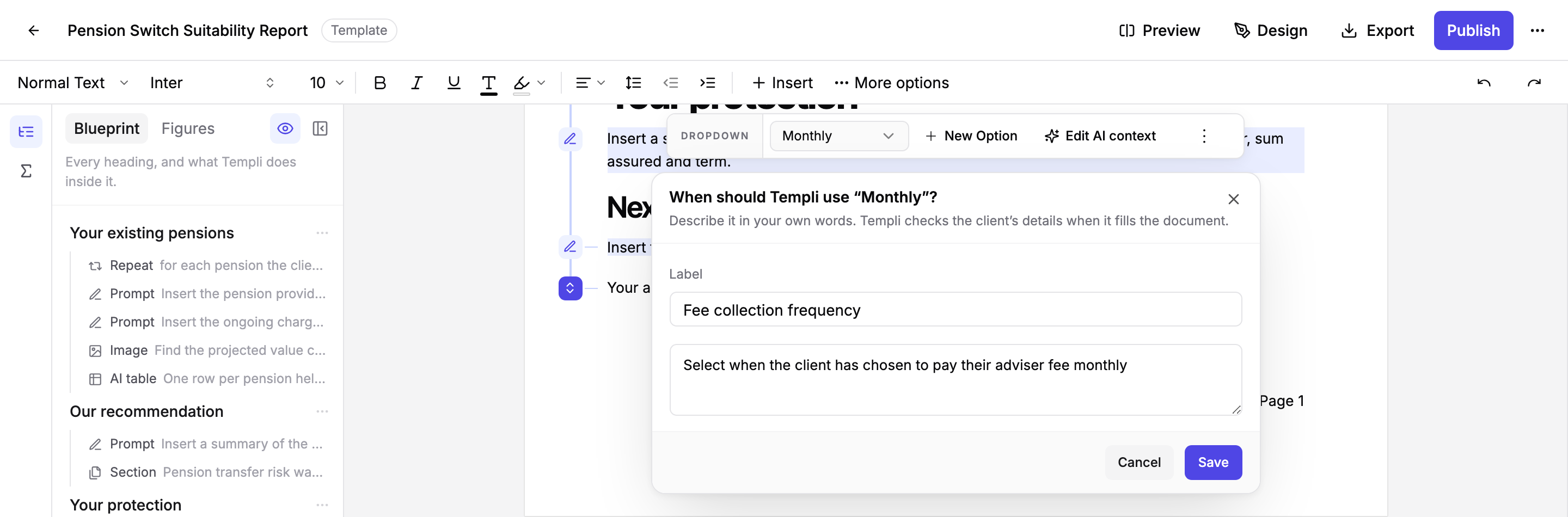
Let Templi choose the option
Without a rule, the report shows whichever option is selected in the template. To have Templi choose per client, click Edit AI context on the dropdown and describe when each option applies, in your own words, for example "the client has chosen to pay their adviser fee monthly". Templi checks the client's details when it fills the report and selects the matching option. The Label field names the dropdown in the Blueprint panel, for example "Fee collection frequency".
Content Dropdown
A Content Dropdown works the same way but each option can hold whole paragraphs, tables and other blocks. It is right when the alternatives are short and belong only to this template. When the alternatives are longer, or shared across templates, keep them as headings in a separate wording template and bring the right one in with a Copy Paste Section using Pick one. The template stays readable and the wording can be updated in one place.
Change or remove a dropdown
Click the dropdown to change the selected option, add options or edit the rule. Use the three-dot menu on the dropdown to remove it. You can also ask Templi in chat to change the options or the rule.