

How templates work
A template in Templi is the Word file your firm already uses for a report or letter, with the parts that change for each client tagged. When you generate a report, Templi writes those parts from the client's details and files, keeps the rest of your wording as it is, and gives you back the same Word file, with your styles, headers, footers and page numbering intact.
You never rebuild a template in an editor. You bring your Word files, Templi tags them, and you check its work.
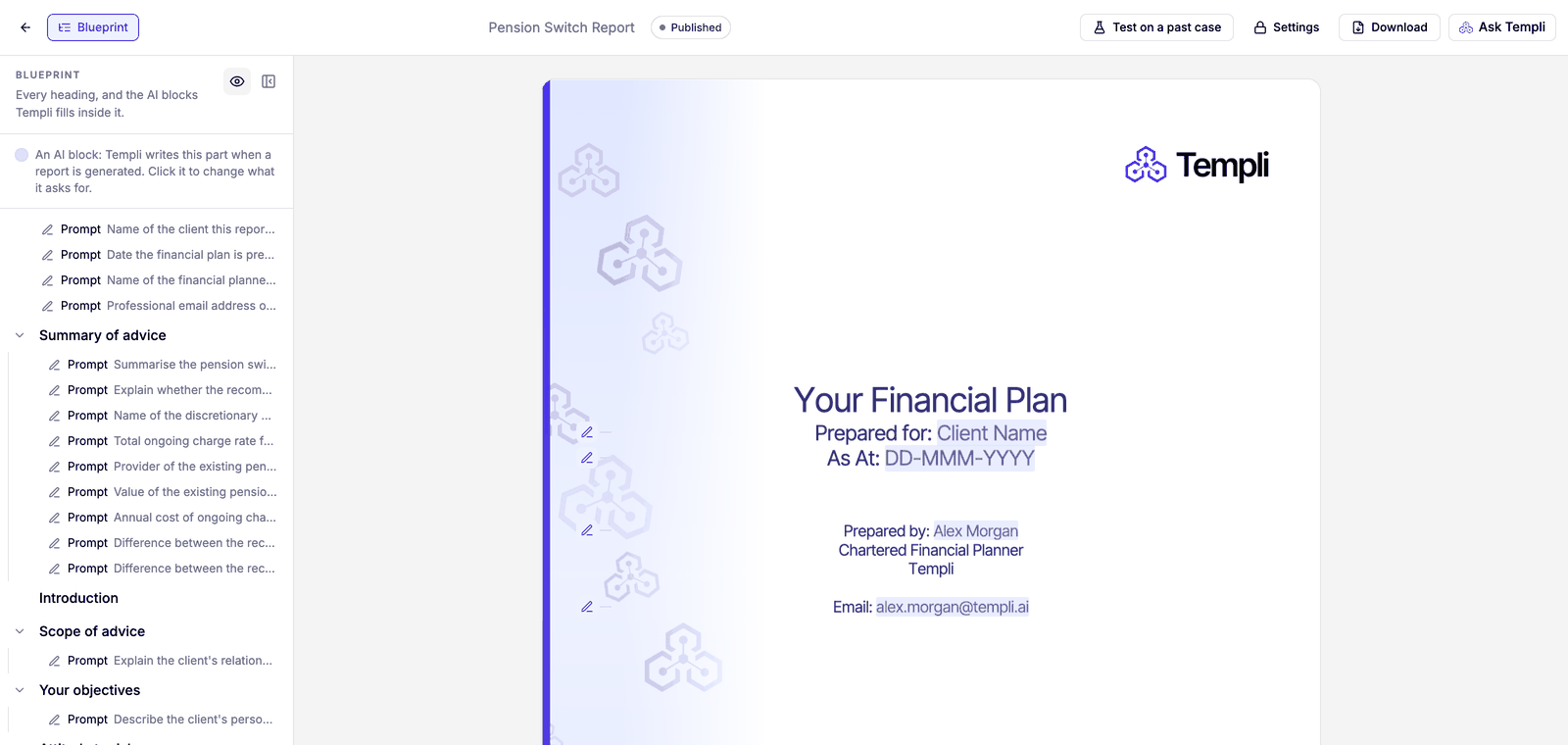
From Word file to finished report
Import your templates. Drop your Word files on the Templates page, or attach them in Ask Templi. Templi tags each one in the background.
Check the tags and change anything that is not right. See Edit a Word template.
Try each template on a past case with Tuning, so Templi learns from a report you actually sent.
Publish the template, so your team can use it.
Generate a report for a client, then Review a report and download it as Word or PDF.
Where Templi gets the answers
Templi writes each part from what it knows about the client: their record and fact find, which come from your back-office system once you Import your clients, plus the files you add when you generate, such as provider statements, valuations and meeting notes. When the files hold nothing for a part, Templi does not guess. It marks the part as missing in red so you can fill it in before the report goes out.
What Templi tags
Every tag is an AI block: a part of the Word file that Templi fills, keeps, removes or repeats for each client.
Block | What it does |
|---|---|
Prompt | Writes a word, a line or several paragraphs from the client's details, such as their name, the date or the reasons for your recommendation. |
Hide | Leaves wording out when a condition is true, such as a defined benefit transfer section for a client with no defined benefit pension. |
Repeat | Writes a section once for each item, such as each pension, policy or fund the client holds. |
Dropdown | Picks one of your approved wordings, such as the paragraph for the client's attitude to risk. |
AI table | Fills the rows of a table in your template, keeping its header and layout. |
Image | Copies a chart or picture from the client's files, such as a fund factsheet chart or a cashflow projection. |
Section | Copies wording from another Word template or file, such as your firm's standard risk warnings. |
Templates to start with
Most firms start with the documents they write most often.
Pension switch suitability report. Prompts write the summary of advice and the reasons. A repeat writes an existing plan section for each pension being transferred, an AI table lays out their values and charges, and hide rules drop sections such as safeguarded benefits when they do not apply.
Annual review letter. Prompts fill in what changed since last year, a repeat lists each plan with its latest valuation, and a dropdown picks the right wording for whether the plan is still suitable.
Protection recommendation. Prompts explain the cover recommended, and hide rules leave out income protection or critical illness wording when the client is not taking it.
ISA or investment review. Image blocks copy performance charts from the provider's factsheet, and a section block brings in your standard investment risk warnings.
Letters, agendas and file notes you only write once do not need a template. Ask Templi to draft them as One-off documents.
Do it by asking Templi
You can run the whole process from Ask Templi. For example:
"Import these three Word files as templates. Highlighted text is filled in for each client."
"In the Pension Switch Report, repeat the Your existing pension section for each pension the client holds."
"Generate the Pension Switch Report for Sarah Winters using her Harbour Life statement and yesterday's meeting notes."
If your firm built templates in Templi's old page editor before Word templates, see Legacy templates.