

Blueprint Panel
The Blueprint is the panel on the left of the template editor. It lists every heading in the template and, under each one, everything Templi will do there: prompts, dropdowns, hide rules, repeats, AI tables, Copy Paste Section and Copy Paste Image blocks. Ordinary paragraphs are left out, so a long template becomes a short list you can read in seconds.
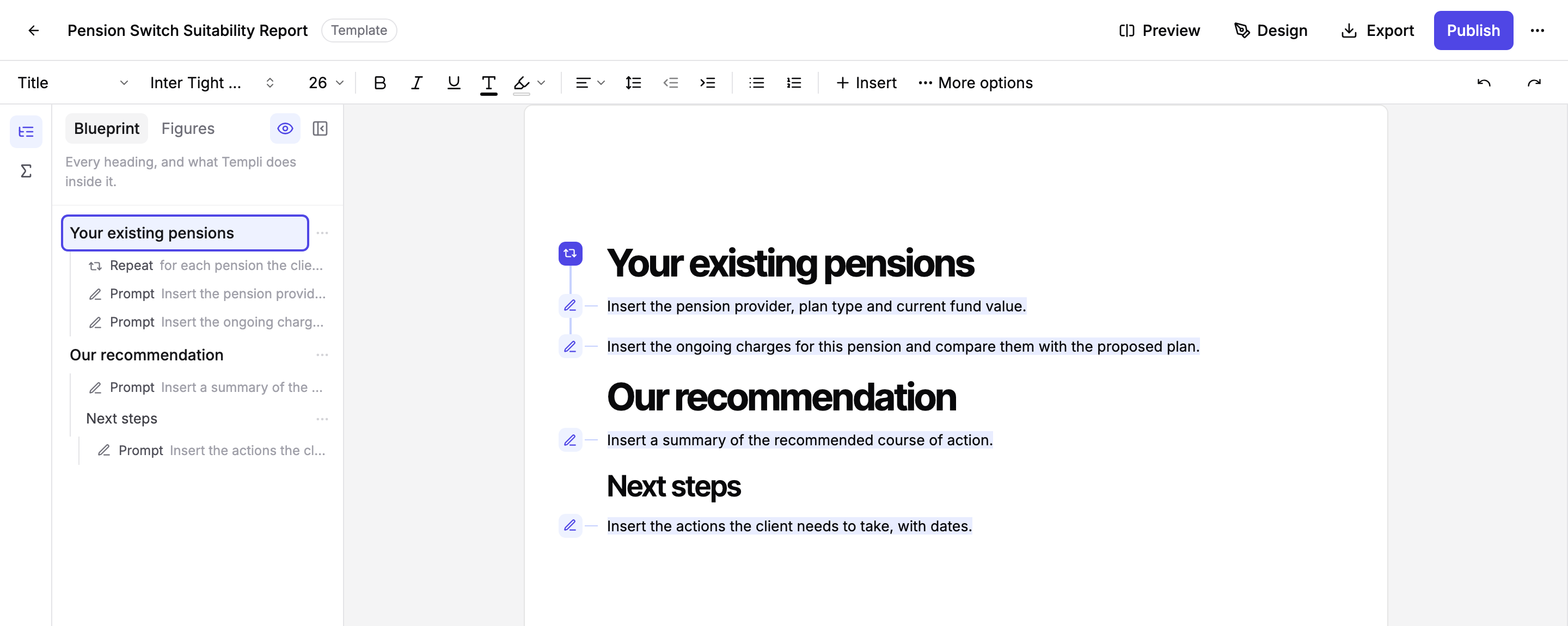
What the Blueprint shows
Headings appear in the order they sit in the template, indented by level, so a sub-heading sits under its parent. Under each heading, every AI block is listed with its type and the first few words of its instruction, for example Prompt · Insert the pension provider… or Repeat · for each pension the client holds.
If a prompt's first words are not a helpful name, open its settings and give it a label. The label replaces the snippet in the Blueprint, so "Fund value" can stand in for a long instruction.
The list updates as you type, and it updates when a colleague edits the same template. A template with no headings and no AI blocks shows a short empty message until you add one.
Jump to any part of the template
Click a heading in the Blueprint to scroll the template to that heading and highlight it. Click an AI block to scroll to it, select it in the template and open its settings, so you can change a prompt or a rule without hunting for it on the page.
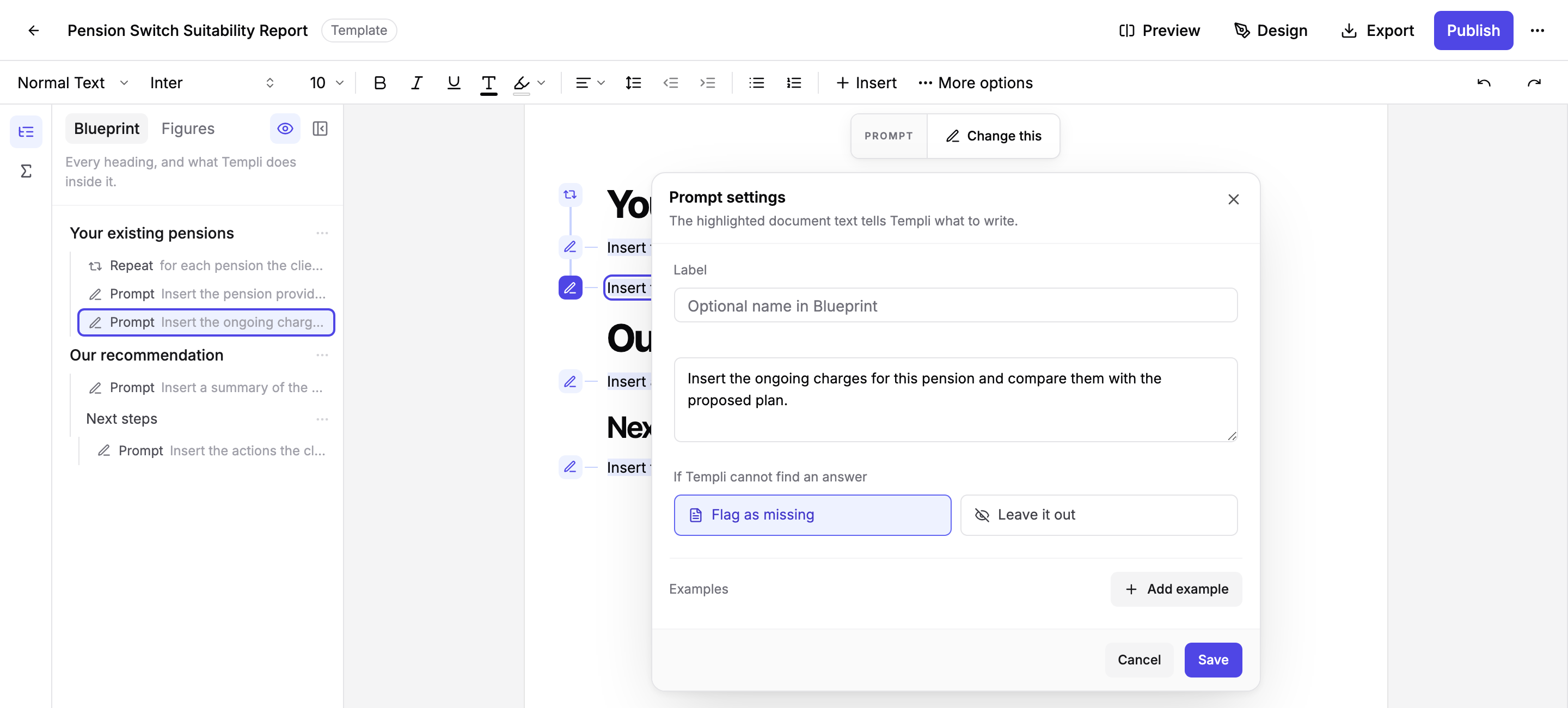
Once an entry is focused, the up and down arrow keys move through the list.
Sections that contain nested content start collapsed. Click a section's disclosure control to expand or collapse it. With an entry focused, the Left Arrow collapses an expanded section or moves focus to its visible parent, and the Right Arrow expands a collapsed section or moves focus to its first visible child. Folding only changes the Blueprint view and never hides or removes document content, and clicking a section title still navigates to that section in the document. Your expansion choices are kept while you work in the editor.
Set up a section from the Blueprint
Hover a heading and click the three dots to its right. The menu gives you the section-level actions without leaving the panel:
Hide this section when… writes the section only when a condition you describe is true.
Repeat for each writes the section once for every pension, policy or fund the client has. See Repeat a section for each pension, policy or fund a client holds.
Duplicate section copies the heading and everything under it, including its AI blocks.
Delete section removes the heading and everything under it, after you confirm.
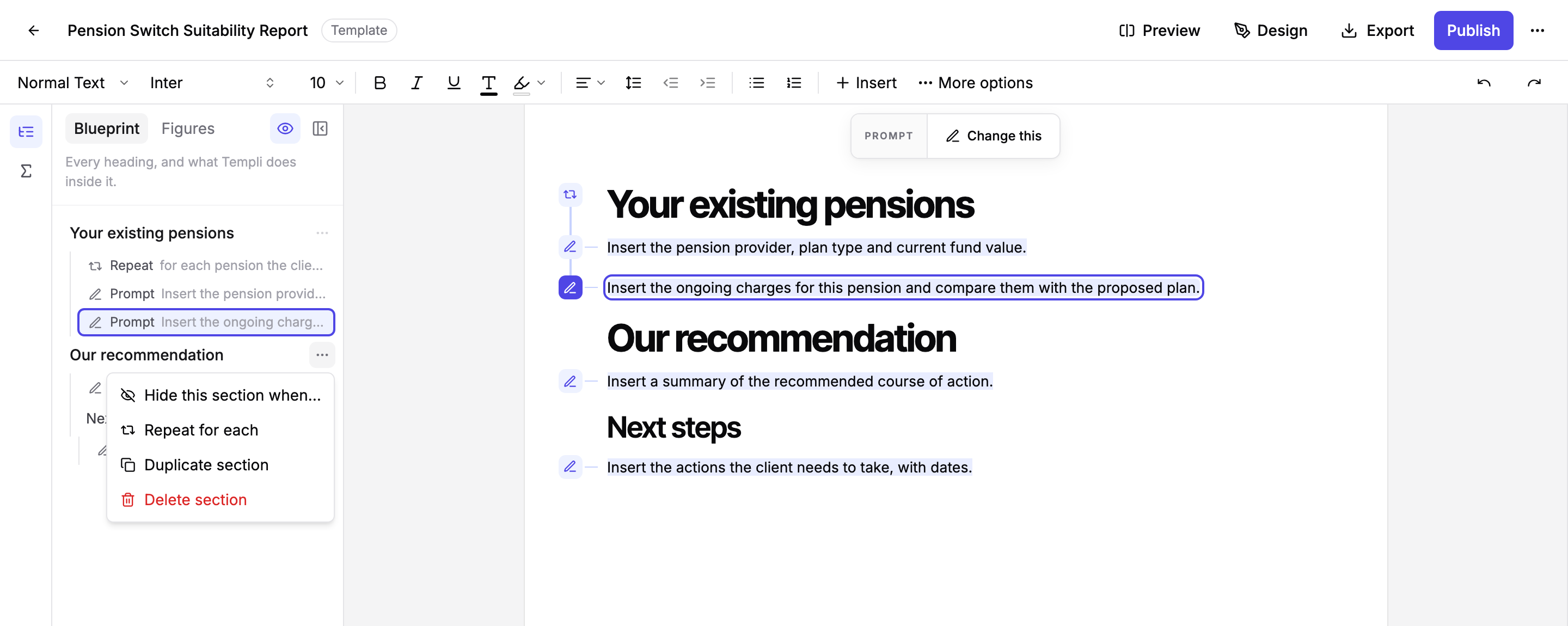
Once a section already hides or repeats, the same menu offers Change when this hides or Change the repeat instead, and the rule appears as its own entry under the heading.
Show or hide the panel and the markers
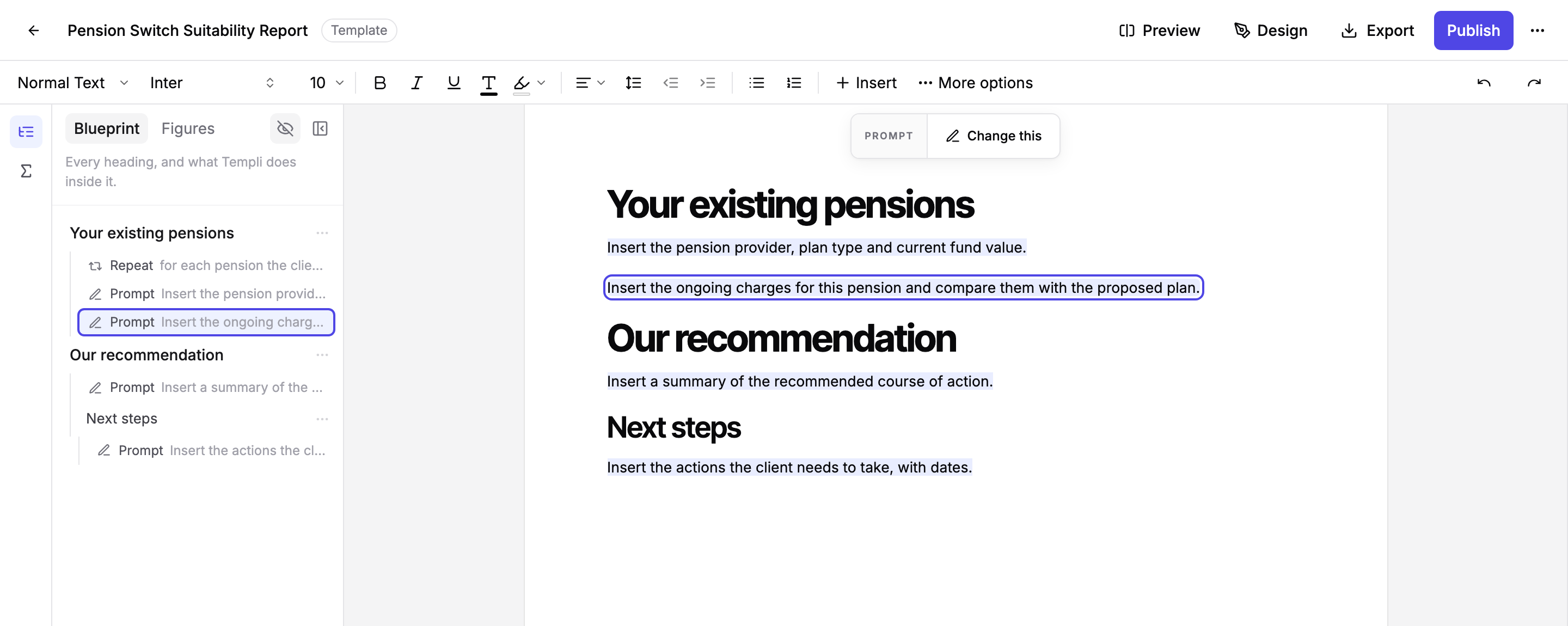
The icon at the top of the narrow rail on the far left opens and closes the Blueprint. The eye icon in the panel header switches the AI block markers in the page margin on or off, which is useful when you want to read the template as a client would see it.
Ask Templi instead
Anything you would set up from the Blueprint, you can also ask for in chat. Name the template and the heading, and Templi makes the change while you watch. The Blueprint then shows the new block under its heading.
Add a prompt under "Our recommendation" in my Pension Switch Suitability Report that summarises why the switch is suitable.
Hide the "Protection" section of my Annual Review Letter when the client has no protection policies.
Duplicate the "Existing investments" section and rename the copy "Existing pensions".