

Edit a Word template
Change a Word template by clicking an AI block to change what it asks for, by tagging text yourself in Tag mode, or by asking Templi. The page shows your Word file exactly as it prints, so you check the template the way your clients will see it.
You cannot type into the page itself. To change the wording, layout or styles, ask Templi, or change the file in Word and import it again.
Find your way around the template
Each AI block has an icon in the margin and a tint over its text. Click Blueprint to list every heading and every block in order, and click a row to jump to that block.
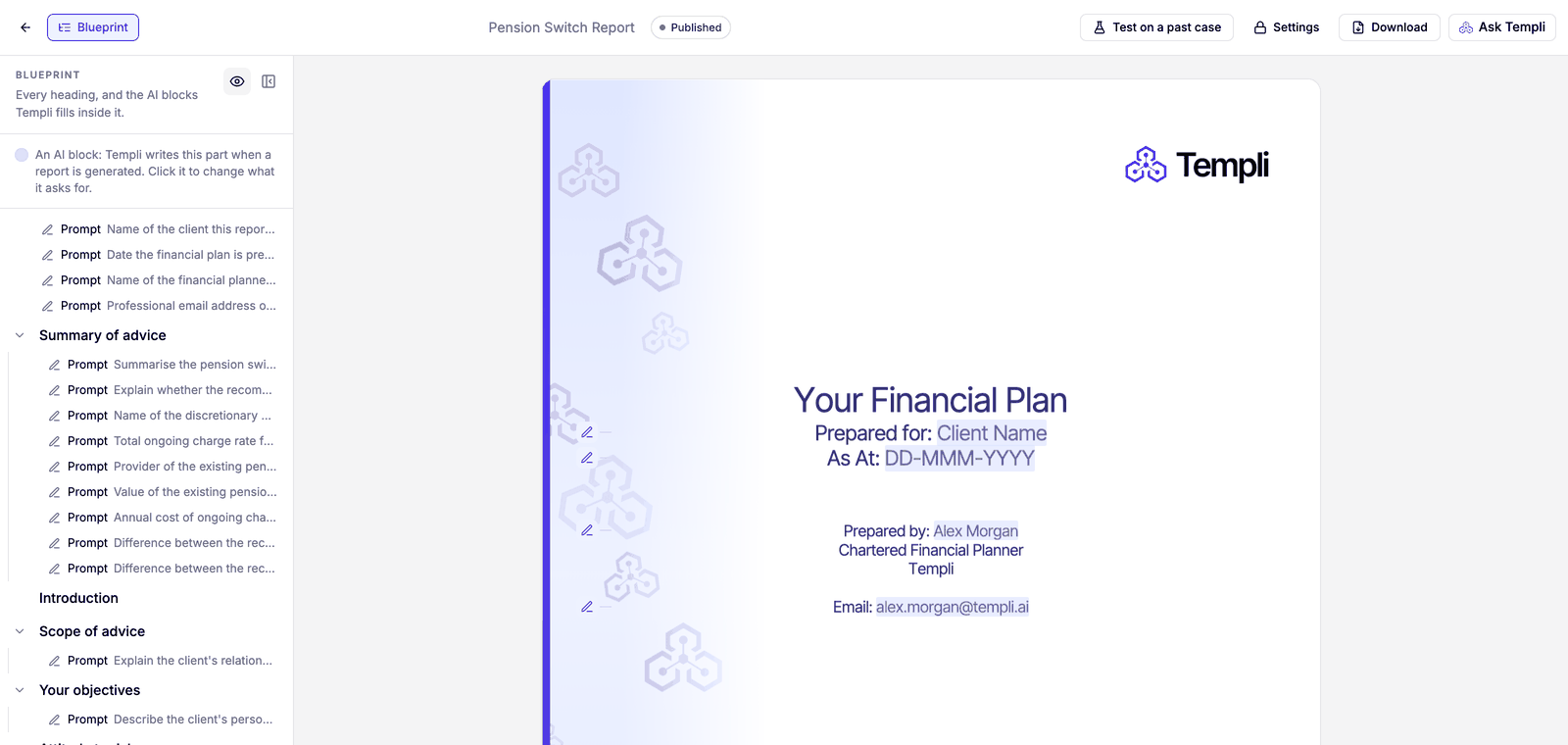
The eye button at the top of the Blueprint hides the block markers, so you can read the template as plain pages.
Change what a block asks for
Click the block on the page, or its row in the Blueprint.
Change its settings. For a prompt, these are the Label shown in the Blueprint, the instruction that tells Templi what to write, and what happens If Templi cannot find an answer: Flag as missing or Leave it out.
Click Add example to show Templi what a good answer looks like.
Click Save.
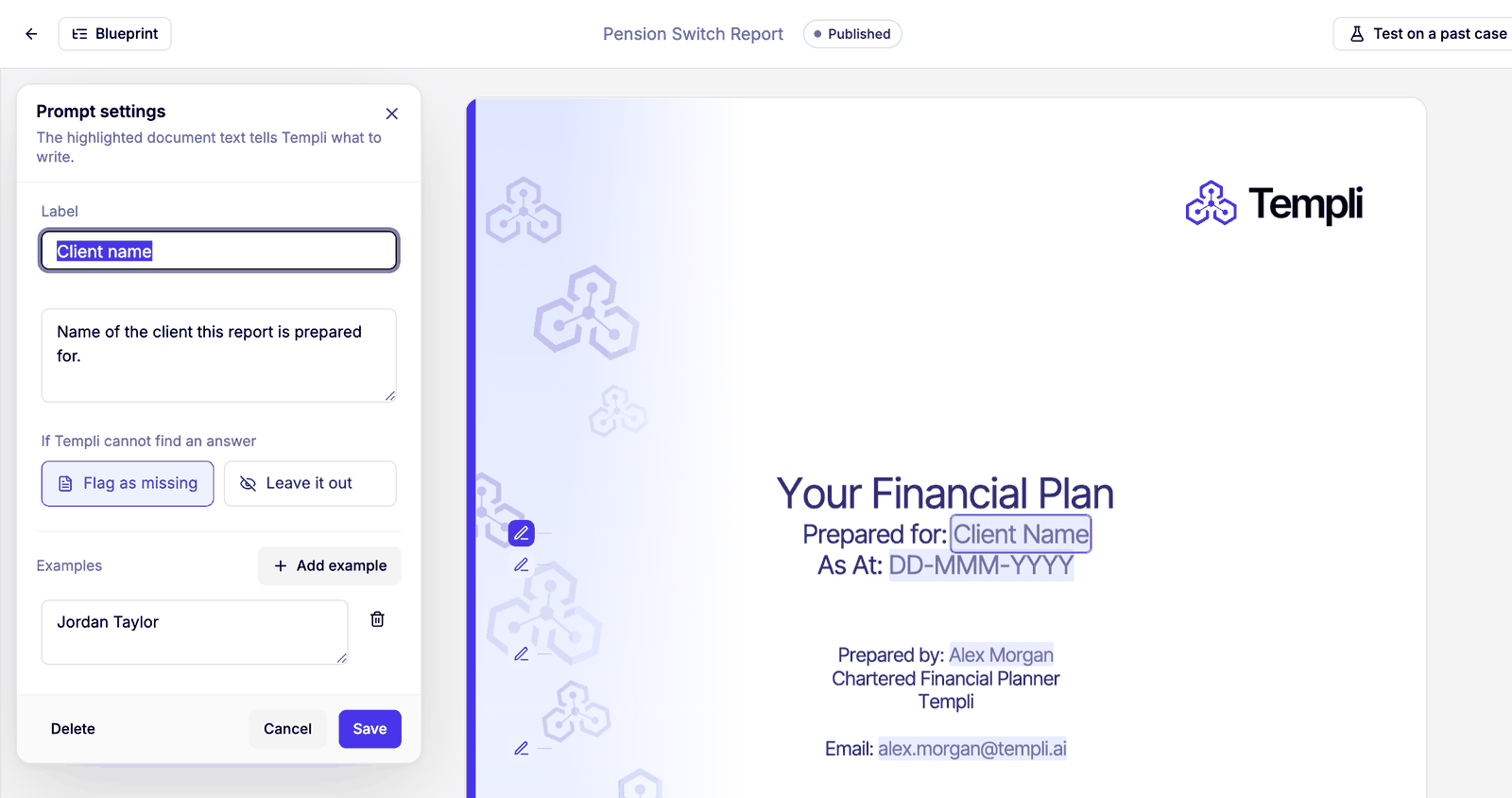
Other blocks ask the question that matters for them, such as When should this content be left out? for a hide rule, or What should this repeat for? for a repeat. Delete removes the block and keeps its text in the template.
Hide or repeat a whole section
Use this when everything under a heading depends on the client, such as a section for each pension, or a section that only applies to defined benefit transfers.
Open the Blueprint.
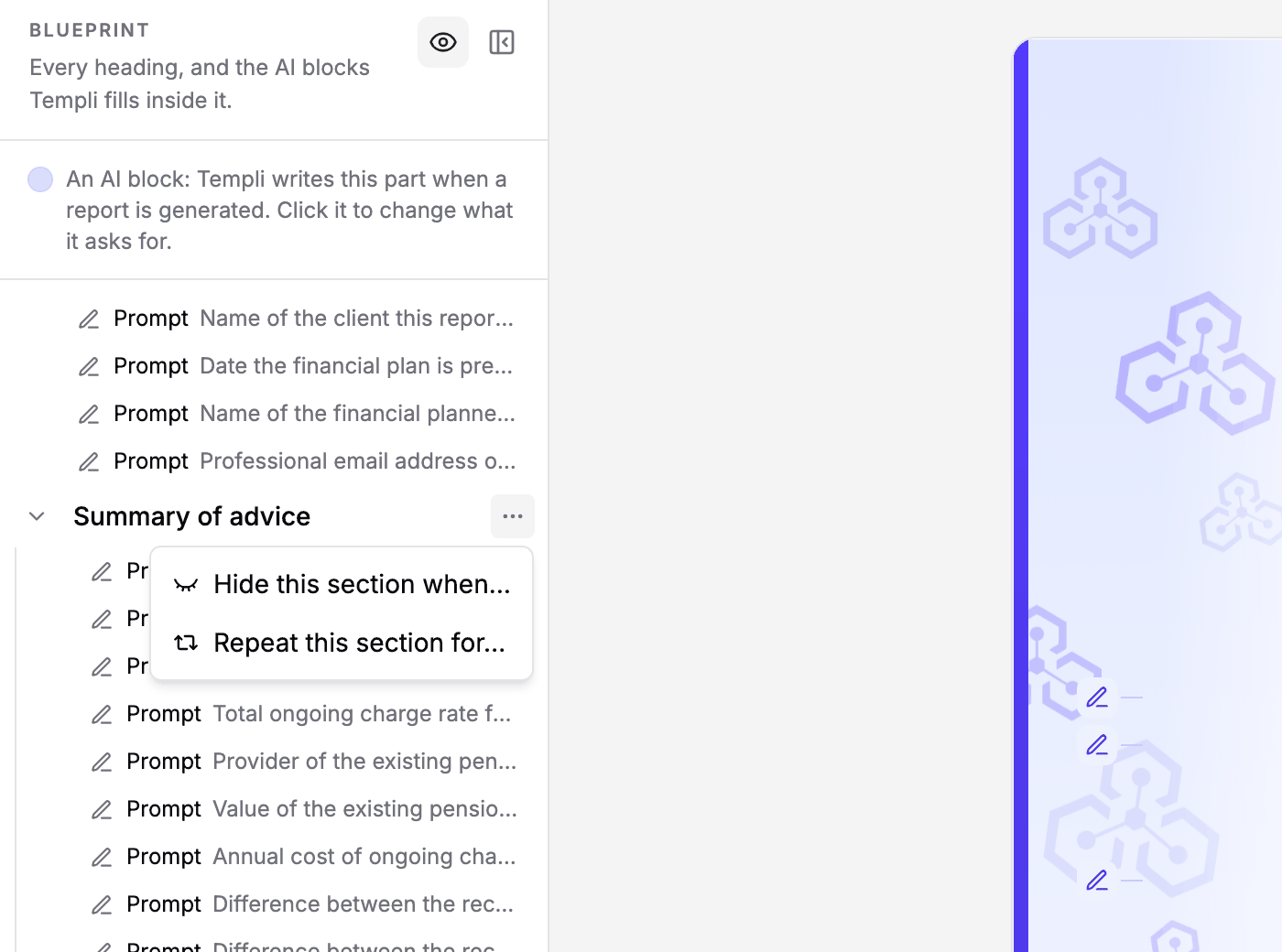
Click the menu beside the heading.
Choose Hide this section when… or Repeat this section for…, then describe the condition or the items, for example "each pension the client is transferring".
Tag text yourself
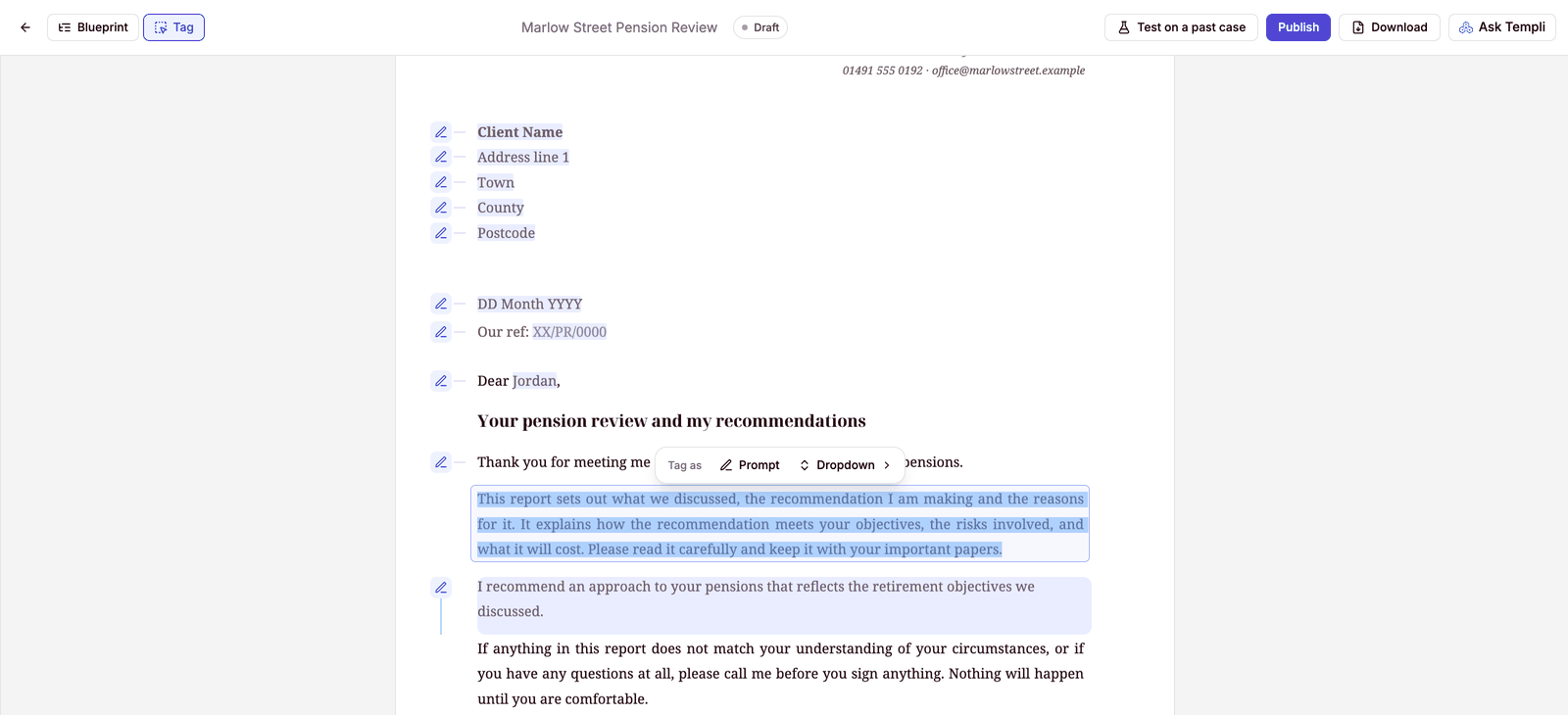
Tag mode lets you choose exactly which words or paragraphs Templi fills. It is available while the template is a draft.
Click Tag at the top of the template.
Select the text to tag.
For words within a line, choose Prompt, or Dropdown to give two or more alternative wordings.
For whole paragraphs, choose Prompt, Hide, Repeat or Section. Choose AI table when you select a table.
Fill in the block's settings and save.
Section copies your firm's wording from another Word file, so attach that file to the template first.
Ask Templi to change it
Click Ask Templi on the template and describe the change. Templi can tag and untag blocks, change their settings, and edit text, styles, headers, footers and tables. Select text on the page to ask about that text directly. For example:
"Hide the Defined benefit transfer section when the client has no defined benefit pension."
"Make the fees paragraph a prompt that uses the adviser charge we agreed in the meeting."
"Turn the attitude to risk paragraph into a dropdown with our cautious, balanced and adventurous wordings."
"Change every heading to our navy and use Arial for body text."
Publish the template
Reports are always made from the last published version, so a draft cannot be used to generate reports.
Click Publish.
Check the name, type and description, and choose whether reports need a client.
Click Publish.
A published template cannot be changed. To change one, open Settings on the template and click Unpublish, make the change, then publish it again. We recommend testing a new template with Tuning before you publish it.
Use Download to save the template as a Word file or a PDF, or to get back the original file you uploaded.